# User Interface


# Applications and Toolbar Settings

Atollon allows you to set-up what applications users will see in the Application **Launcher** &amp; what favourite applications would appear in the **Toolbar**.

See below how to adjust the visibility of apps &amp; set favourite apps.

#### Run Application Settings

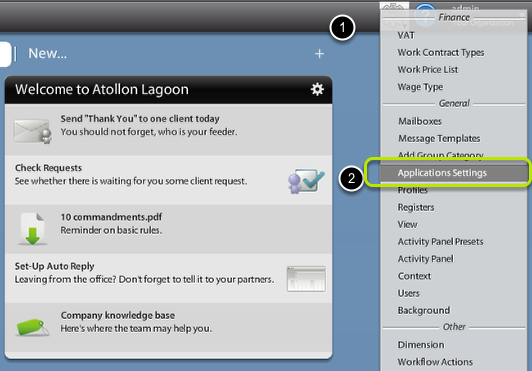
<div id="bkmrk-"><div>[![application-settings-options.png](https://help.atollon.com/uploads/images/gallery/2020-03/scaled-1680-/application-settings-options.png)](https://help.atollon.com/uploads/images/gallery/2020-03/application-settings-options.png)</div><div></div></div>In **Options &amp; Tools** menu, find **Application Settings** under General section.

#### Choose who you are adjusting the settings for

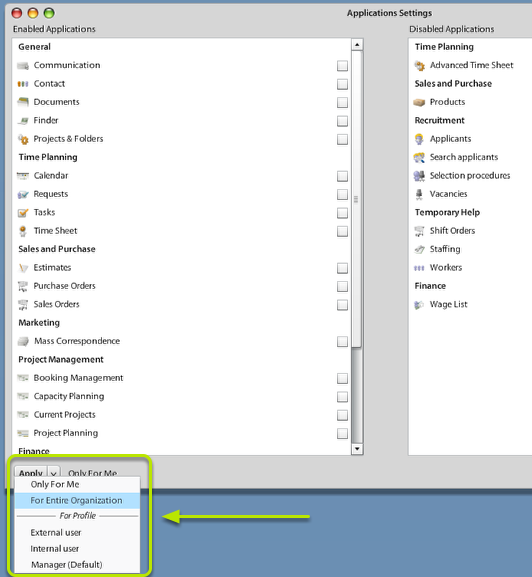
<div id="bkmrk--0"><div>[![application-settings-level.png](https://help.atollon.com/uploads/images/gallery/2020-03/scaled-1680-/application-settings-level.png)](https://help.atollon.com/uploads/images/gallery/2020-03/application-settings-level.png)</div><div></div></div>Using bottom combo field "Apply" you may select what users will be affected by **Application Settings**.

The options are:

<div id="bkmrk-only-for-me---no-oth"><div>- **Only For Me** - no other user than me will be affected
- **For Entire Organization** - all users from the organization will be affected (only once they don't have either personal or profile-based settings)
- **For Profile** (Internal, External, Manager, Consultant, etc.)- users belonging to the selected **User Profile** will use this setting of Applications visibility &amp; Toolbar icons (only once they don't have their own personal settings)

</div></div>#### Select Applications visible in Application Launcher

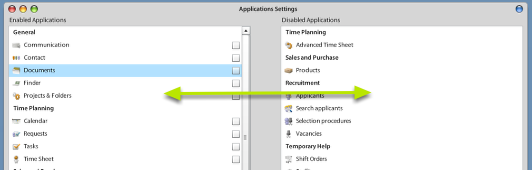
<div id="bkmrk--1"><div>[![application-settings-configure.png](https://help.atollon.com/uploads/images/gallery/2020-03/scaled-1680-/application-settings-configure.png)](https://help.atollon.com/uploads/images/gallery/2020-03/application-settings-configure.png)</div><div></div></div>Simply by **Drag &amp; Drop** select applications that will become **disabled** and what applications will stay **enabled**.

#### Select favourite Applications to place on Toolbar

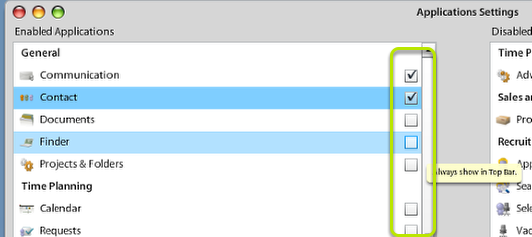
<div id="bkmrk--2"><div>[![application-settings-toolbar.png](https://help.atollon.com/uploads/images/gallery/2020-03/scaled-1680-/application-settings-toolbar.png)](https://help.atollon.com/uploads/images/gallery/2020-03/application-settings-toolbar.png)</div><div></div></div>Check which applications should be always displayed in application **Toolbar** ...

# Configure Application Forms

**Form Settings** tool allows you to configure what **fields** are used (visible) on **New contact** form(s), both Company &amp; Person or **Invoice Issued**.

System administrators (users that are "admins") with the appropriate access rights may configure the visibility &amp; obligation of the user(s) to fill-in the form fields. This is especially useful when the default setting do not fit your needs.

You can find **Form Settings** in **Options &amp; Tools** or on New contact form.

[![form-settings-contacts.png](https://help.atollon.com/uploads/images/gallery/2020-03/scaled-1680-/form-settings-contacts.png)](https://help.atollon.com/uploads/images/gallery/2020-03/form-settings-contacts.png)

# System Registers

System registers is a feature available to developers to save System / Organization / Profile or User settings. When the user gathers any saved configuration of module layout or other settings, she gets the registry information, which is the closest to her **Registry Level**.

#### Registry Level

- 0 Any
- 10 System
- 20 Organization
- 30 Profile
- 40 User

<span style="text-decoration: underline;">Example</span>  
if Application Toolbar (icons at top) are configured per User level, the Organization settings will NOT be applied.

#### Registry App

Using Registers you should be able to set default dimension for Finder's Folder, store it to Application Preset &amp; match to User's Profile. This way Atollon should automatically assign the Dimension1 to Folder based on user's Profile.

#### Organization Level Registers

This type of registers can be reached by all users of organization.

Set register syntax;

```
SessionUserSettings.defaultInstance.organizationSettings.setString(domainName, key, value);
//for example
SessionUserSettings.defaultInstance.organizationSettings.setString("com.atollon.finance.invoice", "invoiceId", "2015469875");
```

Getting the register;

```
SessionUserSettings.defaultInstance.organizationSettings.getString(domainName, key);
//for example
SessionUserSettings.defaultInstance.organizationSettings.getString("com.atollon.finance.invoice", "invoiceId");
```