# Print Templates
# Design and test print templates
In case you would like to modify or add your own unique print templates, you can use tool that will speed-up the development and testing process.
Printing consists of:
- Print data - JSON file that contains information in structured form that may be printed
- Print template - XHTML, DOCX or XLSX file with instructions on how to produce print output (PDF) or generate document
Below you can find example of modifying Estimate print template in XHTML (with output to PDF).
## Customizing print template
### Get sample data and sample print template
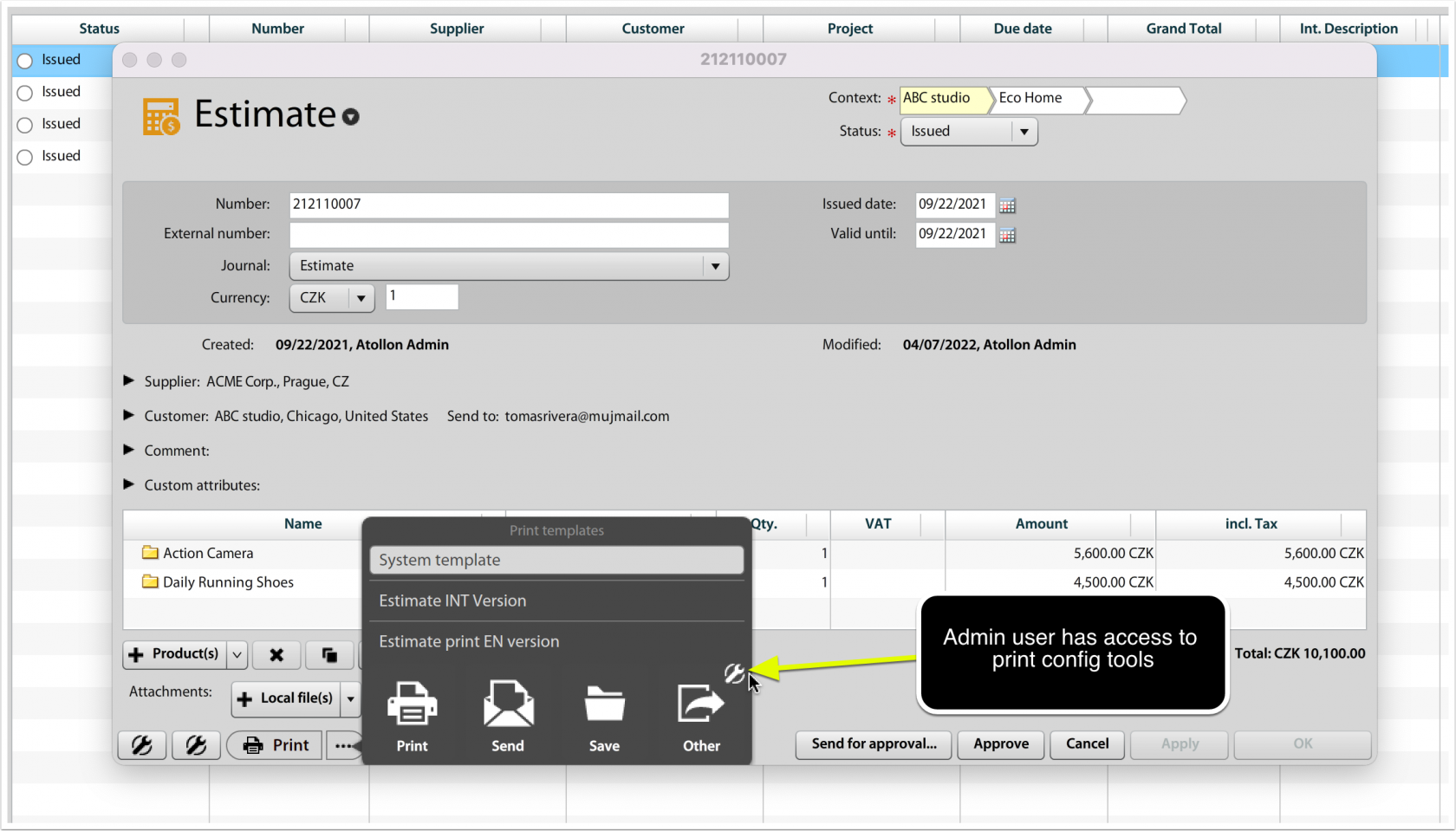
Each object that can be printed from ATOLLON has the option to gather (sample) data and (default) print template. As **admin** user you may click on the **work tool** to open print design settings.
[](https://help.atollon.com/uploads/images/gallery/2022-04/print-design.png)
### New template using existing default print
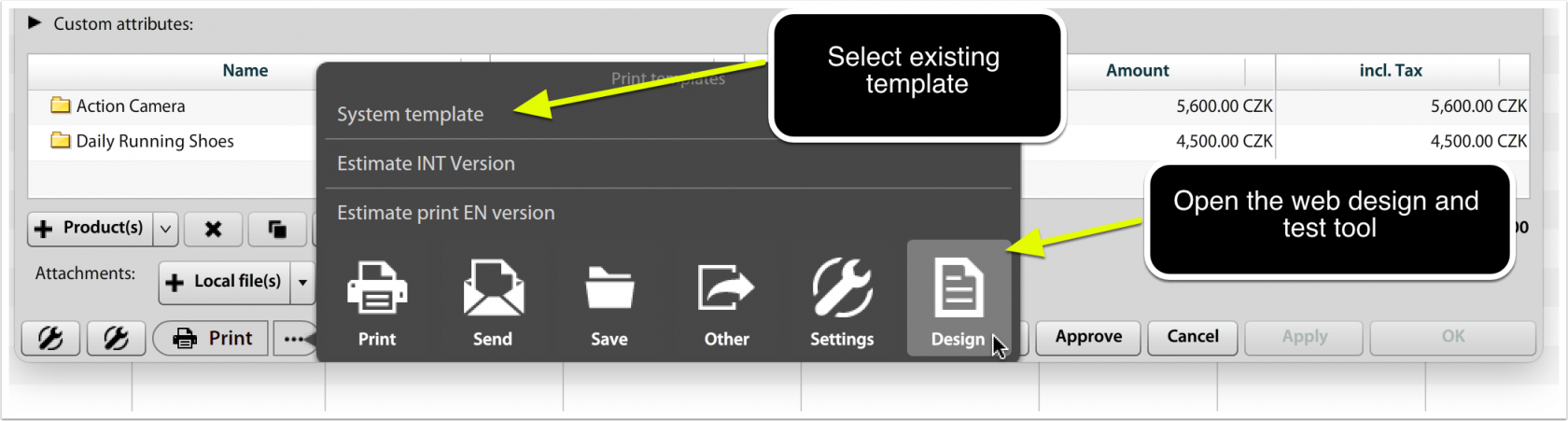
You can use existing print template to create your own unique print template design or just modify existing print template content.
[](https://help.atollon.com/uploads/images/gallery/2022-04/print-design-open.png)
### XHTML Template design and test tool
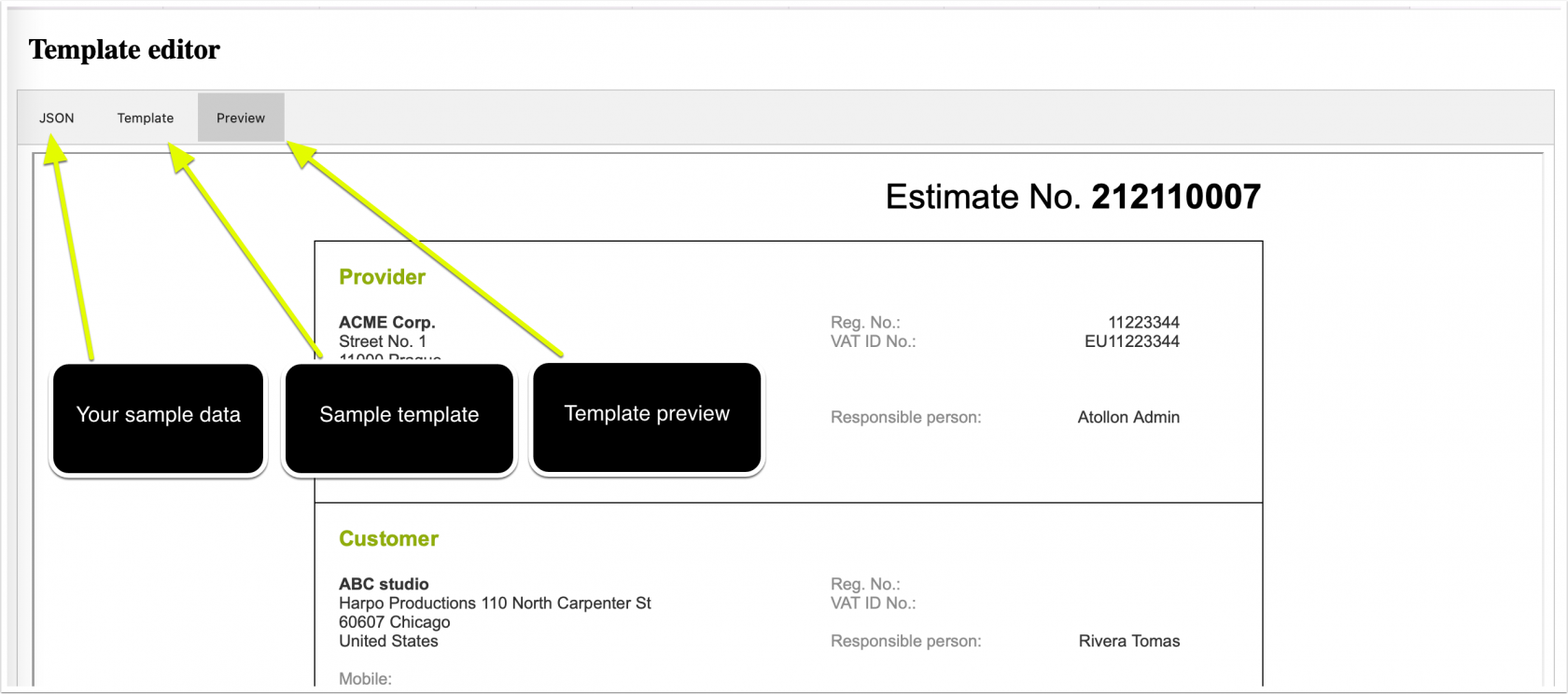
After selecting your sample estimate and print template and pressing on "Design" button in print menu, you get to the web tool that should help you fine-tune new template.
In **JSON** section you find any data that are coming with printed document. Any data from this JSON output may be used to fill-in your new print template.
**Template** section is XHTML document that you may use for your inspiration or just use it and modify existing template.
**Preview** will allow you to test your desired output, incl. PDF print (see the section below the Preview).
[](https://help.atollon.com/uploads/images/gallery/2022-04/print-design-tool.png)
After you have fine-tuned your new/modified print template (in Template section), you may save this new template as text file (ie My Print Template.html) and upload it to print templates.
### Upload new print template
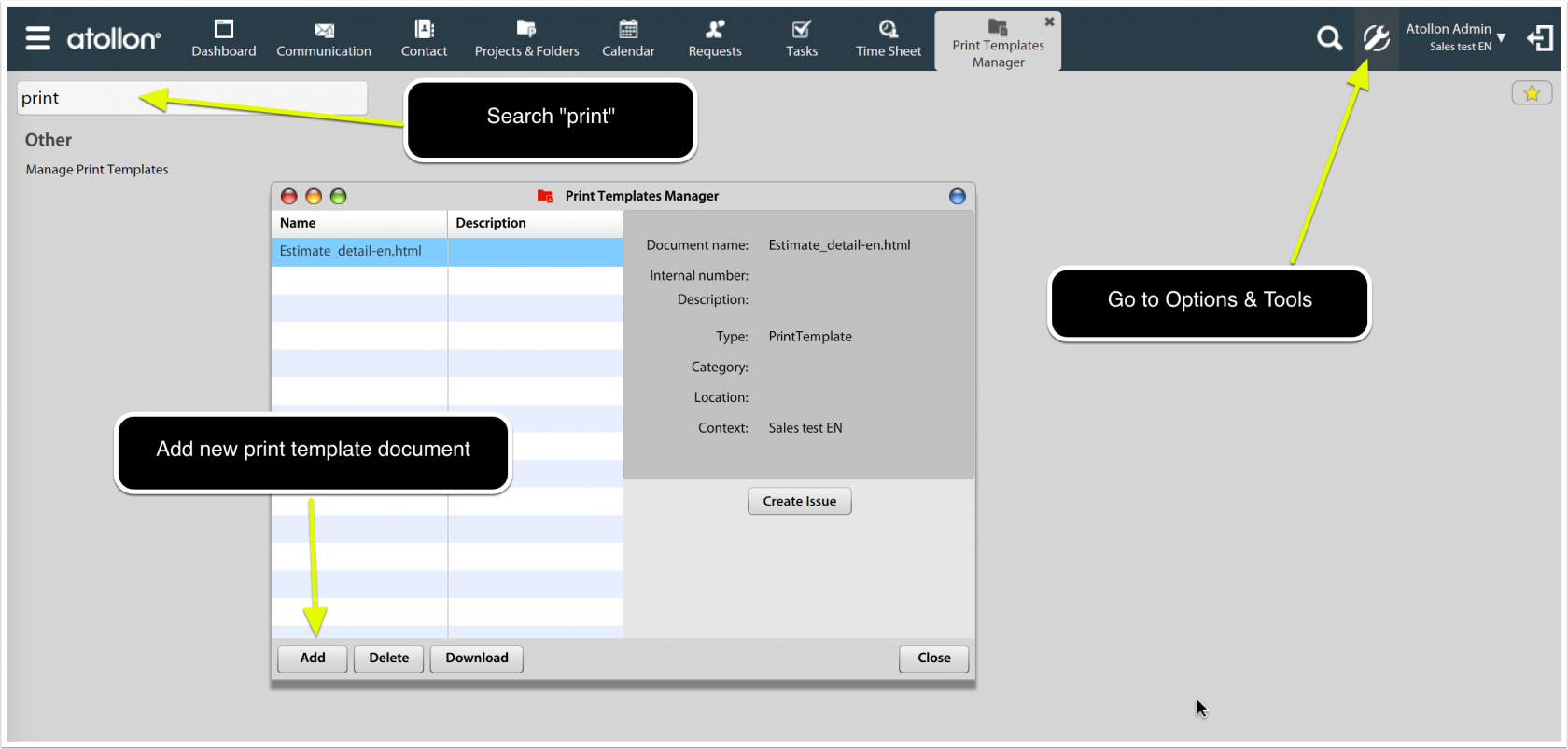
Go to **Options & Tools** > search "**print**" > Open **Manage Print Templates** tool and upload new document.
[](https://help.atollon.com/uploads/images/gallery/2022-04/print-template-upload.png)
### Add print template to your document
To assign your new print template to journal, you can go to "Settings" link, which guides you to Journal settings of particular document (Estimate) that you want to print. Other document types (event, task, context - folder, project, activity has different configuration tools, but the process is similar).
#### Quick link to journal settings
Each journal (Estimate, Invoice, Order, etc.) may have own set of print templates. Here you upload your newly produced templates.
[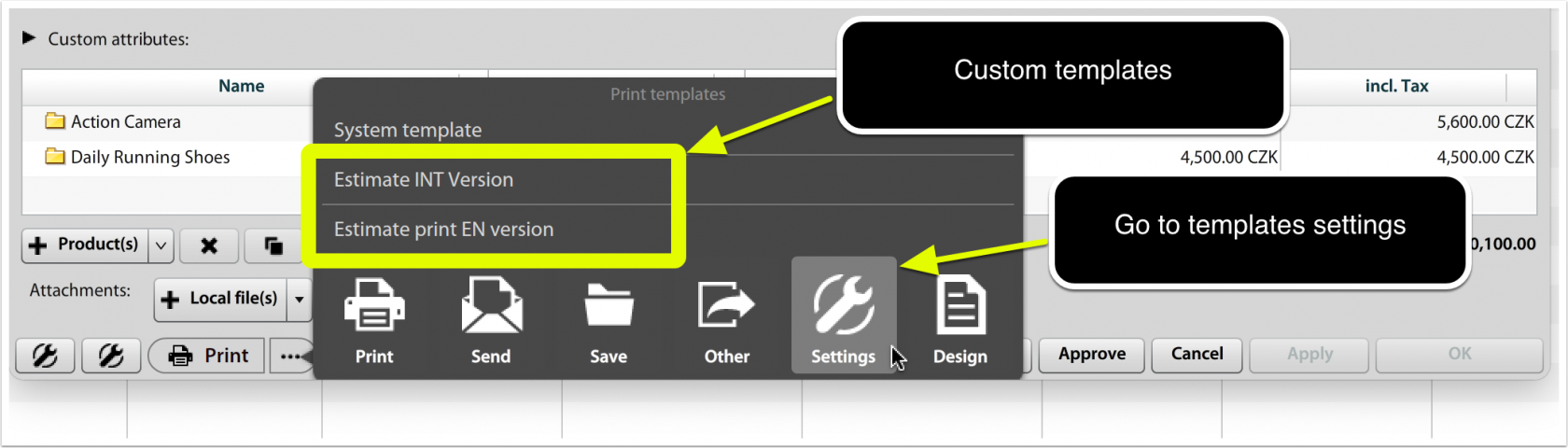](https://help.atollon.com/uploads/images/gallery/2022-04/print-design-settings.png)
#### Add your new/modified template to journal
In **Journal Settings**, you can find section "Documents" which lists print templates (xhtml/pdf, docx, xlsx) that are available to users when printing Estimate, Invoice or Order.
[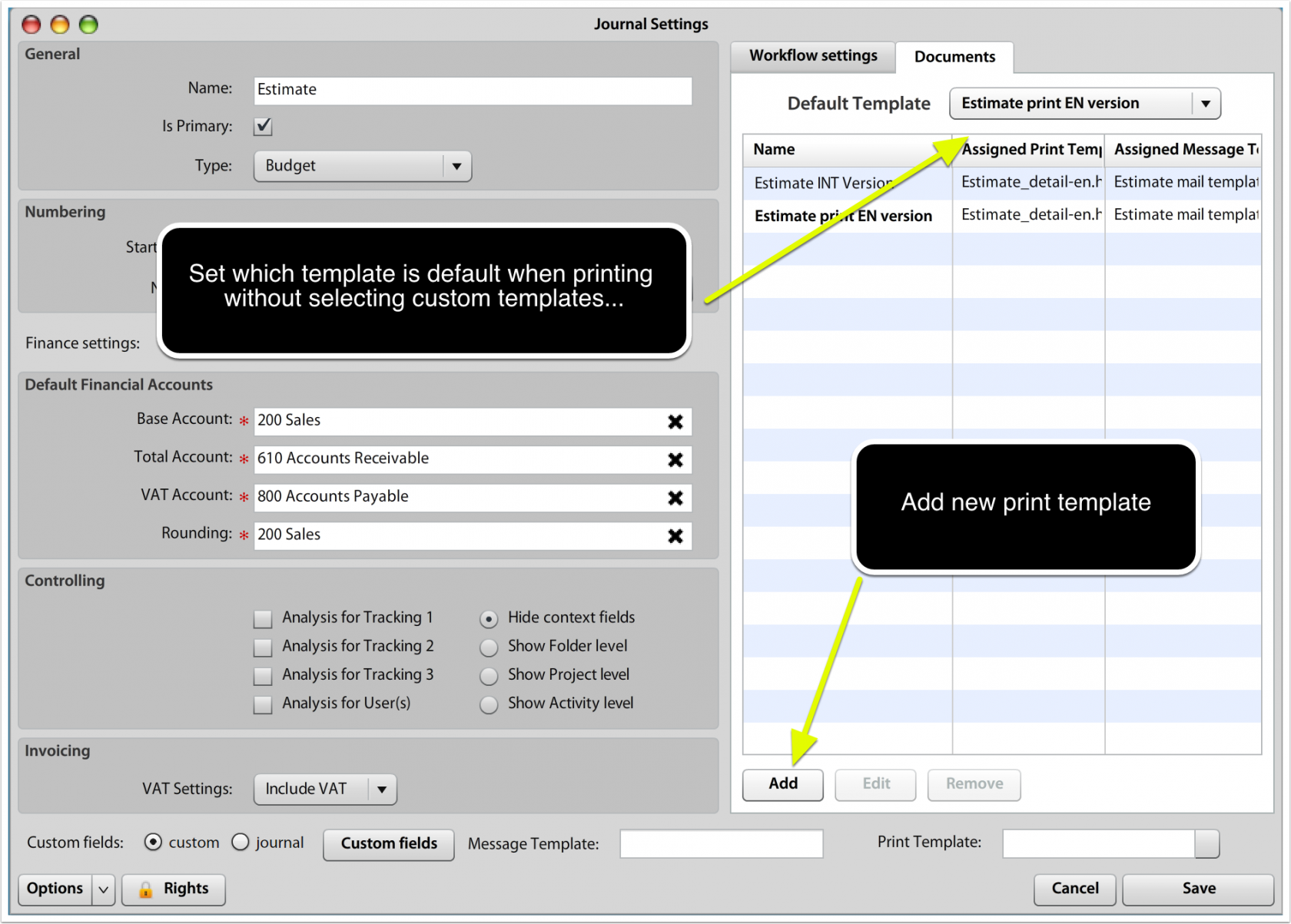](https://help.atollon.com/uploads/images/gallery/2022-04/print-journal-config.png)
#### Add print template incl. e-mail template
When adding new print template, you can also add e-mail template that will be used as "cover letter" when sending the document (Estimate, Invoice, Order, etc.). This may speed-up user's productivity when sending the documents...
[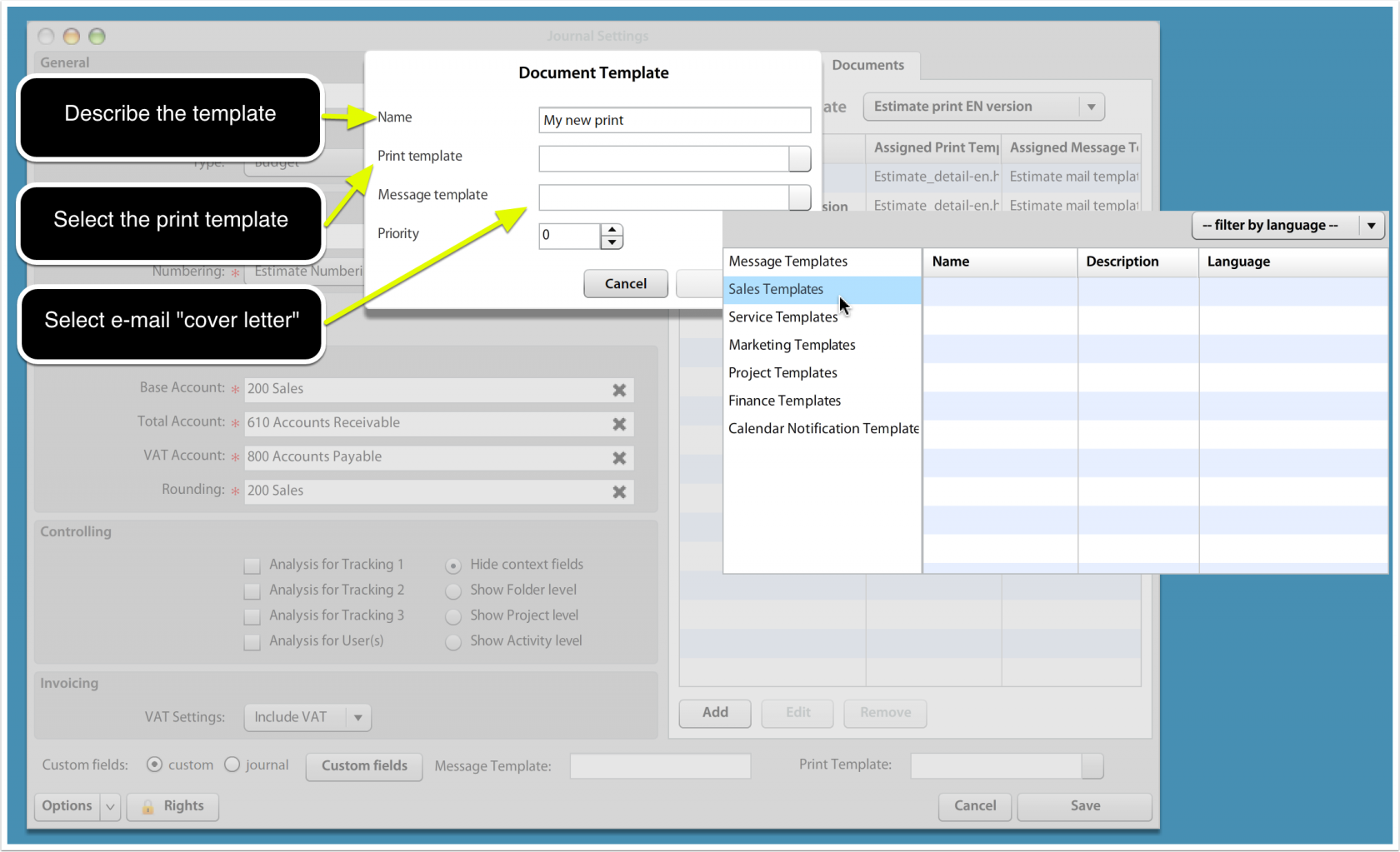](https://help.atollon.com/uploads/images/gallery/2022-04/print-journal-config-add.png)
The e-mail template design is described here: [Message Templates](https://help.atollon.com/books/atollon-core/page/message-templates "Message Templates").
# How to print header & footer
One way is using html table (see attached file). But it does not print last footer on the bottom of the page.
# Global Corporate CSS Settings
This requires more advanced approach:
## The Default Corporate CSS:
```css
/* ===========================================================
Corporate Document CSS — Generic Theme (Colors Only)
-----------------------------------------------------------
Preset Color Definitions:
- Primary (#455A64): Headings, table headers, key dividers
- Secondary (#ECF0F1): Light backgrounds and contrast text
- Font (#36464F): Default body text
- Accent (#F5F7F8): Highlights, totals, emphasis
- Border (#71ABCB): Table borders & separator lines
=========================================================== */
/* Font color */
.document {
color: #36464F; /* Font */
}
/* Headings */
h1, h2, h3,
.project-box h2,
.heding-mean {
color: #455A64 !important; /* Primary */
}
/* First horizontal divider */
.top-table {
border-color: #455A64 !important; /* Primary */
}
/* Table headers */
th {
background-color: #455A64 !important; /* Primary */
color: #ECF0F1 !important; /* Secondary */
}
/* Table borders */
td, th {
border-color: #71ABCB !important; /* Border */
}
/* Totals / highlights */
.table-highlight,
.summary,
.total-row {
background-color: #F5F7F8 !important; /* Accent */
}
/* Separator lines */
hr, .line, .separator {
border-color: #71ABCB !important; /* Border */
}
/* Buttons */
.button {
background-color: #F5F7F8 !important; /* Accent */
color: #36464F !important; /* Font */
border-color: #71ABCB !important; /* Border */
}
```
## Create Global Text in SOAP
```
select id from languages where iso_short = 'en';
```
Then:
```xml
SERVERNAMEHERExxxinvoice-global-CSS131514101/* Corporate Document CSS - Focused on Colors */
/* Preset Color Definitions:
- Primary color (#455A64): Used for main headings, table headers
- Secondary color (#ECF0F1): Used for backgrounds and contrast elements
- Font color (#36464F): Default text color
- Accent color (#F5F7F8): Used for highlights, buttons, totals
- Border color (#71ABCB): Used for table borders and separator lines
*/
/* Document Background and Font Color */
.document {
/* background-color: #ECF0F1; Optionally, secondary color for clean, neutral background */
color: #36464F; /* Font color for readability */
}
/* Heading Colors */
h1, h2, h3 {
color: #455A64; /* Primary color to emphasize headings clearly */
}
/* Table Header Colors */
th {
background-color: #455A64; /* Primary color for contrast and clarity */
color: #ECF0F1; /* Secondary color for contrasting readable text */
}
/* Table Border Colors */
td {
border-color: #71ABCB; /* Border color to subtly separate table cells */
}
/* Invoice Totals and Highlights */
.table-highlight {
background-color: #F5F7F8; /* Accent color to draw attention to important totals */
color: #ECF0F1; /* Secondary color to ensure readability against accent background */
}
/* Separator Lines */
hr, .line {
border-color: #71ABCB; /* Border color for gentle visual separation */
}
/* Button Colors */
.button {
background-color: #F5F7F8; /* Accent color for action buttons to stand out */
color: #ECF0F1; /* Secondary color to ensure text readability on buttons */
}
```
## Corporate CSS styles by document type