# Create new Deal and send Estimate

This wizard will show you how one of the ways to create and use Deals (or **Sales Opportunity)** in Atollon.

## Open Projects &amp; Folders

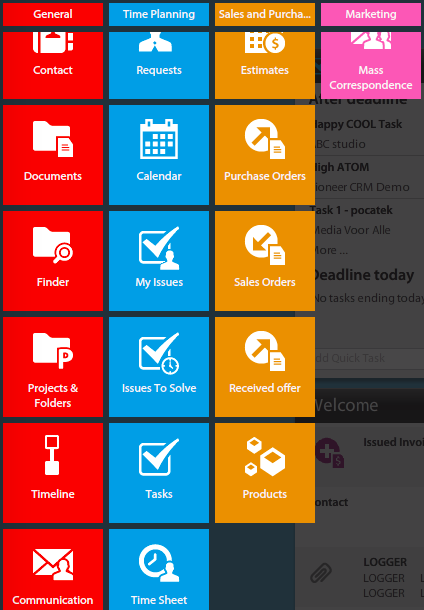
<div id="bkmrk-"><div>[![sales-apps.png](https://help.atollon.com/uploads/images/gallery/2020-03/scaled-1680-/sales-apps.png)](https://help.atollon.com/uploads/images/gallery/2020-03/sales-apps.png)</div><div></div></div>**Deals** are one of the types of projects that can be created. Move cursor to Atollon icon (top-left) and then click on **Projects &amp; Folders**

## Create new deal

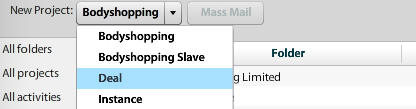
<div id="bkmrk--0"><div>[![sales-new-deal-template.png](https://help.atollon.com/uploads/images/gallery/2020-03/scaled-1680-/sales-new-deal-template.png)](https://help.atollon.com/uploads/images/gallery/2020-03/sales-new-deal-template.png)</div><div></div></div>On this place you can choose project template, for now it is Deal.

## Fill-in the deal form

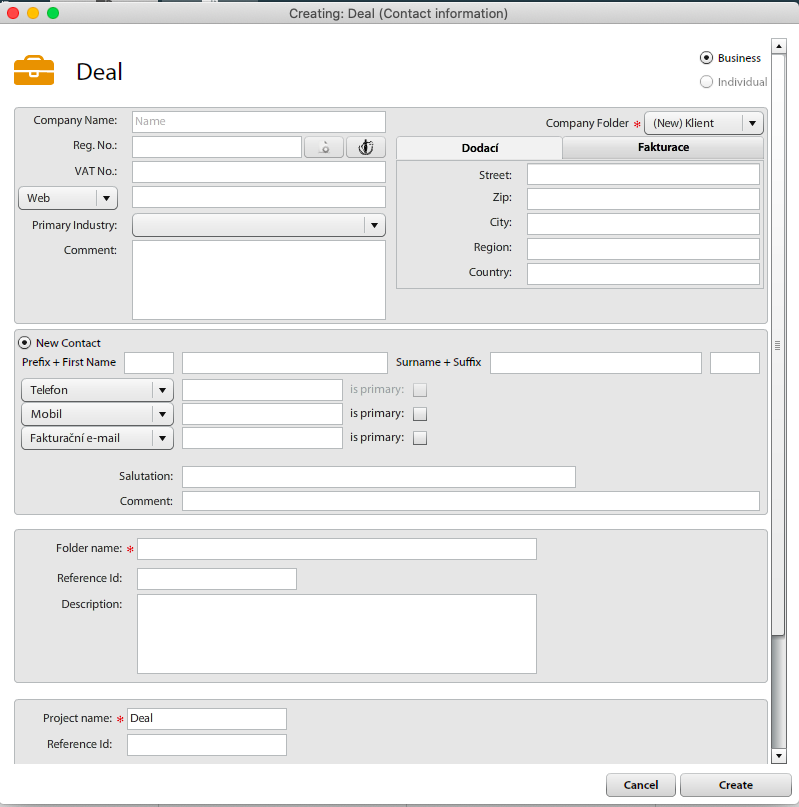
<div id="bkmrk--1"><div>[![sales-new-deal-new.png](https://help.atollon.com/uploads/images/gallery/2020-03/scaled-1680-/sales-new-deal-new.png)](https://help.atollon.com/uploads/images/gallery/2020-03/sales-new-deal-new.png)</div><div></div></div>When creating new Deal, you can choose existing contact or create new one.

If you create new one follow steps to fill-in contact data for company and person (relationship employer and employee).

You can enter Client data during creation of new Deal, but it is also possible to select existing Client.

Last step of wizard is filling details about this Sales opportunity

## Set deal value and margin

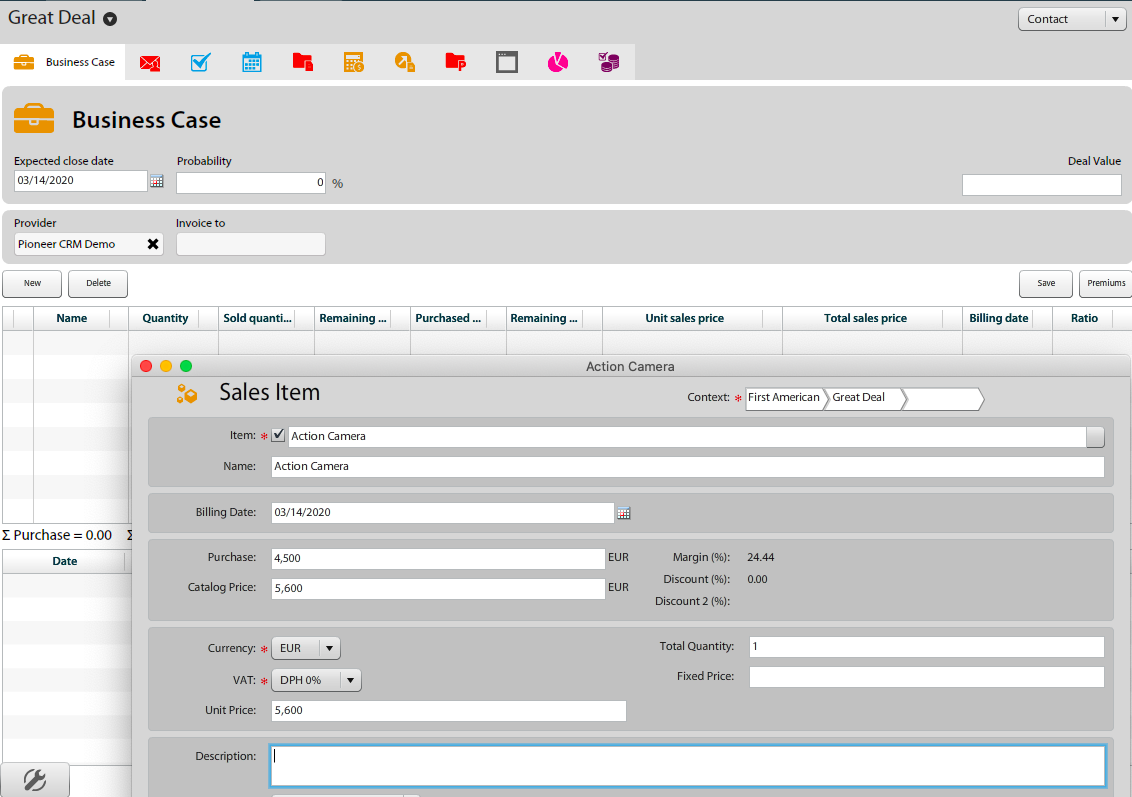
Before you can set deal value, you have to add some product or service.

[![Set-deal-value-and-sales-margin.gif](https://help.atollon.com/uploads/images/gallery/2022-09/Set-deal-value-and-sales-margin.gif)](https://help.atollon.com/uploads/images/gallery/2022-09/Set-deal-value-and-sales-margin.gif)

#### Customize product details in deal

<div id="bkmrk--3"><div>[![sales-deal-value.png](https://help.atollon.com/uploads/images/gallery/2020-03/scaled-1680-/sales-deal-value.png)](https://help.atollon.com/uploads/images/gallery/2020-03/sales-deal-value.png)</div><div></div></div>After click on "Deal" tab you can add new items or services into list of demanded / offered services (from items database).  
1\. Click on Sales opportunity  
2.Click on button "NEW"  
3\. Choose item from database of products and services  
4\. Add price and quantity  
5\. Save Sales Opportunity

## Probability and Expected closure

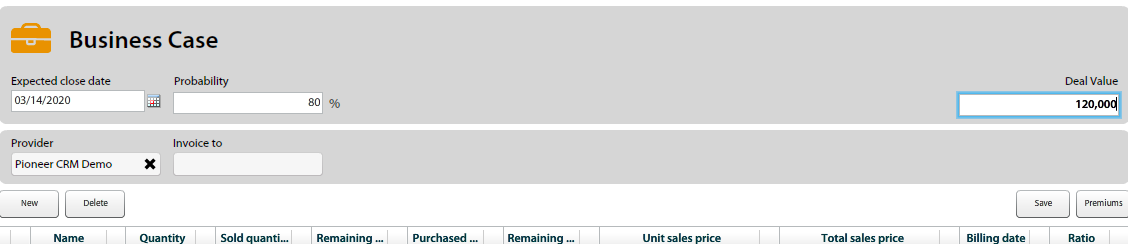
<div id="bkmrk--4"><div>[![sales-deal-probability-value.png](https://help.atollon.com/uploads/images/gallery/2020-03/scaled-1680-/sales-deal-probability-value.png)](https://help.atollon.com/uploads/images/gallery/2020-03/sales-deal-probability-value.png)</div><div></div></div>After adding items to the Deal there is a possibility to assess chance of closing the business case. Usually the chance is increasing during the progress of a deal.

## Create Estimate

[![sales-deal-estimate.png](https://help.atollon.com/uploads/images/gallery/2020-03/scaled-1680-/sales-deal-estimate.png)](https://help.atollon.com/uploads/images/gallery/2020-03/sales-deal-estimate.png)

1\. Open the Deal details  
2\. Click on button "**Create Estimate**" at the bottom of Deal Sales Items

## Send estimate to client

There is an easy way to create PDF file and send it to your customer. Just pick the **MAIL** button at the left bottom of **Estimate** detail.

Afterwards system show print templates select menu. You can choose which template you want to print and way of communicating (by e-mail f.e.).

You can send e-mail using (personalized) mail template. E-mail is automatically saved on Sales opportunity context, so you can have it whenever you need it.