# Arrange a Meeting and Record Meeting Notes

See below guide to arrange a meeting (calendar event, presentation, etc.) and write meeting notes from event.

## New event

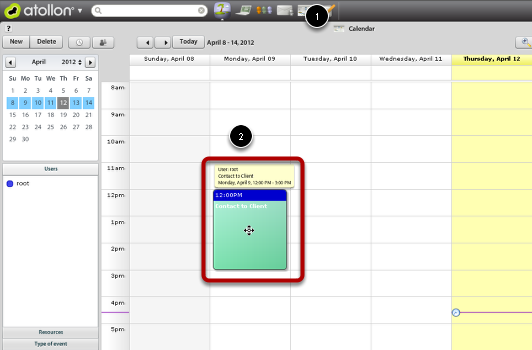
<div id="bkmrk-"><div>[![calendar-new-event.png](https://help.atollon.com/uploads/images/gallery/2020-03/scaled-1680-/calendar-new-event.png)](https://help.atollon.com/uploads/images/gallery/2020-03/calendar-new-event.png)</div><div></div></div>1\) Open and navigate to the **calendar** day on which you want create a new event  
2\) At a time where you want place event click by mouse, or just pull the mouse from the beginning to the end of event to set the length of the event

## New event on Sales opportunity

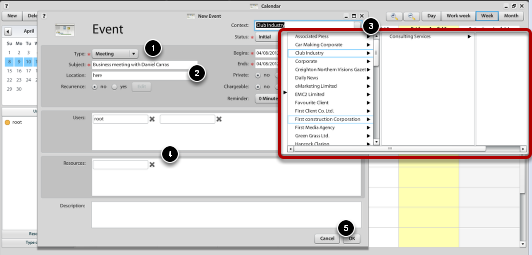
<div id="bkmrk--0"><div>[![calendar-new-select-context.png](https://help.atollon.com/uploads/images/gallery/2020-03/scaled-1680-/calendar-new-select-context.png)](https://help.atollon.com/uploads/images/gallery/2020-03/calendar-new-select-context.png)</div><div></div></div>1\) Set the type of event, it is a meeting (it will be useful in assessing how many meetings you managed)  
2\) Add the summary and event location  
3\) Select the **context** to **client's sales opportunity** which you should the event refers  
4\) Add participants or resources  
5\) Save your event

## Enter meeting notes

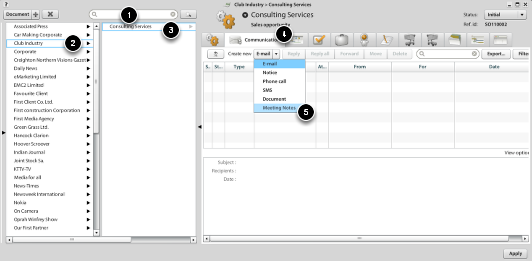
<div id="bkmrk--1"><div>[![meeting-notes.png](https://help.atollon.com/uploads/images/gallery/2020-03/scaled-1680-/meeting-notes.png)](https://help.atollon.com/uploads/images/gallery/2020-03/meeting-notes.png)</div><div></div></div>It is recommended to create record from meeting in the form of Meeting Notes. That will be visible in the overall history of the sales opportunity.

1\) Enter the client name, press Enter  
2\) Select founded client in Finder  
3\) Select the appropriate project / sales opportunity  
4\) Choose the tab Communication  
5\) Create new message "Meeting Notes"

After opening message, make meeting subject and content, you can also notice your colleagues and save the entry.