# Atollon Sales & Marketing

# Typical Sales use Cases


# Arrange a Meeting and Record Meeting Notes

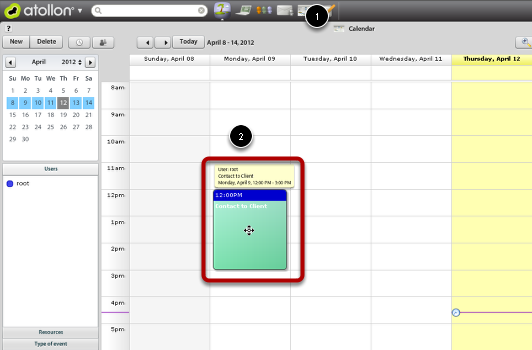
See below guide to arrange a meeting (calendar event, presentation, etc.) and write meeting notes from event.

## New event

<div id="bkmrk-"><div>[![calendar-new-event.png](https://help.atollon.com/uploads/images/gallery/2020-03/scaled-1680-/calendar-new-event.png)](https://help.atollon.com/uploads/images/gallery/2020-03/calendar-new-event.png)</div><div></div></div>1\) Open and navigate to the **calendar** day on which you want create a new event  
2\) At a time where you want place event click by mouse, or just pull the mouse from the beginning to the end of event to set the length of the event

## New event on Sales opportunity

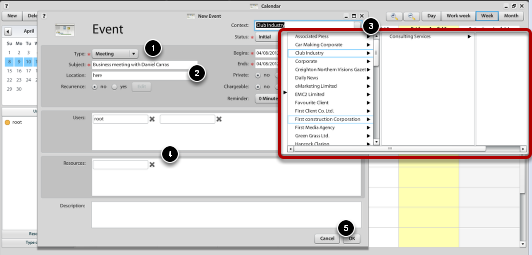
<div id="bkmrk--0"><div>[![calendar-new-select-context.png](https://help.atollon.com/uploads/images/gallery/2020-03/scaled-1680-/calendar-new-select-context.png)](https://help.atollon.com/uploads/images/gallery/2020-03/calendar-new-select-context.png)</div><div></div></div>1\) Set the type of event, it is a meeting (it will be useful in assessing how many meetings you managed)  
2\) Add the summary and event location  
3\) Select the **context** to **client's sales opportunity** which you should the event refers  
4\) Add participants or resources  
5\) Save your event

## Enter meeting notes

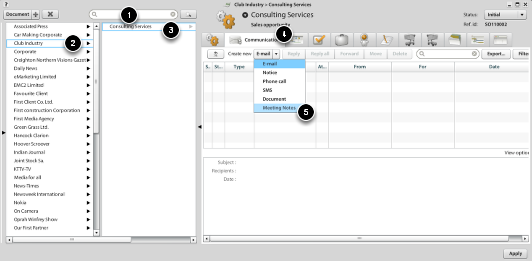
<div id="bkmrk--1"><div>[![meeting-notes.png](https://help.atollon.com/uploads/images/gallery/2020-03/scaled-1680-/meeting-notes.png)](https://help.atollon.com/uploads/images/gallery/2020-03/meeting-notes.png)</div><div></div></div>It is recommended to create record from meeting in the form of Meeting Notes. That will be visible in the overall history of the sales opportunity.

1\) Enter the client name, press Enter  
2\) Select founded client in Finder  
3\) Select the appropriate project / sales opportunity  
4\) Choose the tab Communication  
5\) Create new message "Meeting Notes"

After opening message, make meeting subject and content, you can also notice your colleagues and save the entry.

# Create new Deal and send Estimate

This wizard will show you how one of the ways to create and use Deals (or **Sales Opportunity)** in Atollon.

## Open Projects &amp; Folders

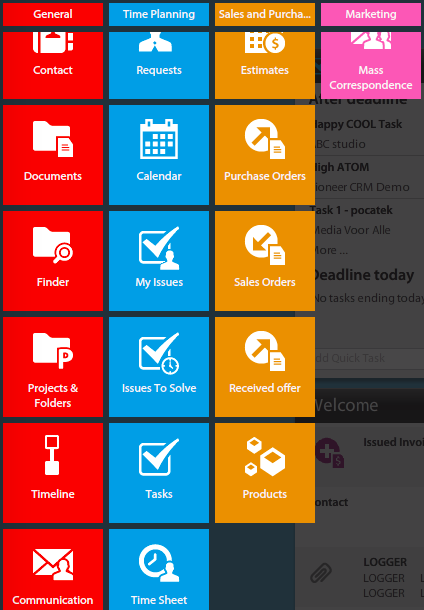
<div id="bkmrk-"><div>[![sales-apps.png](https://help.atollon.com/uploads/images/gallery/2020-03/scaled-1680-/sales-apps.png)](https://help.atollon.com/uploads/images/gallery/2020-03/sales-apps.png)</div><div></div></div>**Deals** are one of the types of projects that can be created. Move cursor to Atollon icon (top-left) and then click on **Projects &amp; Folders**

## Create new deal

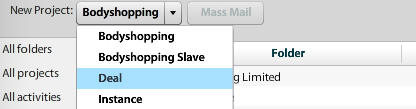
<div id="bkmrk--0"><div>[![sales-new-deal-template.png](https://help.atollon.com/uploads/images/gallery/2020-03/scaled-1680-/sales-new-deal-template.png)](https://help.atollon.com/uploads/images/gallery/2020-03/sales-new-deal-template.png)</div><div></div></div>On this place you can choose project template, for now it is Deal.

## Fill-in the deal form

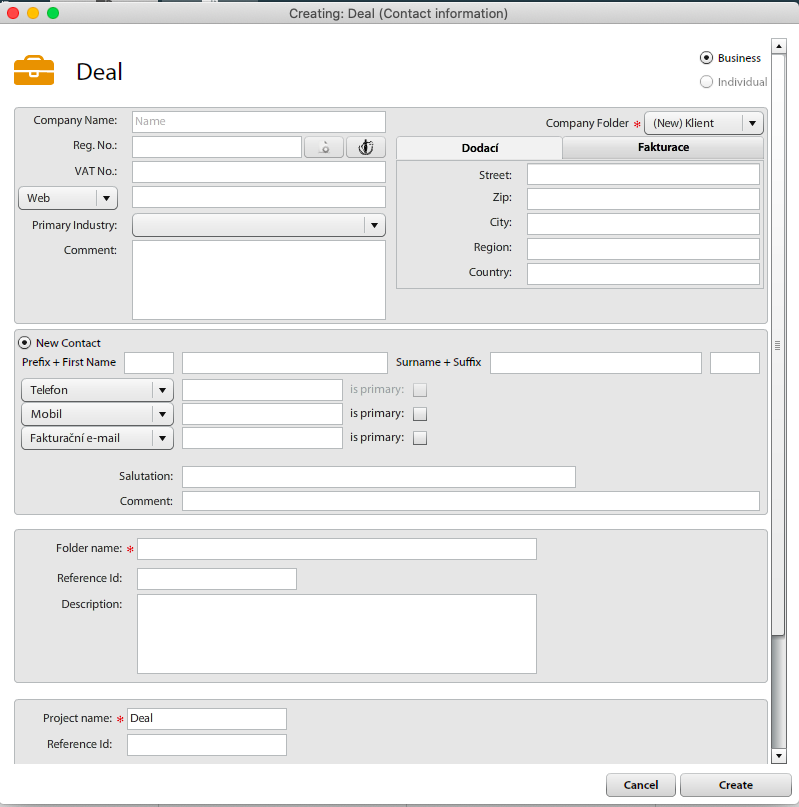
<div id="bkmrk--1"><div>[![sales-new-deal-new.png](https://help.atollon.com/uploads/images/gallery/2020-03/scaled-1680-/sales-new-deal-new.png)](https://help.atollon.com/uploads/images/gallery/2020-03/sales-new-deal-new.png)</div><div></div></div>When creating new Deal, you can choose existing contact or create new one.

If you create new one follow steps to fill-in contact data for company and person (relationship employer and employee).

You can enter Client data during creation of new Deal, but it is also possible to select existing Client.

Last step of wizard is filling details about this Sales opportunity

## Set deal value and margin

Before you can set deal value, you have to add some product or service.

[![Set-deal-value-and-sales-margin.gif](https://help.atollon.com/uploads/images/gallery/2022-09/Set-deal-value-and-sales-margin.gif)](https://help.atollon.com/uploads/images/gallery/2022-09/Set-deal-value-and-sales-margin.gif)

#### Customize product details in deal

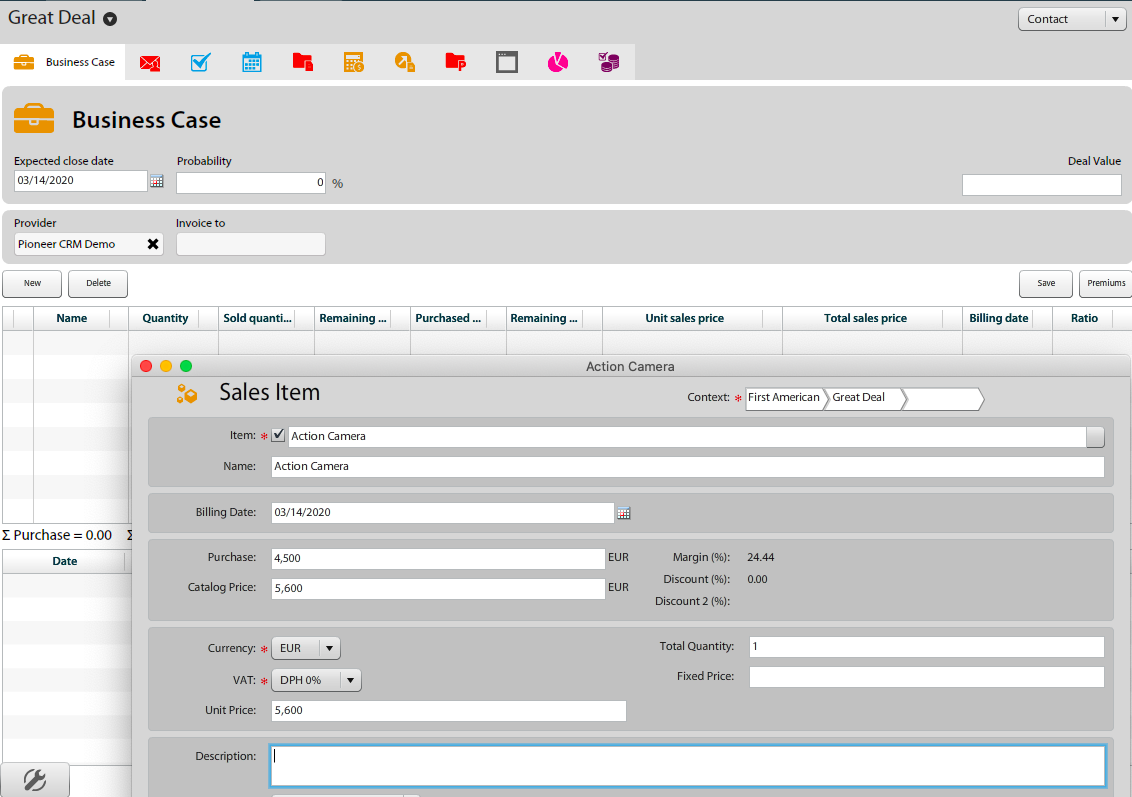
<div id="bkmrk--3"><div>[![sales-deal-value.png](https://help.atollon.com/uploads/images/gallery/2020-03/scaled-1680-/sales-deal-value.png)](https://help.atollon.com/uploads/images/gallery/2020-03/sales-deal-value.png)</div><div></div></div>After click on "Deal" tab you can add new items or services into list of demanded / offered services (from items database).  
1\. Click on Sales opportunity  
2.Click on button "NEW"  
3\. Choose item from database of products and services  
4\. Add price and quantity  
5\. Save Sales Opportunity

## Probability and Expected closure

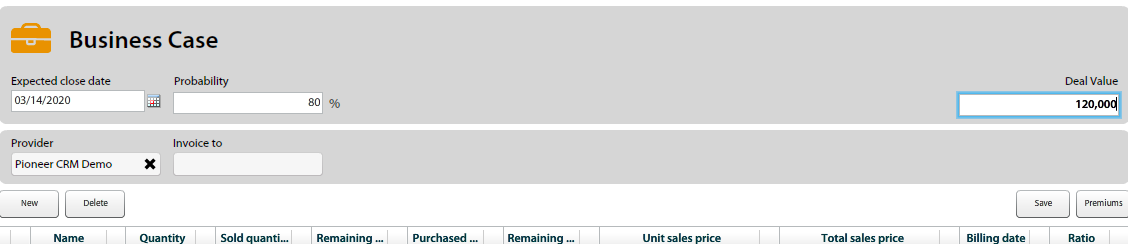
<div id="bkmrk--4"><div>[![sales-deal-probability-value.png](https://help.atollon.com/uploads/images/gallery/2020-03/scaled-1680-/sales-deal-probability-value.png)](https://help.atollon.com/uploads/images/gallery/2020-03/sales-deal-probability-value.png)</div><div></div></div>After adding items to the Deal there is a possibility to assess chance of closing the business case. Usually the chance is increasing during the progress of a deal.

## Create Estimate

[![sales-deal-estimate.png](https://help.atollon.com/uploads/images/gallery/2020-03/scaled-1680-/sales-deal-estimate.png)](https://help.atollon.com/uploads/images/gallery/2020-03/sales-deal-estimate.png)

1\. Open the Deal details  
2\. Click on button "**Create Estimate**" at the bottom of Deal Sales Items

## Send estimate to client

There is an easy way to create PDF file and send it to your customer. Just pick the **MAIL** button at the left bottom of **Estimate** detail.

Afterwards system show print templates select menu. You can choose which template you want to print and way of communicating (by e-mail f.e.).

You can send e-mail using (personalized) mail template. E-mail is automatically saved on Sales opportunity context, so you can have it whenever you need it.

# Mass Mail

*Atollon provides you with* ***personalised mass mail feature****. Don't ever send unpersonal mass mail.*

*See how to work with this feature:*

<iframe allowfullscreen="allowfullscreen" height="314" src="//www.youtube.com/embed/WCV_hfcxl9g" width="560"></iframe>

# Marketing channels

How to proceed with creating new Marketing channels:

1\. Create Marketing Channel of your choice.

[![new_marketchannel.png](https://help.atollon.com/uploads/images/gallery/2020-10/scaled-1680-/new_marketchannel.png)](https://help.atollon.com/uploads/images/gallery/2020-10/new_marketchannel.png)

2\. Couple the selecting Marketing Channel with appropriate Tracking Code, create New text Tracking Code when necessary and then couple them.

[![tracking-code.png](https://help.atollon.com/uploads/images/gallery/2020-10/scaled-1680-/tracking-code.png)](https://help.atollon.com/uploads/images/gallery/2020-10/tracking-code.png)

# How to setup Product Attributes for Sales Order

This page provides you with the guidance, how to setup Product Attributes and how they are used in Sales Order setting, when appropriate.

1. Go to **Options &amp; Tools** and choose **Product types.** The dialog will guide you through definition of different product types, they are used in the instance. The main goal is to setup appropriate product type's **Attributes** for specific **Product type**, that's used by **Product** component.

[![product-type-setting.png](https://help.atollon.com/uploads/images/gallery/2020-11/scaled-1680-/product-type-setting.png)](https://help.atollon.com/uploads/images/gallery/2020-11/product-type-setting.png)

2\. Go to **Sales Orders** component in order to assure that chosen **Attribute** will always appear in the Sales Order dialog for specific Product type/ Product.

[![sales-order_attrib.png](https://help.atollon.com/uploads/images/gallery/2020-11/scaled-1680-/sales-order_attrib.png)](https://help.atollon.com/uploads/images/gallery/2020-11/sales-order_attrib.png)

3\. By double click the product's **Name** you will enter detailed product dialog, where you can choose appropriate **Attribute** from available dropdown menu. The menu provides you with set of attributes from the **List**, as defined above (**Product type Setting**). Different choice of **Attribute Type** (different from **List** in our example) will offer you the selected choice (e.g. plain text, when **Text** selection is used).

[![product_detail_attrib.png](https://help.atollon.com/uploads/images/gallery/2020-11/scaled-1680-/product_detail_attrib.png)](https://help.atollon.com/uploads/images/gallery/2020-11/product_detail_attrib.png)