# Project Budgeting

There are two ways project budget may be assigned:

1.) Ad-hoc (ie coming from contractual agreement)  
2.) From approved Estimate

We are going to discuss both options below.

## Open or create Project

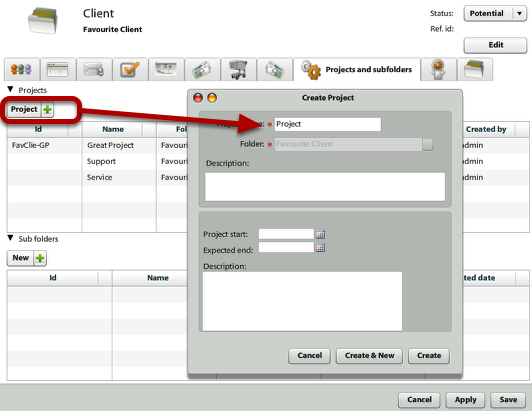
<div id="bkmrk-"><div>[![project-billing-1.png](https://help.atollon.com/uploads/images/gallery/2020-03/scaled-1680-/project-billing-1.png)](https://help.atollon.com/uploads/images/gallery/2020-03/project-billing-1.png)</div><div></div></div>There are many ways you can create new or open existing project. Some of the options are:

1.) **Finder** (browse Folder type &gt; Folder &gt; Project  
2.) **Projects &amp; Folders** application (Lagoon &gt; Projects &amp; Folders)  
3.) **Report** results (open / run any report, in report results you should be able to open the project)  
4.) Projects overview on **client detail** (select any client &gt; show Projects &amp; Subfolders Tab)

To create new project, you may use **Finder** (for instance) or client's detail on tab **Projects and subfolders** (as shown above).

## Add new Billing Item

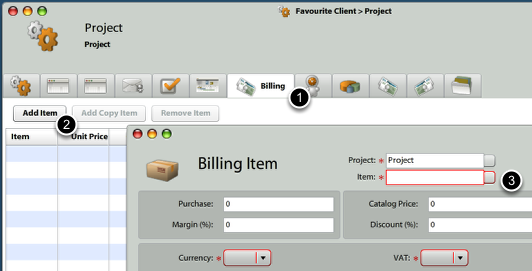
<div id="bkmrk--0"><div>[![project-billing-2.png](https://help.atollon.com/uploads/images/gallery/2020-03/scaled-1680-/project-billing-2.png)](https://help.atollon.com/uploads/images/gallery/2020-03/project-billing-2.png)</div><div></div></div>When creating project budget ad-hoc, you start adding your budget on project **Billing** tab.

By adding new Item in project Billing, you create project budget.

## Enter the Billing Item details

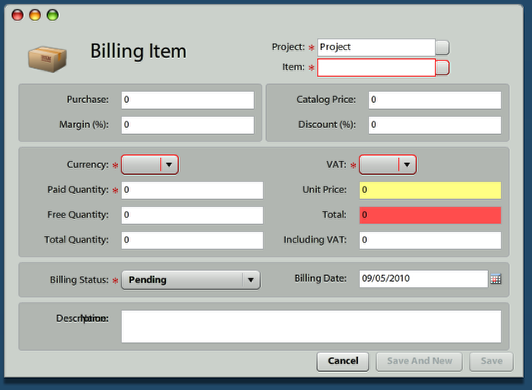
<div id="bkmrk--1"><div>[![project-billing-3.png](https://help.atollon.com/uploads/images/gallery/2020-03/scaled-1680-/project-billing-3.png)](https://help.atollon.com/uploads/images/gallery/2020-03/project-billing-3.png)</div><div></div></div>The **Item** is selected from your items database. Your items might be regular ware, material or other goods, or you may add services like consulting, design or support.

**Top part** of the Billing Item is used to calculate resulting item price. There are two options;

a) Calculate price from **Purchase Price**, adding a **margin**  
or  
b) Calculate price from **Catalog Price**, using **discount**

In both ways, the resulting item price goes to **Unit Price** field.

The **mid part** of the form is used to add details for the Billing Item, eg. **Total Quantity** minus **Free Quantity** = **Paid Quantity**.  
**Paid Quantity** \* **Unit Price** = **Total**.  
**Total** \* **VAT** = **Including VAT**

The bottom part of the form is used to set **Billing Status** &amp; **Date**. Use these fields, once you want to directly add this item for billing to client. If not, use the Billing Date to set the date, in which the item is **expected** to be billed.

## Add the budget from Estimate

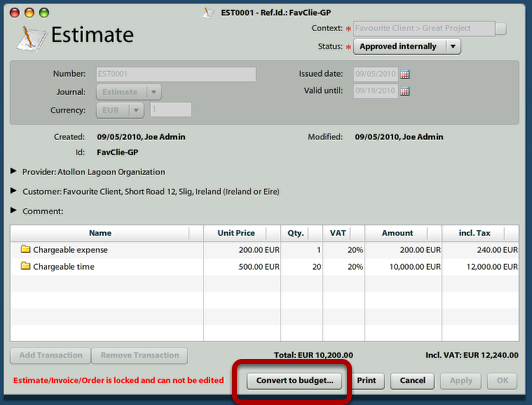
<div id="bkmrk--2"><div>[![project-billing-4.png](https://help.atollon.com/uploads/images/gallery/2020-03/scaled-1680-/project-billing-4.png)](https://help.atollon.com/uploads/images/gallery/2020-03/project-billing-4.png)</div><div></div></div>First open the **Estimate**, which is the winning proposal to your client. Go to **Lagoon** &gt; **Estimates** &gt; open any Estimate.

The Estimate must be **approved**, once it should be converted to budget. To approve Estimate, open it and press **Approve** button.

Once the Estimate is approved, you can press **Convert to budget...** button to select the project, on which budget (coming from Estimate) should be assigned.

## Assign the Estimate to proper project(s)

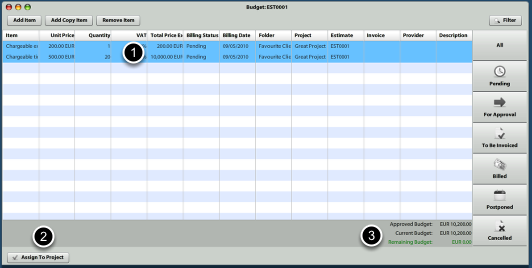
<div id="bkmrk--3"><div>[![project-billing-5.png](https://help.atollon.com/uploads/images/gallery/2020-03/scaled-1680-/project-billing-5.png)](https://help.atollon.com/uploads/images/gallery/2020-03/project-billing-5.png)</div><div></div></div>Once you press **Convert to budget...** button, the above mentioned form for assigning the items coming from Estimate to project(s) is displayed.

1.) Select any item(s)  
2.) press **Assign To Project** button below to change the allocation of items to project(s)  
3.) The overview below displayes, whether the whole **Estimate value** has been **assigned** to project(s).

Please note that only Estimate rows, which were selected from **Items** database, are converted to **Budget**. **Billing Item** is created only once **Item** is selected. If your Estimate contains rows, where **Item** was not selected, you can add any new Billing Item in the overview above manually.

## Review assigned budget

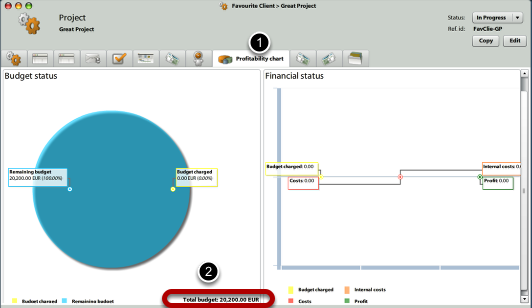
<div id="bkmrk--4"><div>[![project-billing-6.png](https://help.atollon.com/uploads/images/gallery/2020-03/scaled-1680-/project-billing-6.png)](https://help.atollon.com/uploads/images/gallery/2020-03/project-billing-6.png)</div><div></div></div>In order to get quick overview about project budget, open any project and show the **Profitability Chart** tab.  
The first chart displays the **Total Budget** overview with indication, how much % was already billed.