# Project Billing

In order to send invoices to your clients, you may collect source data for invoicing from Atollon Octopus Billing tool.

Billing tools allows Project Managers revise what Billing Items are ready to be billed and send them for billing.

## Select what project Billing Items should be invoiced

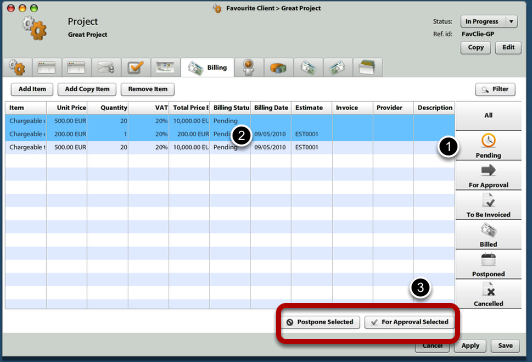
<div id="bkmrk-"><div><div>[![project-billing-X1.png](https://help.atollon.com/uploads/images/gallery/2020-03/scaled-1680-/project-billing-X1.png)](https://help.atollon.com/uploads/images/gallery/2020-03/project-billing-X1.png)</div><div></div></div></div>Once Project Manager finds out that some of the Billing Items should be invoiced, he/she should open the project, and:

1.) Select what Billing Items are **Pending**  
2.) **Select** what **Billing Items** should be invoiced (or sent for Approval)  
3.) Click on **For Approval Selected (All)** button

## Approve Billing Items for invoicing

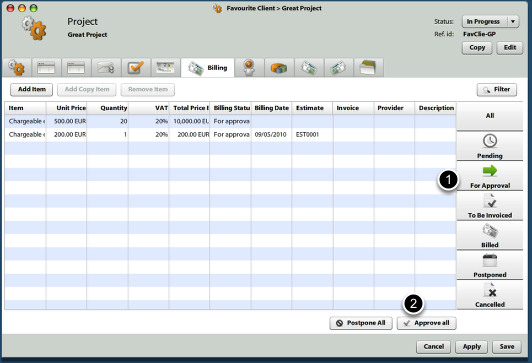
<div id="bkmrk--0"><div>[![project-billing-X2.png](https://help.atollon.com/uploads/images/gallery/2020-03/scaled-1680-/project-billing-X2.png)](https://help.atollon.com/uploads/images/gallery/2020-03/project-billing-X2.png)</div><div></div></div>Revise whether project Billing Items are ok for invoicing. If they are, submit them to be invoiced.  
1.) Select **For Approval** items  
2.) Click on **Approve all (selected)** button

## Invoice approved Billing Items: Open Billing

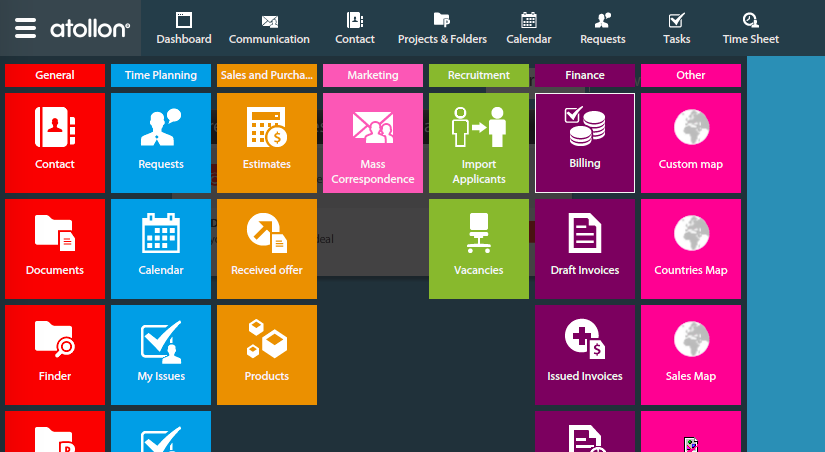
<div id="bkmrk--1"><div>[![project-billing-X3.png](https://help.atollon.com/uploads/images/gallery/2020-03/scaled-1680-/project-billing-X3.png)](https://help.atollon.com/uploads/images/gallery/2020-03/project-billing-X3.png)</div><div></div></div>First open **Billing** application.  
Billing application is used to revise and invoice **Billing Items**.

## Invoice approved Billing Items: Select client / project

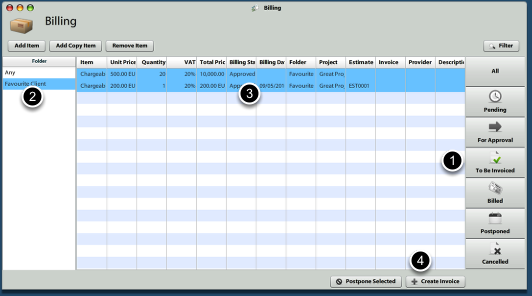
<div id="bkmrk--2"><div>[![project-billing-X4.png](https://help.atollon.com/uploads/images/gallery/2020-03/scaled-1680-/project-billing-X4.png)](https://help.atollon.com/uploads/images/gallery/2020-03/project-billing-X4.png)</div><div></div></div>In order to select Billing Items for invoicing:  
1.) Select **To Be Invoiced** button  
2.) Select which **client** (folder) you would like to be invoiced  
3.) Select all items you would like to invoice  
4.) Press **Create Invoice** button

## Revise &amp; Submit the created Invoice

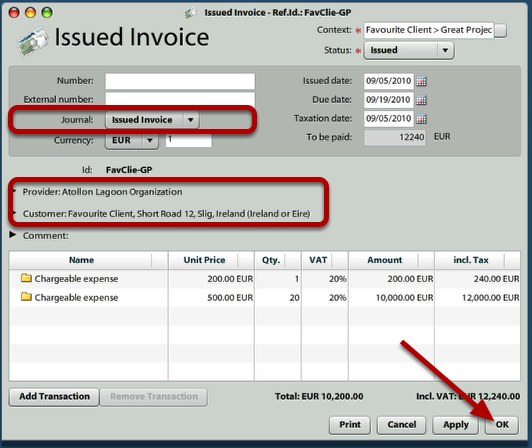
<div id="bkmrk--3"><div>[![project-billing-X5.png](https://help.atollon.com/uploads/images/gallery/2020-03/scaled-1680-/project-billing-X5.png)](https://help.atollon.com/uploads/images/gallery/2020-03/project-billing-X5.png)</div><div></div></div>Once you clicked on **Create Invoice** button in previous step, new **Issued Invoice** is generated. You should revise all information pre-generated by the **Billing** tool.

Information such as invoice **Journal**, **Provider** and **Customer** may be automatically pre-filled differently based on **Invoice Settings** on project. Please see the step below to change these project Invoice Settings.

Once you click on Ok, the invoice is generated.

If you want to directly send / print the Invoice, press **Print** button.

## Adjust project Invoice Settings

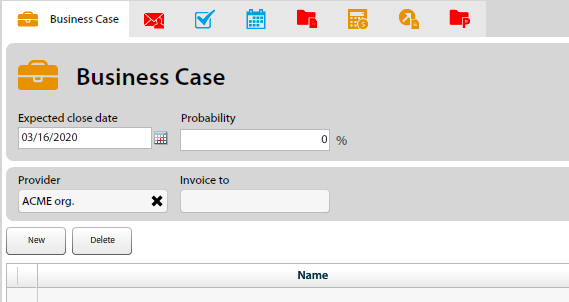
<div id="bkmrk--4"><div>[![project-billing-X6.png](https://help.atollon.com/uploads/images/gallery/2020-03/scaled-1680-/project-billing-X6.png)](https://help.atollon.com/uploads/images/gallery/2020-03/project-billing-X6.png)</div><div></div></div>If you want to adjust Invoice Settings on particular project, open the "Deal" tab project and adjust Provider / Invoice to contacts. These are optionally allowed / disallowed in Layout settings of Project (in Context Settings).

Please note that these values may be also adjusted in **Project Template** settings to make creating &amp; setting new projects easier.