# Quick Start Guide

This is your quick start guide to Atollon. Explore. Do not get scared by deep forest :-)

#### Login to Atollon: Switch Language

Before the actual login, you may switch application language. Once you switch to your desired language of Atollon, you may refresh the browser (F5 under Windows) and actually login to Atollon.

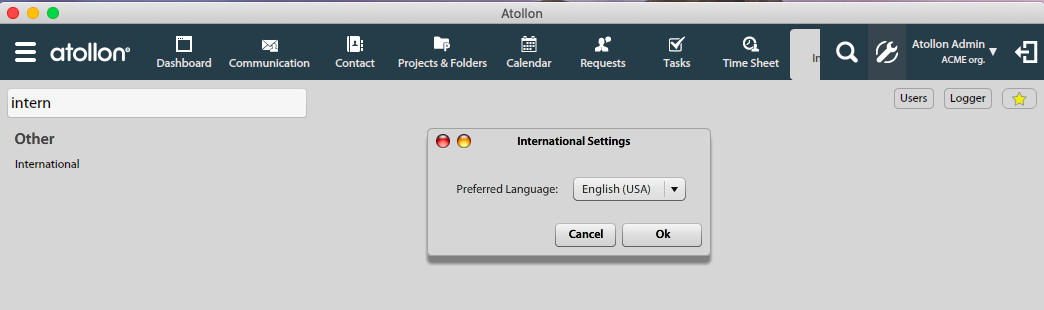
If you want to change the language after login, you may use Options &amp; Tools and search for "international":

[![quick-start-1-international.png](https://help.atollon.com/uploads/images/gallery/2020-03/scaled-1680-/quick-start-1-international.png)](https://help.atollon.com/uploads/images/gallery/2020-03/quick-start-1-international.png)
#### Login to Atollon

<div id="bkmrk--0"><div>[![quick-start-2-login.png](https://help.atollon.com/uploads/images/gallery/2020-03/scaled-1680-/quick-start-2-login.png)](https://help.atollon.com/uploads/images/gallery/2020-03/quick-start-2-login.png)</div><div></div></div>Yes, you can. Now login to Atollon. You should fill-in your Login (user name), Password and Server. This information should be provided to you by your admin or when registering.

#### Atollon Toolbar

<div id="bkmrk--1"><div>[![quick-start-3-toolbar.png](https://help.atollon.com/uploads/images/gallery/2020-03/scaled-1680-/quick-start-3-toolbar.png)](https://help.atollon.com/uploads/images/gallery/2020-03/quick-start-3-toolbar.png)</div><div></div></div>Atollon Toolbar is used to run Atollon applications &amp; gain quick access to frequently used functions.

<div id="bkmrk-atollon-main-applica">1. Atollon main application launcher is used to run other applications. Just hover your mouse over the button to see other applications.
2. Atollon search bar looks for your existing folders (clients, partners, etc.) in Atollon.
3. Favourite applications help you quickly launch your most used applications and functions.
4. Opened applications provide you with access to currently running applications and opened windows.
5. Options &amp; Tools menu provides you with access to administration of your Atollon.
6. Your name &amp; name of your organization, allowing you to logout/login or switch organization (in multi-org Atollon set-up).
7. Sidebar open/close button.

</div>#### Application Launcher

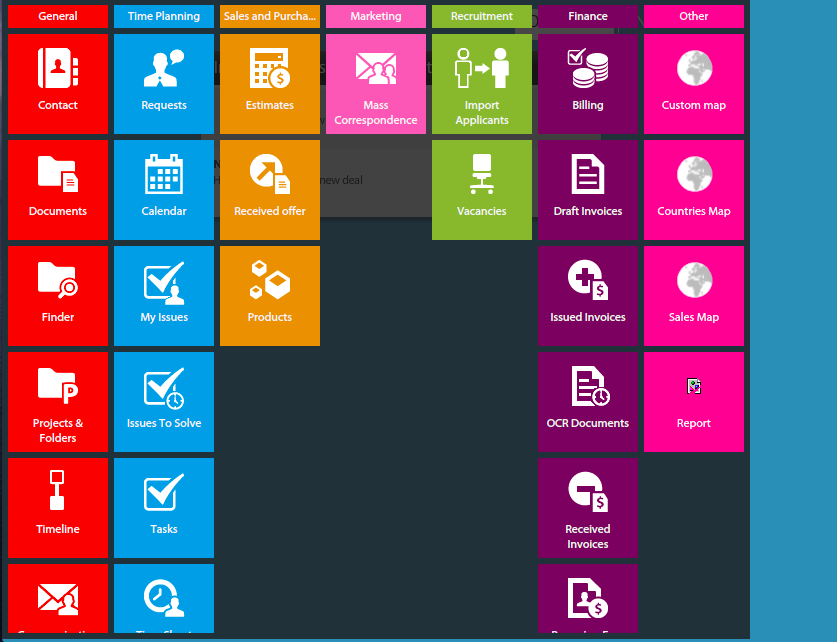
<div id="bkmrk--2"><div>[![quick-start-4-app-launcher.png](https://help.atollon.com/uploads/images/gallery/2020-03/scaled-1680-/quick-start-4-app-launcher.png)](https://help.atollon.com/uploads/images/gallery/2020-03/quick-start-4-app-launcher.png)</div><div></div></div>Using Application Launcher, you may open other applications (not available in Favourite Applications toolbar).

#### Customize Application Launcher

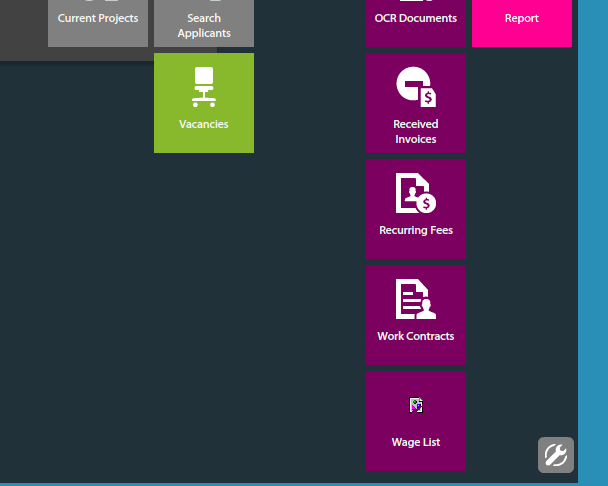
<div id="bkmrk--3"><div>[![quick-start-5-app-launcher-options.png](https://help.atollon.com/uploads/images/gallery/2020-03/scaled-1680-/quick-start-5-app-launcher-options.png)](https://help.atollon.com/uploads/images/gallery/2020-03/quick-start-5-app-launcher-options.png)</div><div></div></div>You may customize the list of displayed applications, just click on bottom-right cogwheel button, select what application should be hidden / shown and click to he button again to confirm.

#### Search Bar

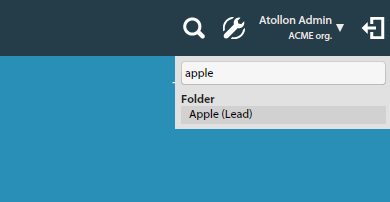
<div id="bkmrk--4"><div>[![quick-start-6-search.png](https://help.atollon.com/uploads/images/gallery/2020-03/scaled-1680-/quick-start-6-search.png)](https://help.atollon.com/uploads/images/gallery/2020-03/quick-start-6-search.png)</div><div></div></div>Search Bar is looking for folders in Atollon Finder. Once you found any folder, just click on it to display more information related to the folder.

#### Favourite Applications

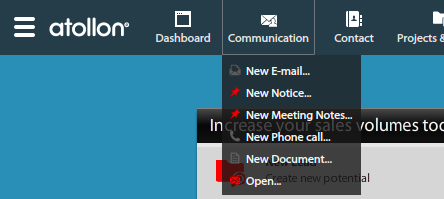
<div id="bkmrk--5"><div>[![quick-start-7-favourites.png](https://help.atollon.com/uploads/images/gallery/2020-03/scaled-1680-/quick-start-7-favourites.png)](https://help.atollon.com/uploads/images/gallery/2020-03/quick-start-7-favourites.png)</div><div></div></div>You can click on one of your favourite application icons to open it. Once you just hover over the application icon with your mouse, you may run selected quick functions (to create new client, person or company contact, e-mail, notice, calendar event, task, time sheet record, etc.).

#### Running Applications &amp; Opened Windows

<div id="bkmrk--6"><div>[![quick-start-8-open-app.png](https://help.atollon.com/uploads/images/gallery/2020-03/scaled-1680-/quick-start-8-open-app.png)](https://help.atollon.com/uploads/images/gallery/2020-03/quick-start-8-open-app.png)</div><div></div></div>Running applications in Atollon are indicated by small arrow below the application icon.  
Each application may have also several windows opened. This is indicated below each application's own menu of opened windows.

#### Personal Options Menu

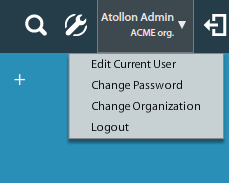
<div id="bkmrk--7"><div>[![quick-start-9-personal-options-menu.png](https://help.atollon.com/uploads/images/gallery/2020-03/scaled-1680-/quick-start-9-personal-options-menu.png)](https://help.atollon.com/uploads/images/gallery/2020-03/quick-start-9-personal-options-menu.png)</div><div></div></div>In the personal options menu, you can change your password, change organization (only in multi-org Atollon set-up), and Logout from Atollon.

#### Atollon Sidebar

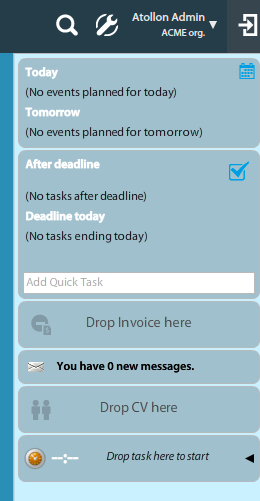
<div id="bkmrk--8"><div>[![quick-start-10-sidebar.png](https://help.atollon.com/uploads/images/gallery/2020-03/scaled-1680-/quick-start-10-sidebar.png)](https://help.atollon.com/uploads/images/gallery/2020-03/quick-start-10-sidebar.png)</div><div></div></div>Using the last (top-right) Atollon toolbar icon you can hide or show Atollon Sidebar. When the Sidebar is hidden, you can show it only temporarily, once you hover with your mouse over the icon. If you click on the icon, the Sidebar will remain opened.