# Enter Time Sheet

This lesson's aim is to provide easy help to **end users** to **enter** their **Time Sheet in Atollon**.

#### Open Time Sheet Application from Atollon menu

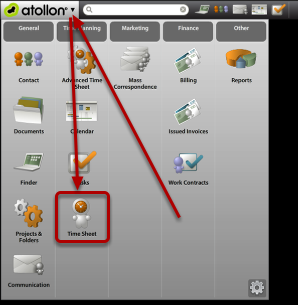
<div id="bkmrk-"><div>[![time-sheet-new-1.png](https://help.atollon.com/uploads/images/gallery/2020-03/scaled-1680-/time-sheet-new-1.png)](https://help.atollon.com/uploads/images/gallery/2020-03/time-sheet-new-1.png)</div><div></div></div>Go to **Atollon** menu (top left corner) and click on Time Sheet icon. The applications menu may display different icons based on user's profile.

#### Enter new Time Sheet record

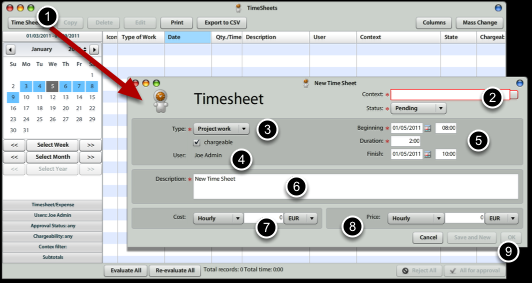
<div id="bkmrk--0"><div>[![time-sheet-new-2.png](https://help.atollon.com/uploads/images/gallery/2020-03/scaled-1680-/time-sheet-new-2.png)](https://help.atollon.com/uploads/images/gallery/2020-03/time-sheet-new-2.png)</div><div></div></div>In order to **enter new Time Sheet record,** you should:

1.) Press on the **Time Sheet** button (top left) in Time Sheet application.  
2.) Select **Context**: Client &gt; Project &gt; Activity (Milestone) for new Time Sheet record (it is customizable, which level is required)  
3.) Select **Type of Work**  
4.) Set whether the Time Sheet is **chargeable** to client or not  
5.) Select **Start Date** &amp; **Duration** (HH:MM), optionally also **End Date &amp; Time**  
6.) Write work **description**

7, 8) **Cost** &amp; **Price** Information  
You do not need to write Cost or Price, if you subscribed to **Octopus** Billing Automation solution. This information is not available to users, who do not have rights to view **Work Contracts** (in case of Cost) or **Price Lists** (in case of Price).

9.) Press **Ok** or **Save &amp; New**, if you want to continue on the same project.

#### Copy existing Time Sheet records

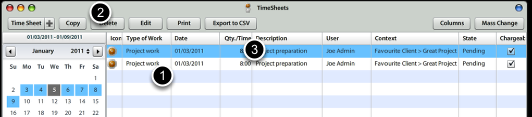
<div id="bkmrk--1"><div>[![time-sheet-new-3.png](https://help.atollon.com/uploads/images/gallery/2020-03/scaled-1680-/time-sheet-new-3.png)](https://help.atollon.com/uploads/images/gallery/2020-03/time-sheet-new-3.png)</div><div></div></div>Once you want to create similar record, you can select existing record in Time Sheet grid and press **Copy**. The new record is displayed in grid and highlighted.

#### Edit existing Time Sheet record

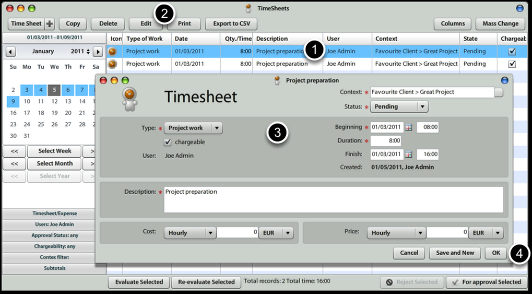
<div id="bkmrk--2"><div>[![time-sheet-new-4.png](https://help.atollon.com/uploads/images/gallery/2020-03/scaled-1680-/time-sheet-new-4.png)](https://help.atollon.com/uploads/images/gallery/2020-03/time-sheet-new-4.png)</div><div></div></div>To edit existing Time Sheet record, just select one &amp; press **Edit** button.  
You can make any changes to the record &amp; press **Ok** button.  
If you change any criteria that will make your record disappear (for instance you change the date range outside of filter), you should be notified.

#### Revise Time Sheet records before they are sent for approval

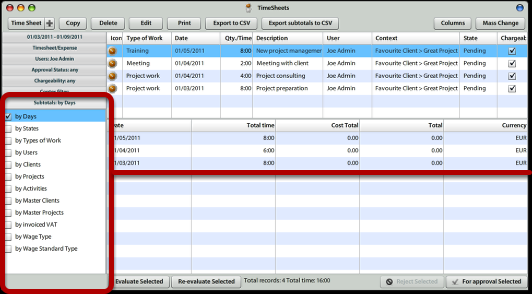
<div id="bkmrk--3"><div>[![time-sheet-new-5.png](https://help.atollon.com/uploads/images/gallery/2020-03/scaled-1680-/time-sheet-new-5.png)](https://help.atollon.com/uploads/images/gallery/2020-03/time-sheet-new-5.png)</div><div></div></div>Before confirming your Time Sheet records, you should **check** whether everything you wanted was entered. You can open quick Time Sheet report, available at **Subtotals** section (bottom left). By selecting one of the grouping criteria, you will get summary below your Time Sheet. By clicking on any of the summary rows, you get detail above.

#### Send Time Sheet for approval

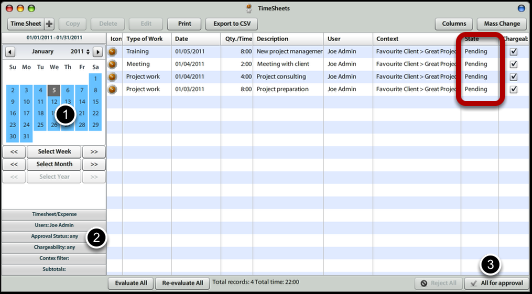
<div id="bkmrk--4"><div>[![time-sheet-new-6.png](https://help.atollon.com/uploads/images/gallery/2020-03/scaled-1680-/time-sheet-new-6.png)](https://help.atollon.com/uploads/images/gallery/2020-03/time-sheet-new-6.png)</div><div></div></div>You can **send** one or more Time Sheet records **for approval**. Only items in **Pending** state are sent for approval.

1.) Select correct time period (month, week, day)  
2.) Make sure you selected all pending items (Approval Status is Any or Pending)  
3.) Click on button **All (Selected) for Approval**