# Create & Assign Task

This tutorial shows you how to create new task, assign it to solver &amp; show the solver how to accept or reject the task.

#### Open Tasks Application

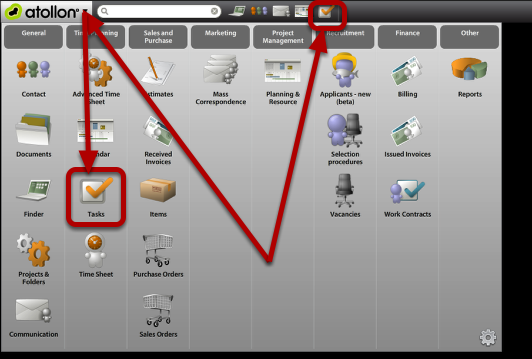
<div id="bkmrk-"><div>[![task-new-1.png](https://help.atollon.com/uploads/images/gallery/2020-03/scaled-1680-/task-new-1.png)](https://help.atollon.com/uploads/images/gallery/2020-03/task-new-1.png)</div><div></div></div>First go to **Atollon** Applications menu &amp; open **Tasks**. Optionally, only move mouse over Tasks icon in toolbar &amp; select **New Task**.

#### Create New Task

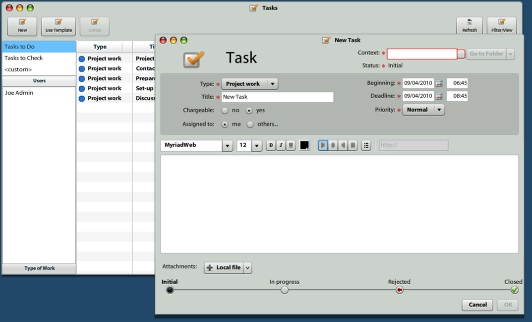
<div id="bkmrk--0"><div>[![task-new-2.png](https://help.atollon.com/uploads/images/gallery/2020-03/scaled-1680-/task-new-2.png)](https://help.atollon.com/uploads/images/gallery/2020-03/task-new-2.png)</div><div></div></div>On tasks overview, click on "**New**" button, the "**New Task**" form will open.  
Select the **Type** of work, write Task **Title**, indicate Task **Beginning** &amp; **Deadline**, set **Priority** &amp; **Chargeability** of the task.  
You can also attach **Local file** (from local file system) or **Document** (from Atollon). Once the Task is sent, the file is uploaded to Atollon on selected folder / project automatically.

#### Assign Task to someone else

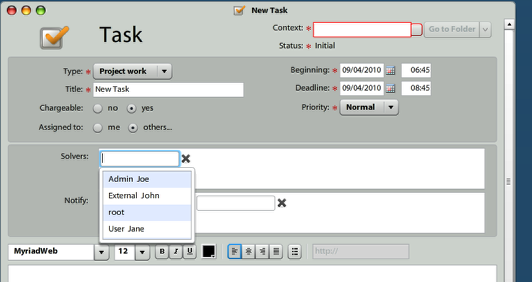
<div id="bkmrk--1"><div>[![task-new-3.png](https://help.atollon.com/uploads/images/gallery/2020-03/scaled-1680-/task-new-3.png)](https://help.atollon.com/uploads/images/gallery/2020-03/task-new-3.png)</div><div></div></div>Click on **Assigned to**: **others...** to select whom you would like to assign the Task in **Solvers** section. Simply start writing user's name to search for desired Solver.

In **Notify**: field you may select users, which will get notification about the Task. For intance, once the Task is not closed within the **Deadline**, the Notify user gets information in his/her Inbox.

After assigning Solver to Task, the user gets notification about new Task. Notifications may be adjusted to organization needs in message templates.

#### Select Task Context

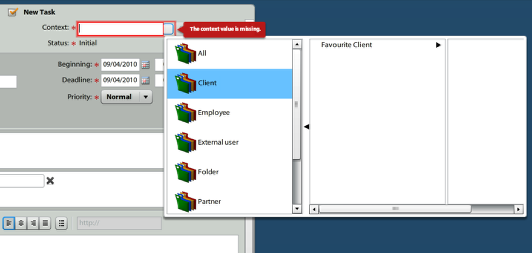
<div id="bkmrk--2"><div>[![task-new-4.png](https://help.atollon.com/uploads/images/gallery/2020-03/scaled-1680-/task-new-4.png)](https://help.atollon.com/uploads/images/gallery/2020-03/task-new-4.png)</div><div></div></div>Task may be stored at **Folder**, **Project** or **Activity** levels. For project management purpose it is necessary to select task's Project.

Simply start typing Contact / Simple Folder name to search for folder &amp; then select Project (just double-click on selected item).

#### Send Task

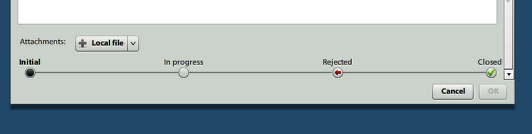
<div id="bkmrk--3"><div>[![task-new-5.png](https://help.atollon.com/uploads/images/gallery/2020-03/scaled-1680-/task-new-5.png)](https://help.atollon.com/uploads/images/gallery/2020-03/task-new-5.png)</div><div></div></div>Add Task description, if needed and click on **Ok** to send the task. Ok button is greyed once required fields are missing. Please fill-in required fields to enable saving the task.

#### New Task Received

<div id="bkmrk--4"><div>[![task-new-6.png](https://help.atollon.com/uploads/images/gallery/2020-03/scaled-1680-/task-new-6.png)](https://help.atollon.com/uploads/images/gallery/2020-03/task-new-6.png)</div><div></div></div>The task **Solver** gets notification to Communication **To Do** about new task.

#### Accept/Reject Task

<div id="bkmrk--5"><div>[![task-new-7.png](https://help.atollon.com/uploads/images/gallery/2020-03/scaled-1680-/task-new-7.png)](https://help.atollon.com/uploads/images/gallery/2020-03/task-new-7.png)</div><div></div></div>**Accept Task**

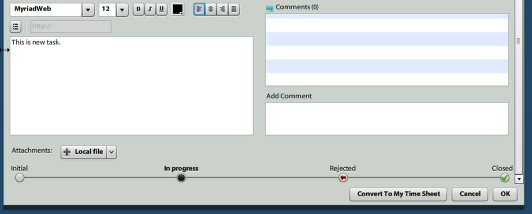
Once you opened task, indicate you are going to work on the task or reject the task with some reason. Click on **In progress** (or similar) task status &amp; press **Ok**.

**Reject Task**

**Add Comment** always when rejecting task. Click on **Rejected** task status &amp; press **Ok**. The task **Solver** will be changed to user, who assigned the task.

### Rights

#### Creating task

User can create task to and asign it to himself/other user, if user has right NEW on his own/other user's task acl.

#### Update Task

Task can be rejected by solver in any case.

Task can be changed by user, only if user has right on head user of edited task.