# Atollon Core

# Quick Start Guide

This is your quick start guide to Atollon. Explore. Do not get scared by deep forest :-)

#### Login to Atollon: Switch Language

Before the actual login, you may switch application language. Once you switch to your desired language of Atollon, you may refresh the browser (F5 under Windows) and actually login to Atollon.

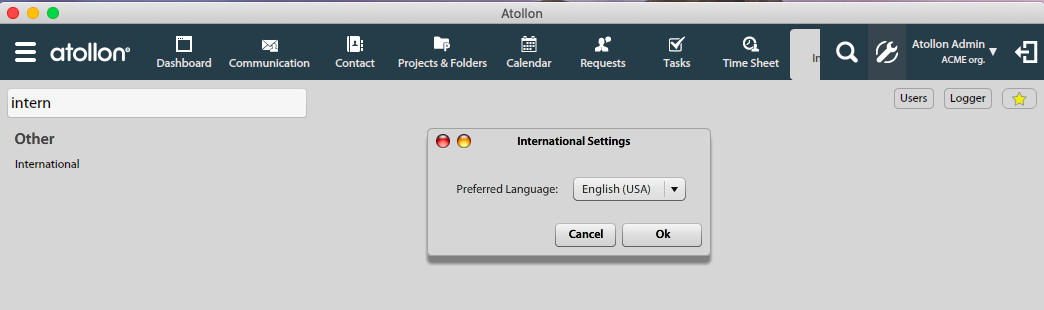
If you want to change the language after login, you may use Options &amp; Tools and search for "international":

[![quick-start-1-international.png](https://help.atollon.com/uploads/images/gallery/2020-03/scaled-1680-/quick-start-1-international.png)](https://help.atollon.com/uploads/images/gallery/2020-03/quick-start-1-international.png)
#### Login to Atollon

<div id="bkmrk--0"><div>[![quick-start-2-login.png](https://help.atollon.com/uploads/images/gallery/2020-03/scaled-1680-/quick-start-2-login.png)](https://help.atollon.com/uploads/images/gallery/2020-03/quick-start-2-login.png)</div><div></div></div>Yes, you can. Now login to Atollon. You should fill-in your Login (user name), Password and Server. This information should be provided to you by your admin or when registering.

#### Atollon Toolbar

<div id="bkmrk--1"><div>[![quick-start-3-toolbar.png](https://help.atollon.com/uploads/images/gallery/2020-03/scaled-1680-/quick-start-3-toolbar.png)](https://help.atollon.com/uploads/images/gallery/2020-03/quick-start-3-toolbar.png)</div><div></div></div>Atollon Toolbar is used to run Atollon applications &amp; gain quick access to frequently used functions.

<div id="bkmrk-atollon-main-applica">1. Atollon main application launcher is used to run other applications. Just hover your mouse over the button to see other applications.
2. Atollon search bar looks for your existing folders (clients, partners, etc.) in Atollon.
3. Favourite applications help you quickly launch your most used applications and functions.
4. Opened applications provide you with access to currently running applications and opened windows.
5. Options &amp; Tools menu provides you with access to administration of your Atollon.
6. Your name &amp; name of your organization, allowing you to logout/login or switch organization (in multi-org Atollon set-up).
7. Sidebar open/close button.

</div>#### Application Launcher

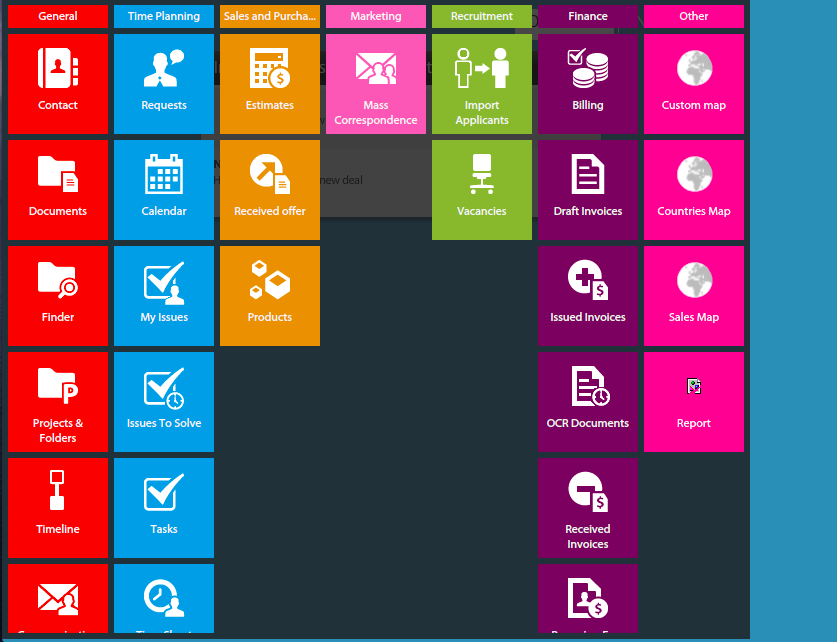
<div id="bkmrk--2"><div>[![quick-start-4-app-launcher.png](https://help.atollon.com/uploads/images/gallery/2020-03/scaled-1680-/quick-start-4-app-launcher.png)](https://help.atollon.com/uploads/images/gallery/2020-03/quick-start-4-app-launcher.png)</div><div></div></div>Using Application Launcher, you may open other applications (not available in Favourite Applications toolbar).

#### Customize Application Launcher

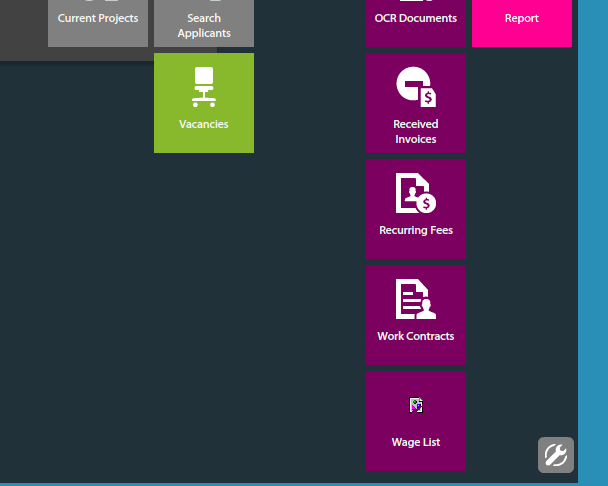
<div id="bkmrk--3"><div>[![quick-start-5-app-launcher-options.png](https://help.atollon.com/uploads/images/gallery/2020-03/scaled-1680-/quick-start-5-app-launcher-options.png)](https://help.atollon.com/uploads/images/gallery/2020-03/quick-start-5-app-launcher-options.png)</div><div></div></div>You may customize the list of displayed applications, just click on bottom-right cogwheel button, select what application should be hidden / shown and click to he button again to confirm.

#### Search Bar

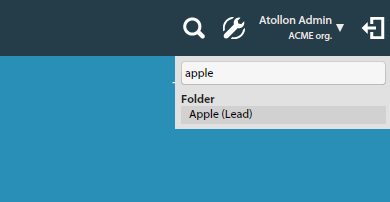
<div id="bkmrk--4"><div>[![quick-start-6-search.png](https://help.atollon.com/uploads/images/gallery/2020-03/scaled-1680-/quick-start-6-search.png)](https://help.atollon.com/uploads/images/gallery/2020-03/quick-start-6-search.png)</div><div></div></div>Search Bar is looking for folders in Atollon Finder. Once you found any folder, just click on it to display more information related to the folder.

#### Favourite Applications

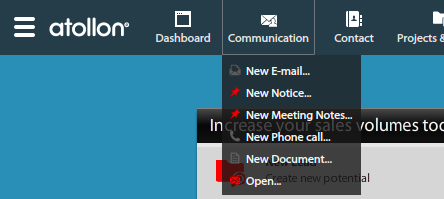
<div id="bkmrk--5"><div>[![quick-start-7-favourites.png](https://help.atollon.com/uploads/images/gallery/2020-03/scaled-1680-/quick-start-7-favourites.png)](https://help.atollon.com/uploads/images/gallery/2020-03/quick-start-7-favourites.png)</div><div></div></div>You can click on one of your favourite application icons to open it. Once you just hover over the application icon with your mouse, you may run selected quick functions (to create new client, person or company contact, e-mail, notice, calendar event, task, time sheet record, etc.).

#### Running Applications &amp; Opened Windows

<div id="bkmrk--6"><div>[![quick-start-8-open-app.png](https://help.atollon.com/uploads/images/gallery/2020-03/scaled-1680-/quick-start-8-open-app.png)](https://help.atollon.com/uploads/images/gallery/2020-03/quick-start-8-open-app.png)</div><div></div></div>Running applications in Atollon are indicated by small arrow below the application icon.  
Each application may have also several windows opened. This is indicated below each application's own menu of opened windows.

#### Personal Options Menu

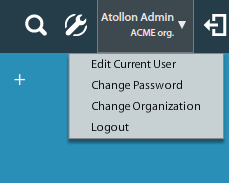
<div id="bkmrk--7"><div>[![quick-start-9-personal-options-menu.png](https://help.atollon.com/uploads/images/gallery/2020-03/scaled-1680-/quick-start-9-personal-options-menu.png)](https://help.atollon.com/uploads/images/gallery/2020-03/quick-start-9-personal-options-menu.png)</div><div></div></div>In the personal options menu, you can change your password, change organization (only in multi-org Atollon set-up), and Logout from Atollon.

#### Atollon Sidebar

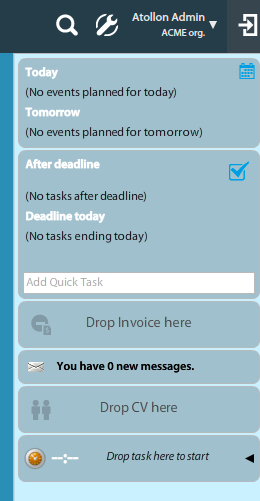
<div id="bkmrk--8"><div>[![quick-start-10-sidebar.png](https://help.atollon.com/uploads/images/gallery/2020-03/scaled-1680-/quick-start-10-sidebar.png)](https://help.atollon.com/uploads/images/gallery/2020-03/quick-start-10-sidebar.png)</div><div></div></div>Using the last (top-right) Atollon toolbar icon you can hide or show Atollon Sidebar. When the Sidebar is hidden, you can show it only temporarily, once you hover with your mouse over the icon. If you click on the icon, the Sidebar will remain opened.

# Contexts


# Contexts Overview

## Introduction

Atollon Finder is the main **content navigator** in Atollon. Atollon stores all data in **context** that is visible through Finder.

### Finder Video Tutorial

![Flash Animation](http://wiki.atollon.com/editor/ckeditor/core/images/spacer.gif?t=ABH04T8)<iframe allowfullscreen="allowfullscreen" height="314" src="//www.youtube.com/embed/140nPo12Z60" width="560"></iframe>

## Finder Main Window

First column in Finder displays **filter** for **Folder Types**, which are stored in **Organization**'s **root**. You can directly search for all folders by selecting "All" option or you can select one particular Folder Types only (for instance "Clients").

The button for creating **new** Folders in Finder is context-sensitive. It's list of available Folders is changed automatically based on selected Folder (and it's Folder Type) in Finder. Each Folder Type may create different Folders. For instance you can only create New **Sales Opportunity** Project Folder under **Client** and **not** **Partnership Project**, which belongs to **Partners** Contact Folders only.

## Finder Structure

The basic context structure contains the following **Folders**:

Contact Folder &gt; Project Folder &gt; Milestone Folder

See the illustration below for more details:

[![context-finder-scheme.png](https://help.atollon.com/uploads/images/gallery/2020-03/scaled-1680-/context-finder-scheme.png)](https://help.atollon.com/uploads/images/gallery/2020-03/context-finder-scheme.png)

## Creating New Folders

New Folders in Finder are created using Folder Templates.

### Creating New Folder

In Finder's root level can be created only General Folders, incl. Simple Folders and Contact Folders (Clients, Partners). New General Folder may be created under any other General Folder, therefore you can create the whole tree of folders.

#### Create folder to contact

Existing contact (company or person) may have a folder in ATOLLON, which is core for any CRM functionality. Easily drag &amp; drop contact to chosen contact type (Client, Supplier, Partner, etc.)

[![Quick-create-client-from-contact.gif](https://help.atollon.com/uploads/images/gallery/2022-09/Quick-create-client-from-contact.gif)](https://help.atollon.com/uploads/images/gallery/2022-09/Quick-create-client-from-contact.gif)

### Creating New Project Folder

Project Folder must be created under any General Folder (based on Folder relations settings).

### Creating New Activity/Milestone

Activity/Milestone Folder may be created only under Project Folder.

## Searching in Finder

You can search in Finder only in one particular (selected) level. Finder displays all Folder Types in each level together. You can differentiate Folder Types by using different colors (applied for each Folder Status differently).

Main Atollon search bar (top Toolbar) searches immediately in Finder's root level. It is useful therefore to find appropriate Client first, before looking into Client's projects.

Once you select any Folder in Finder, you can search another levels as well.

Finder Filtering

You can filter Finder for:

- Folder Base Status (Intital, Active &amp; Closed)
- Responsible User (user responsible for Client, Partner, Simple Folder, etc.)
- Organization Dimensions (Organizational Units, Departments, etc. - which must be set-up during implementation)

## Folder Status

Each Finder Folder may have various States. These States are customizable for each Folder Type. For instance Clients in the database may have states indicating their relationship with the company, such as Lead, Prospect, Potential, Current, Hot, Lost). Each status has also Base Status, which is Initial, Active &amp; Closed.

Finder displays by default automatically only Folders in Initial &amp; Active States. By changing Finder's filter, you can display all States (incl. Closed Folders).

## Finder Access Rights

Access Rights for Finder's Folders are based on Folder Templates. Each Folder Template may define how to set access rights for each individual new Folder. New Folder's access rights may be taken from (inherited from) Organization's root, parent Folder or any other folder defined by Administrator.

Access to Finder Folders may be extended by adding Users into Roles or by customizing each individual Folder's Access Rights.

Because Access Rights are usually inherited (tree-based), there may be Folders in finder that are not visible by everyone.

## Finder Tabs Customization

It is possible to customize each Folder's detail using Activity Panel Settings. The detail may vary for each **Folder Type** and **User Profile**. Therefore each Islander may display different Tabs based on their User Profile, for instance administrative staff may display different Tabs in comparison to management or end users.

## Master/Slave Project Structure (Campaigns)

Project Folders may be bound in Master/Slave structure. See the illustration below:

[![context-projects-scheme.png](https://help.atollon.com/uploads/images/gallery/2020-03/scaled-1680-/context-projects-scheme.png)](https://help.atollon.com/uploads/images/gallery/2020-03/context-projects-scheme.png)

#### Example

Project Master/Slave relationships are used to track mainly campaigns, where Master Project is Campaign, Slave Project is Campaign Member. Campaign Member project has relation to it's Master Campaign.

### Campaign Overview

### Messaging

It is possible to display all messages sent/stored in connection to Campaign Memberships in one central location, which is the Campaign. This allows Islanders to get overview about all campaign communications.

### Billing

It is possible to get overview about billing status of any item of Campaign Memberships. This way you can easily get financial status of paid trainings, seminars, conferences, etc.

## Finder Configuration

See [Context Settings](mks://localhost/en/user-manual/general/Finder/context-settings "en/user-manual/general/Finder/context-settings") documentation for more information.

## Folder Options

Go to the Folder detail and open Edit XYZ (where XYZ is the Folder Type)

[![folder-options-menu.png](https://help.atollon.com/uploads/images/gallery/2020-03/scaled-1680-/folder-options-menu.png)](https://help.atollon.com/uploads/images/gallery/2020-03/folder-options-menu.png)

### Folder Advanced Options

#### Change Folder Type

In case you want to change Folder Type, you can go to view Other options and use "secret" :-) key stroke: Ctrl + Shift + dbl. click to unhide options: Folder Type and Custom Form.

Please note that changing Folder Type this way may be dangerous and can cause inconsistencies. Ie when changing Folder Type, you have to be careful to adjust access rights of the folder or custom form.

[![folder-options-advanced.png](https://help.atollon.com/uploads/images/gallery/2020-03/scaled-1680-/folder-options-advanced.png)](https://help.atollon.com/uploads/images/gallery/2020-03/folder-options-advanced.png)

# Projects & Folders Application

Application **Projects &amp; Folders** is used to quickly report on main Finder's Folders, including General Folder, Project Folder &amp; Activity Folder.

You can easily show your potential clients, your Sales Opportunities in Presentation phase, your service contracts or Cases in In Progress phase, etc.

## Using the Application

[![projects-folders-overview.png](https://help.atollon.com/uploads/images/gallery/2020-03/scaled-1680-/projects-folders-overview.png)](https://help.atollon.com/uploads/images/gallery/2020-03/projects-folders-overview.png)

The left side bar (views) are used to filter **Folders**, **Projects** &amp; **Activities**, either **your own** or **all** where you are allowed to access (list).

You can filter folders, projects &amp; activities from top down &amp; decide:

1. Show My / All Folders/Projects/Activities
2. Show only one type of folder (project, activity)
3. Show only one status of folder (project, activity)

### Examples

There are several scenarios, how to use this application:

#### **Show my potential/active/lost clients**

Go to left side bar, select:

1. My folders
2. Below list of types of folders is displayed, select "Client"
3. Below list of Client's states is displayed, select "Potential"

Now you show only potential clients.

#### Show Active Cases/Projects

If your company tracks service cases, they are usually treated as specific project type. Therefore, if you want to display all active Cases, you can select:

1. All projects
2. Select project Type: "Case"
3. Select desired status in bottom part of the accordeon

## Using quick Mass Mail on projects

If you want to send all your External contacts on projects some announcement, this tool is quite suitable. You can also use general Reporting for the same task.

You can filter projects that you would like to send message to:

1. Select All projects option
2. Select the Type of the project
3. Select the Status of the project (if necessary)

You can now optionally select only particular projects, or you can press **Mass Mail** button on top of the application.

In Mass Mail contacts selector, you may check option Send mass mail to "External contacts on project". Continue by pressing **Mass Mail Wizard**.

## Delete Project

You may delete any project that has no financial data or documents stored. Also some other data stored project may cause no possibility to delete the project. In case you know what data prevent you from deleting the project, you may first clear them and later on try to delete the project.

[![projects-folders-delete.png](https://help.atollon.com/uploads/images/gallery/2020-03/scaled-1680-/projects-folders-delete.png)](https://help.atollon.com/uploads/images/gallery/2020-03/projects-folders-delete.png)

# Folders

### Cloning folders to other organization

To clone folder into another organisation, there is a context menu item (in Finder), for executing this function.

[![folders-copy-to-other-org.png](https://help.atollon.com/uploads/images/gallery/2020-03/scaled-1680-/folders-copy-to-other-org.png)](https://help.atollon.com/uploads/images/gallery/2020-03/folders-copy-to-other-org.png)

Click on this button will list all organizations. After selecting organisation and click "OK" button

[![folders-copy-select-org.png](https://help.atollon.com/uploads/images/gallery/2020-03/scaled-1680-/folders-copy-select-org.png)](https://help.atollon.com/uploads/images/gallery/2020-03/folders-copy-select-org.png)

##### There are the following actions executed

1. Check, if settings in both organizations are the same: it will be checked by organization\_default settings. If nodes for folder type, project type, activity type, folder states and so on, are different in current and destination organization, the server resutrn error about it. Otherwise it runs next steps:
2. Get folder save the copy in destination organization and run next sub-steps 
    1. The folder copy will have clear reference id
    2. Copy global and custom form values
    3. Copy messages only. These messages are assigned only current folder (not projects)
    4. For each projects, assigned to source folder, do: 
        1. Copy project to destination folder (in destination organization)
        2. Copy global and custom form values
        3. Copy messages assigned only to current project (not from activites)
        4. For each activity from source project do 
            1. Copy activity to destination project
            2. Copy global form values (custom form on activity does not exist)
            3. Copy messages, only from current activites
            4. Recursively copy activites

# Projects

### New Project

This lesson shows how to create new project for your client in simple **Client** &gt; **Project** Finder structure.

#### Open Finder to locate your client

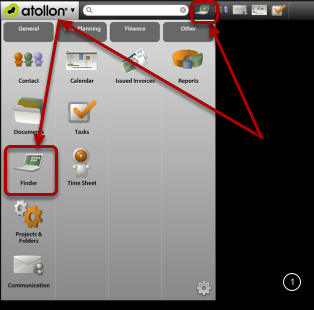
<div id="bkmrk-"><div>[![project-new-1.png](https://help.atollon.com/uploads/images/gallery/2020-03/scaled-1680-/project-new-1.png)](https://help.atollon.com/uploads/images/gallery/2020-03/project-new-1.png)</div><div></div></div>You can open Finder either clicking **Finder** icon in **Atollon Toolbar** or using **Application Launcher**.

#### Look-up for your client

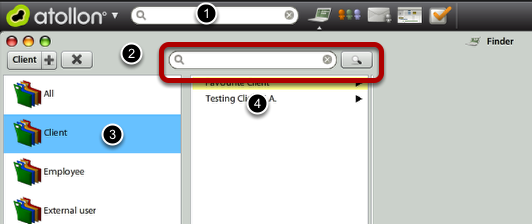
<div id="bkmrk--0"><div>[![project-new-2.png](https://help.atollon.com/uploads/images/gallery/2020-03/scaled-1680-/project-new-2.png)](https://help.atollon.com/uploads/images/gallery/2020-03/project-new-2.png)</div><div></div></div>There are multiple ways of opening your client's folder in Atollon.

1.) You can directly **search** for it's name in Atollon's search bar  
2.) You can search for it's name after opening Finder  
3.) You can click on Clients in Finder and then 4.) browse for the client

After you have found your client, you should select it in Finder. (Alternatively, you can open Client's details by double-clicking on the record).

#### Create new project from Finder

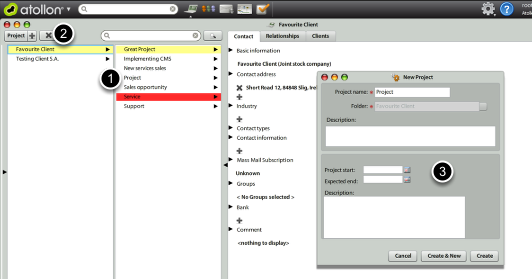
<div id="bkmrk--1"><div>[![project-new-3.png](https://help.atollon.com/uploads/images/gallery/2020-03/scaled-1680-/project-new-3.png)](https://help.atollon.com/uploads/images/gallery/2020-03/project-new-3.png)</div><div></div></div>After you selected your client in Finder, you can select which Type of Project (based on **Project Template**) you would like to create. Select the project in top-left corner of the Finder and New Project window appears.

#### Create new project from Client detail

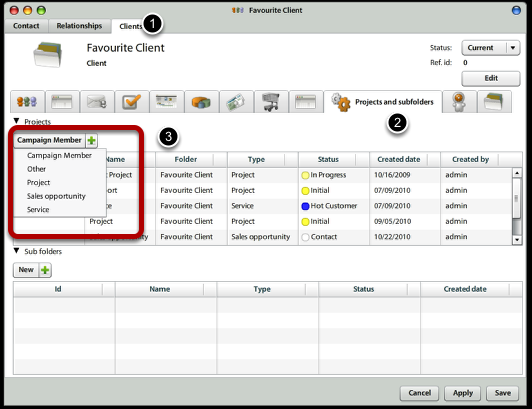
<div id="bkmrk--2"><div>[![project-new-4.png](https://help.atollon.com/uploads/images/gallery/2020-03/scaled-1680-/project-new-4.png)](https://help.atollon.com/uploads/images/gallery/2020-03/project-new-4.png)</div><div></div></div>If you opened Client detail (from Finder, Contacts, Report results, etc.), you can create new project from **Projects and subfolders** tab. Just select the Project Template in top left corner of projects overview.

#### Adjust project after it was created

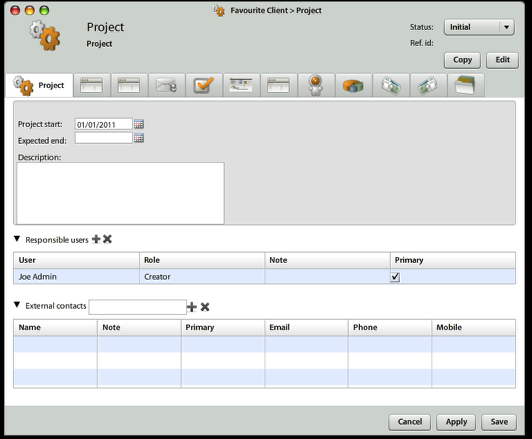
<div id="bkmrk--3"><div>[![project-new-5.png](https://help.atollon.com/uploads/images/gallery/2020-03/scaled-1680-/project-new-5.png)](https://help.atollon.com/uploads/images/gallery/2020-03/project-new-5.png)</div><div></div></div>After creating a project, you would probably want to assign **Responsible users** (when assigned to project role, this would give them access rights to the project). In case you want to time by time inform your external contacts on project by mass mail, you should attach the external contact to project as well.  
New Project (Job) Number is assigned to project automatically, once it is set-up in Numbering Administration.

# Communication


# Communication Overview

## Communication Channels

Currently supported communication channels in Atollon are: e-mail, sms, phone call, event, task, document &amp; internal notice. These communication channels will be extended in the future releases of Atollon.

### E-mail

E-mail is sent and received by Atollon using Atollon Mail Server. Atollon may handle e-mail communication for unlimited number of domains (ie domain.com) and mailboxes (ie mailbox@domain.com).

For internal Atollon communication, **Notices** should be used instead to not duplicate message communication using e-mail forwarding and replying.

### Notice

Internal message sent from one Islander to another. Notice should be placed in context (on some Folder).

### SMS

Atollon uses own SMS gateway, utilizing Web Services connectors of various telecommunication providers. Contact Atollon Consultant once you want to set-up your access to SMS gateway.

### Phone Call

Atollon may simply dial phone call using Skype. No PBX integration is supported yet, but it is expected we will integrate more telephony solutions in near future.

### Event / Task

This is just special type of notice, indicating that the user was invited to calendar event or some task was assigned to him/her.

### Document

Internal notification to a copy of document stored in Atollon [Documents](mks://localhost/en/user-manual/general/documents "en/user-manual/general/documents").

## Main Communication Folders

#### To Do

Why is this folder called ToDo, instead of Inbox (as in other mail clients?). While it contains both incoming &amp; outgoing correspondence. And because most of the correspondence should be **corporate messages**, you should make sure you **completely empty/solve** this ToDo message container. You can move messages (to personal or organization's folders) or delete them. Ideally, it should contain only few unresolved e-mails. Avoid keeping hunderts or thousands of messages here.

This folder contains all messages (e-mails, sms, notices, meeting notes, phone calls) that are to be solved in the following manner:

They are either **references** to incoming messages (e-mails, internal notices) that were placed by Atollon Trolls in context (Finder's folders, projects, activites). These can be **deleted** after they are solved from your side. Once you delete reference to message, you do not delete original message. Original message remains stored in history of any Folder, Project or Activity.

They are also **original e-mails** received (and not recognized by Trolls) placed to ToDo and notes taken by you. Because your Trolls did not do their job, you should **move** these messages to context or personal message folders yourself. Or you can delete them, if they are not needed any more.

They are also **outgoing messages** created by you, which were not placed by you to any context. You should **move** them to some context, to your personal message folders or **delete** them.

#### My Messages

This is view displaying all messages you received or sent using Atollon. There are all messages, both ToDo &amp; already placed, in company (shared) folders, projects or activities or in personal message folders.

### Outgoing

This is view displaying all messages you created, no matter where they are located.

#### Drafts

Here you can find **saved messages**, which you have not sent yet.

Once you disconnected from system during writing new message, you can find here **auto-saved** messages as well.

#### Trash

Here are all messages **you deleted**, no matter where they were originally located. Once you **undelete** message from Trash, the message restores to the original location.

#### Corporate Messages

Here you can find overview of **all messages** your organization received into Atollon, no matter where they were located. Only messages which you can view based on your access rights can be displayed here.

#### Personal Message Folders

You can create personal message folder, where you may file any message that should NOT be shared with the team/company.

[![Move-message-to-personal-folder.gif](https://help.atollon.com/uploads/images/gallery/2022-09/Move-message-to-personal-folder.gif)](https://help.atollon.com/uploads/images/gallery/2022-09/Move-message-to-personal-folder.gif)

## Atollon Trolls taking care about your incoming e-mails

### Reply to e-mail

Once you send any e-mail outside of Atollon, the e-mail reference ID is placed to the bottom of each individual e-mail. Once the recipient sends reply to the e-mail and keeps the reference ID of the e-mail within the body of e-mail, the e-mail recognized by Trolls and placed to Atollon as reply to your original message. Trolls will also send you reference message to your ToDo, so that you are informed about new incoming e-mail. You may simply delete this reference after you solve/read the incoming e-mail.

### Project/Folder Messages

If sender of e-mail adds project Reference ID (Job Number) after "-" sign into message subject, like: "New proposal - REFERENCEID", Atollon Trolls will do the work for you and place this e-mail under project with the same **Reference ID**. Trolls apply the same rule to any Folder and Folder's Reference ID in Finder.

# Set-up auto-response

Do you want to send your partners information that you are not available now?

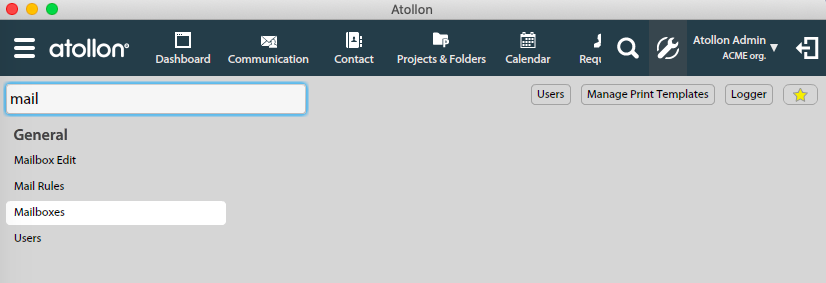
#### Go to Options &amp; Tools &gt; Mailboxes

<div id="bkmrk-">[![mailbox-edit.png](https://help.atollon.com/uploads/images/gallery/2020-03/scaled-1680-/mailbox-edit.png)](https://help.atollon.com/uploads/images/gallery/2020-03/mailbox-edit.png)</div>#### Allow Auto-response

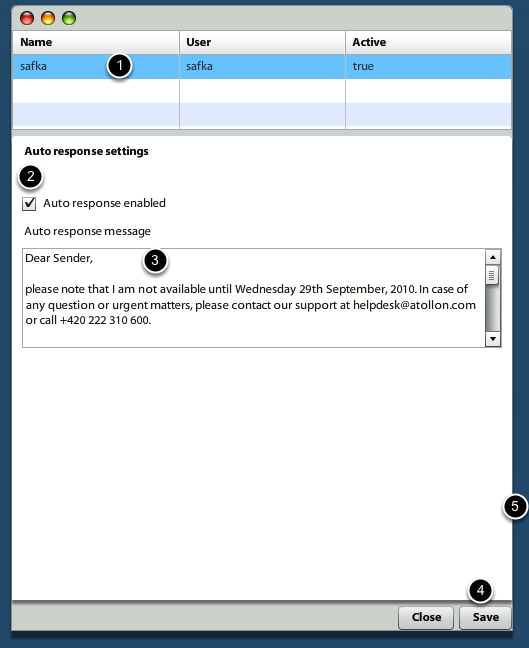
<div id="bkmrk--0"><div>[![mailbox-edit-autoresponse.png](https://help.atollon.com/uploads/images/gallery/2020-03/scaled-1680-/mailbox-edit-autoresponse.png)](https://help.atollon.com/uploads/images/gallery/2020-03/mailbox-edit-autoresponse.png)</div></div>First select **mailbox** (yes, you can have more mailboxes), then allow **Auto response** and write your message. In the end, do not forget to **Save**.  
Now once someone sends you e-mail (message), he/she gets the notification automatically.

# Message Templates

**Message templates** are used mainly in connection with sending e-mails to your clients, prospects or partners.

Message template may be used when sending individual e-mail correspondence. Message template is required when sending Mass Mail. Message template is heavily used when automating processes using Atollon Troll (Workflow) module.

## Message Templates Overview

The overview of message templates provides list of **Message Template Containers**. Click on one of the containers to add / view / edit / delete one of the message templates on right.

You can filter only for Message Templates in specific language by selecting one of the languages in the list of languages.

[![message-template-create-edit.png](https://help.atollon.com/uploads/images/gallery/2020-03/scaled-1680-/message-template-create-edit.png)](https://help.atollon.com/uploads/images/gallery/2020-03/message-template-create-edit.png)

## Edit Message Template

To edit the Message Template, double click on one of the items in grid.

[![message-template-create-edit2.png](https://help.atollon.com/uploads/images/gallery/2020-03/scaled-1680-/message-template-create-edit2.png)](https://help.atollon.com/uploads/images/gallery/2020-03/message-template-create-edit2.png)

Once you make any changes, do not forget to press on "Save", please.

You can attach one or more files or documents to each Message Template.

## Message Template Languages

Each message template may have indicated language, in which the template is prepared. This is particularly useful when automating workflow actions on multi-lingual web sites, etc.

[![message-template-create-edit-translate.png](https://help.atollon.com/uploads/images/gallery/2020-03/scaled-1680-/message-template-create-edit-translate.png)](https://help.atollon.com/uploads/images/gallery/2020-03/message-template-create-edit-translate.png)

## Mail Merge Fields

Basic rule for using merge fields:

- ${CAPITAL-LETTERS} - may be used on both client &amp; server side
- ${small-letters} - may be used on client side only

### General

```wiki
${SALUTATION} | Enters the string that is found in recipient contact's Salutation field.
${SIGNATURE} | Enters user's mailbox identity signature.
```

### Calendar / Tasks Notifications

```wiki
Main tags
${NAME} | Task / Event name
${DESCRIPTION} | Task / Event description
${STATUS} | Task / Event status
${START} | Task / Event start date/time
${END} | Task / Event deadline / end date/time
${CONTEXT} | Task / Event context
${TYPEOFWORK} | Task / Event context

Other tags
${LOCATION} | Event location
${PRIORITY} | Task priority
${DURATION} | Event duration
${REMAINING} | Event duration

${USERS} | Event participants / Task solver
${GARANTS} | Resource garants
${RESOURCES} | Resources


```

### Service Level Notifications

```wiki
${REQUESTSUBJECT} | request subject
${REQUESTDESC} | request description 
${REQUESTIDENT} | request id
${REQUESTSENDER} | request sender
${REQUESTPROJECTNAME} | project & subject (if is known) 
${REQUESTDATETIME} | request date/time
```

### Message Context Dependent <span class="searchword1">Field</span>s

```
${ACTIVITYNAME}
${ACTIVITYREFID}
${PROJECTNAME}
${PROJECTREFID}
${MASTERPROJECTNAME}
${MASTERPROJECTREFID}
${FOLDERNAME}
${FOLDERREFID}
${CONTEXTREFID}

```

### Recipient Dependent <span class="searchword1">Field</span>s

```
${RECIPIENT-ID}
${RECIPIENT-EMAIL}
${RECIPIENT-FIRSTNAME}
${RECIPIENT-MIDDLENAME}
${RECIPIENT-LASTNAME}

```

### Invoice Fields

```
${doc_number}
${doc_descr}
${doc_total_amount} 
${doc_due_date}

Same naming conventions are for all following items (${word before :} 
                
doc_number:"invoiceNumber",
doc_descr:"transactionsName",
doc_total_amount:"totalWithVAT",
doc_due_date:"dueDate",
doc_ccy:"currency",
doc_ccy_rate:"currencyRate",
doc_bank_code:"bankCode",
doc_bank_account:"bankAccount",
doc_iban:"bankIBAN",
doc_description:"description",
doc_header_text:"headerText",
doc_footer_text:"footerText",
doc_summary_text:"summaryText",
doc_period_from:"periodFrom",
doc_period_to:"periodTo",
doc_trans_name:"transactionsName"      
```

### Custom Form

```
${generatedLink}
```

### Campaign Planner / Event

```
${eventFrom}
${eventTo}
${eventLocation}
${eventUserName}
${eventDescription}
```

### Folder / Project / Activity (Context items)

```
${contextName} -> name
${contextReferenceId} -> referenceId
${contextComment} -> comment
${contextCreated} -> created
${contextCreatedBy} -> createdByName
${contextModified} -> modified
${contextModifiedBy} -> modifiedByName
```

## System IDs for message templates in system

<table border="1" cellpadding="1" cellspacing="1" id="bkmrk-systemid-description"><tbody><tr><td>SystemId</td><td>Description</td></tr><tr><td>com.atollon.messaging.issudedinvoicemail</td><td>template with message for mail with issuded invoice</td></tr><tr><td>com.atollon.messaging.invoicereceivedmail</td><td>template with message for mail with recieved invoice</td></tr><tr><td>com.atollon.messaging.orderissuedmail</td><td>template with message for mail with issuded order</td></tr><tr><td>com.atollon.messaging.orderreceivedmail</td><td>template with message for mail with recieved order</td></tr><tr><td>com.atollon.messaging.estimatemail</td><td>template with message for mail with estimate</td></tr></tbody></table>

# Contacts


# Contacts Overview

## Contacts Main Window

Contacts are split to company and person within Atollon. You can create them separately, but it is possible to link person with company using contact relationships.

Contacts database is used to store primary contact information (e-mails, phone, mobile, social URLs, etc.), contact addresses (various types), bank account information and several other fields.

## Contact Types

Once you set **Contact Type** information (client, partner, employee, etc.), new Contact Folder is created automatically in Finder. Contact Folder may contain additional information &amp; functions based on Folder Type, for instance Form (with various custom fields), Messaging Tab, Calendar, Tasks, Projects &amp; Folders, Time Sheet, Orders, Invoices and much more.

### Set Contact Type

Open any existing contact or create new, see the Contact Type section and select the appropriate contact type, such as:

- Client
- Partner
- Employee
- Supplier
- ...

You can also set Contact Type for multiple contacts at the same time using Drag &amp; Drop function. Simply select more contacts and Drag &amp; Drop them on displayed Contact Type (left panel in Contacts application).

### Un-set Contact Type

It is possible to un-set contact's Contact Type only by removing particular Contact Folder from Finder.

### Create new/Adjust Contact Type

It is possible to create / remove Contact Types using [Finder configuration](mks://localhost/en/user-manual/general/Finder/context-settings "en/user-manual/general/Finder/context-settings"). Simply remove or add Folder type in Context Settings.

## Contact Information

Contact information is the basic e-mail, phone, mobile, Facebook account, Twitter account or LinkedIn account stored in connection with the contact (person or company).

It is possible to add more contact information records to each contact.

If there are more contact information records, one of them may be set as primary (for instance phone (work) from set of all phone numbers).

One primary contact channel (e-mail (work) for instance) may be selected for all contact information records.

### Contact Information Types Customization

It is possible to add/remove Contact Information from Atollon and in this way customize list of Contact Information, such as e-mail (home), e-mail (work), e-mail (other) for some other values.

Go to Windows Admin client &gt; Settings &gt; Contacts &gt; Settings and select appropriate configuration list.

## Contact Groups

It is possible to add each contact (person or company) into one or more Contact Groups.

### Contact Groups &amp; Mass Mail

The membership of the contact in Contact Group is used mainly to use Mass Mail functions. You can double-click the Contact Group in Contacts application and more details of the Contact Group may appear. It is also possible to allow/disallow sending the contact mass mail using the selected Contact Group this way.

### Add Contact to Contact Group

There are more ways to do this task. One of them is simply drag &amp; drop selected contacts into group displayed in accordeon on left panel in contacts database. Another is to open each contact individually and select appropriate checkbox in Contact Groups fields. Description may be added that associates contact with the Contact Group.

## Contact Relations

It is possible to link contacts together. There are the following relations available:

- person x company relations - indicates employer / employee relationship
- company x company relations - indicates two types of relations: equal level (partners) or master/slave level (mother / division)
- person x person relations - indicates two types of relations: equal level (friends) or master/slave level (superior / subordinate)

Person x company relations may have additional attributes, such as Position in company and Department, incl. some notes.

Contact relations are displayed in tree and you can browse contacts relationship tree into almost indefinite level, which helps to understand influence to your sales opportunities or clients and may help you build your referral business.

# Contact Groups

### Add Group Category

**Group Category** is container for storing several contacts (distribution) groups. It is particularly useful once you have too many contact groups.

#### Advanced

##### Access Rights

Only authorized users may add new Group Category. The rights are defined in Atollon Directory, where you can find the default Access Rights Node at: Root &gt; Organization Folders &gt; Contacts Controller &gt; Distribution Group Category.

# New Contact in Detail

#### Person vs Company

## [![contact-new-1.png](https://help.atollon.com/uploads/images/gallery/2020-03/scaled-1680-/contact-new-1.png)](https://help.atollon.com/uploads/images/gallery/2020-03/contact-new-1.png)
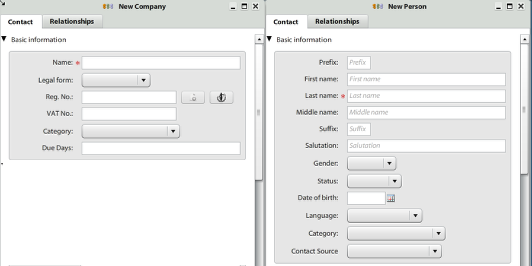
##### New company

 **Legal form** - eg. Inc., s.r.o., a.s. ...,  
 **Reg. No.** - it's company registration number,  
 **VAT No.** - it's company VAT number,  
 **Category** - most simplest categorisation,  
 **Due Days** - it's number of days when the invoices are in due.

##### New person

 **Prefix**  
 **Fist name**  
 **Last name**  
 **Middle name**  
 **Suffix**  
 **Salutation** - this field will be transfered on e-mails while using the ${SALUTATION} tag in e-mail template. See the section ${wiki:EmailTemplating}  
 **Gender**  
 **Status**  
 **Date of birth**  
 **Language**  
 **Category** - most simplest categorisation,  
 **Contact Source** - where we get this contact (should be modified) - eg. web, newspaper, friend, competitor ...

#### Industry (only for new company)

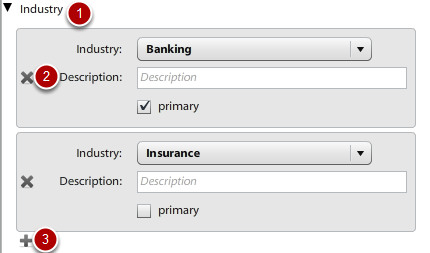
<div id="bkmrk--0"><div>[![contact-new-2.png](https://help.atollon.com/uploads/images/gallery/2020-03/scaled-1680-/contact-new-2.png)](https://help.atollon.com/uploads/images/gallery/2020-03/contact-new-2.png)</div><div></div></div>Fields:  
 **Industry** - for selecting company industry.  
 **Description** - for additional description of that industry for specific company.  
 **Primary** - check box for selecting which industry is the primary one.

Functions:  
 1. **Collapse/expand** section - by clicking text with black arrow.  
 2. **Remove** industry from contact - by clicking the cross (which is red when going your mouse cursor over).  
 3. **Add** new industry to contact - by clicking the plus (which is green when going your mouse cursor over).

#### Contact address

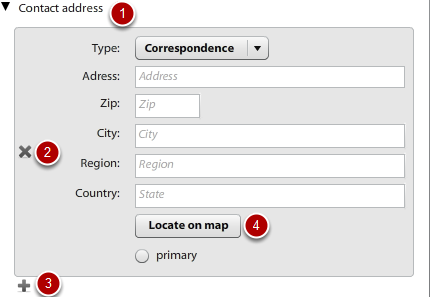
<div id="bkmrk--1"><div>[![contact-new-3.png](https://help.atollon.com/uploads/images/gallery/2020-03/scaled-1680-/contact-new-3.png)](https://help.atollon.com/uploads/images/gallery/2020-03/contact-new-3.png)</div><div></div></div>Fields:  
 **Type** - user-definable type of address (eg. Correspondece, Invoicing, Delivery, ...)  
 **Address**   
 **Zip**  
 **City**  
 **Region**  
 **Country**  
 **Primary**

Functions:  
 1. **Collapse/expand** section - by clicking text with black arrow.  
 2. **Remove** contact address from contact - by clicking the cross (which is red when going your mouse cursor over).  
 3. **Add** new contact address to contact - by clicking the plus (which is green when going your mouse cursor over).  
 4. **Locate address on map** - by clicking the Locate on map button (this will open new window with google maps).

#### Contact types

<div id="bkmrk--2"><div>[![contact-new-4.png](https://help.atollon.com/uploads/images/gallery/2020-03/scaled-1680-/contact-new-4.png)](https://help.atollon.com/uploads/images/gallery/2020-03/contact-new-4.png)</div><div></div></div>Fields:  
 **Depends on implementation**. There might be ten or no one.

Functions:  
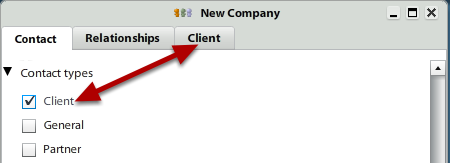
 By selecting one or many check boxes there will appear one or many new tab with same name. With this we are saying that "this new contact is Client and we want to see it in Finder (see the section ${wiki:Finder} under the folder called Client".

#### Contact information

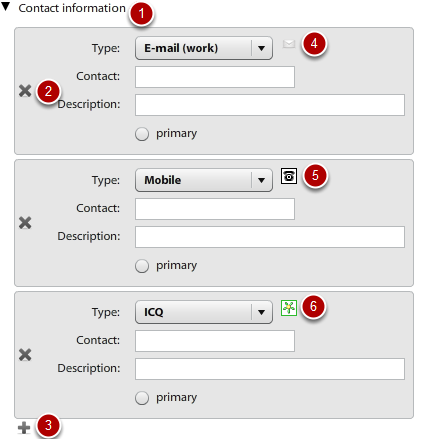
<div id="bkmrk--3"><div>[![contact-new-5.png](https://help.atollon.com/uploads/images/gallery/2020-03/scaled-1680-/contact-new-5.png)](https://help.atollon.com/uploads/images/gallery/2020-03/contact-new-5.png)</div><div></div></div>Fields:  
 **Type** - various types of contact (eg. E-mail, Skype, ICQ, Facebook, Linked-in, Cell phone, ...)  
 **Contact** - field for filling up the phone number, ICQ number, e-mail address ...  
 **Description**

Functions:  
 1. **Collapse/expand** section - by clicking text with black arrow.  
 2. **Remove** contact information from contact - by clicking the cross (which is red when going your mouse cursor over).  
 3. **Add** new contact information to contact - by clicking the plus (which is green when going your mouse cursor over).  
 4., 5., 6. **Contact information-specific icon** and **function**. By clicking this icon you may:  
 a. **write new e-mail** with prefilled recipient,  
 b. **call cell phone/land line** (with using Skype),  
 c. **add ICQ** number to your account,  
 d. **visit facebook/linked-in account**,  
 e. etc.

#### Mass Mail Subscription

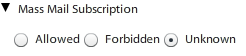
<div id="bkmrk--4"><div>[![contact-new-6.png](https://help.atollon.com/uploads/images/gallery/2020-03/scaled-1680-/contact-new-6.png)](https://help.atollon.com/uploads/images/gallery/2020-03/contact-new-6.png)</div><div></div></div>This is usefull section when you are using **mass mailing** system function (see the section ${wiki:Mass mail}

Functions:  
\- By selecting one of the field you tell to system if this contact allowed you to send mass mails (newsletters, promotions, ...) to it.

#### Groups

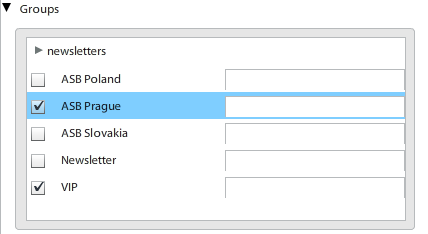
<div id="bkmrk--5"><div>[![contact-new-7.png](https://help.atollon.com/uploads/images/gallery/2020-03/scaled-1680-/contact-new-7.png)](https://help.atollon.com/uploads/images/gallery/2020-03/contact-new-7.png)</div></div>The Groups name means **distribution groups** which are use to send mass mails to it (see the section ${wiki:Mass mail}.

All that fields are **variable**.

Fields:  
 **newsletters** - the field with arrow before is category. In the Groups you may categorise your distribution groups.  
 **ASB Poland/Slovakia/Prague, Newsletter, VIP** - this is distribution groups as client wants it. By selecting it we are telling taht "this contact will appear in this group and if we are sending mass mail to ASB Prague or VIP we wants its to recieve that message".

Functions:  
 Confused with how to add or remove distribution group?  
\- For **adding** new group see the section ${wiki:Description/Contact Window}.  
\- For **removing** group contact our support or use windows client.

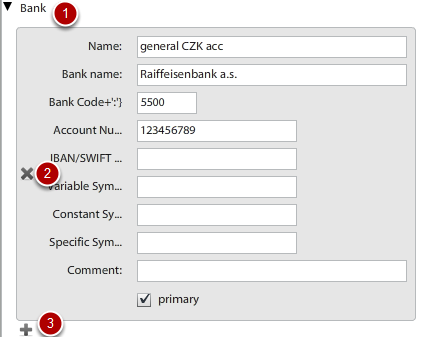
#### Bank

<div id="bkmrk--6"><div>[![contact-new-8.png](https://help.atollon.com/uploads/images/gallery/2020-03/scaled-1680-/contact-new-8.png)](https://help.atollon.com/uploads/images/gallery/2020-03/contact-new-8.png)</div><div></div></div>Add new bank account eg. for invoicing informations.

Fields:  
 **Name**  
 **Bank name**  
 **Bank Code**  
 **Account Number**  
 **IBAN/SWIFT**  
 **Variable Symbol**  
 **Constant Symbol**  
 **Specific Symbol**  
 **Comment**  
 **Primary**

Functions:  
 1. **Collapse/expand** section - by clicking text with black arrow.  
 2. **Remove** Bank from contact - by clicking the cross (which is red when going your mouse cursor over).  
 3. **Add** new Bank to contact - by clicking the plus (which is green when going your mouse cursor over).

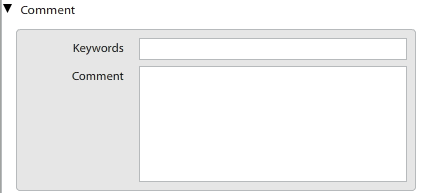
#### Comment

<div id="bkmrk--7"><div></div><div>[![contact-new-9.png](https://help.atollon.com/uploads/images/gallery/2020-03/scaled-1680-/contact-new-9.png)](https://help.atollon.com/uploads/images/gallery/2020-03/contact-new-9.png)</div></div>This section is just for your comments and keywors. It is not too much visible in system and it is not used often.

### Contact relations

Contact relationship section is divided to two sub sections.  
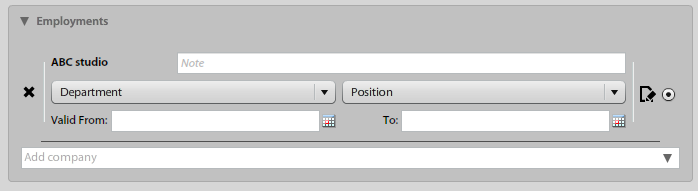
 **Employees** section is for persons related with this company. It might be direct employees or persons which are rented by company. The relation is definded by columns **Position**, **Department**, **Valid from**, **Valid to**.  
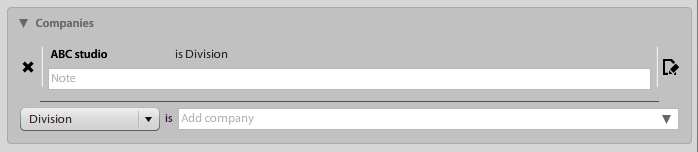
 **Companies** section is for related comapanies. The relation is defined by columnt **Relation**.

#### Employees/Employments

<div id="bkmrk--8"><div>[![contact-person-employments.png](https://help.atollon.com/uploads/images/gallery/2020-03/scaled-1680-/contact-person-employments.png)](https://help.atollon.com/uploads/images/gallery/2020-03/contact-person-employments.png)</div><div></div></div>Fields:  
 **Name** - if you are adding new person to that company, you may start writting to this field and the contact will be found.  
 **Position** - variable field. Just select if you want to specify person position in selected company  
 **Department** - variable field. Just select if you want to specify person department. There might be value External for those person which are rent by this company.  
 **Valid from** - time from the person is working in the company.  
 **Valid to -** time to the person is working in the company.  
 **Note**  
 **Primary**

#### Person 1:1 relations

[![contact-person-person-relations.png](https://help.atollon.com/uploads/images/gallery/2020-03/scaled-1680-/contact-person-person-relations.png)](https://help.atollon.com/uploads/images/gallery/2020-03/contact-person-person-relations.png)

Functions:  
 1. **Add new related person** - by clicking the plus icon.  
 2. **Remove related person** - by clicking the cross icon.  
 3. **Create new person** - if the person you want to add is no currently in the system you may use this button to create it at fist.  
 4. **Edit selected person** - click on the one row in table and select person you want to edit. Then click this button to do that.

### Companies Relations

<div id="bkmrk--10"><div>[![contact-company-related.png](https://help.atollon.com/uploads/images/gallery/2020-03/scaled-1680-/contact-company-related.png)](https://help.atollon.com/uploads/images/gallery/2020-03/contact-company-related.png)</div><div></div></div>Fields:  
 **Name** - if you want to add new related company, you may start writting to this field and the contact will be found.  
 **Relation** - variable field with **Parent&lt;--&gt;Child** structure. This mean that you may select **Controlling company** or **Division**. So in the collapset section you may see the Controlling company in one way and Divison from the opposite look. See the [Contact relationships - section collapsed](mks://localhost/en/user-manual/Windows_and_Tabs_Description/020-Relationship_tab "en/user-manual/Windows_and_Tabs_Description/020-Relationship_tab") to learn about this kind of structure.  
 **Note**

#### Footer - no additional information

<div id="bkmrk--11"><div>[![contact-new-10.png](https://help.atollon.com/uploads/images/gallery/2020-03/scaled-1680-/contact-new-10.png)](https://help.atollon.com/uploads/images/gallery/2020-03/contact-new-10.png)</div><div></div></div>Functions:  
 1. **Cancel** - to close this window without saving.  
 2. **Next** - to process to next window (which is the fist one you created in the step ${wiki:Description/New CompanyPerson Window/Contact Types)  
 3. **Save** - to save all changes and close this window.

### Contact duplicity checking

System checks for the contact duplicity.

##### Company

1. The **name** is similar to already created one =&gt; Similar contact.
2. The company **registration number** is same as the one already created =&gt; Same contact.
3. If the registration number is not entered, the VAT number is checked and must be unique

##### Person

1. The **first name and the last name** is similar to already created one =&gt; Similar contact
2. Persons **e-mail** address or **cell phone** is same as the one already created =&gt; Same contact.

# Documents


# Documents Overview

Documents are used to store and share revisions of files in Atollon folders.

#### Document Listing

It is possible to browse documents using Documents application in tree or list view.

#### Document Details

Each document may have description, Type, Category or Location.

#### Document Versions

Once you upload new document with the same name into Atollon's folder, new document revision is automatically created.

#### Multiple Documents Upload

It is possible to upload several documents at the same time.

#### Document Content Search

It is possible to search for any document, incl. content of the file, which has been recognized by Atollon. Atollon recognizes all major office documents, such as MS Word, MS Excel, MS PowerPoint, Open Office document formats, RTF, TXT, HTML or even PDF. Document's contents is indexed in database for faster search.

#### Sending Document

Document may be sent using right-click (contextual pop-up) on each document. If Finder Folder (or project) is recognized, it is automatically pre-filled. By default, the document is sent internally, but it is possible to easily switch the message type to E-mail and send it outside Atollon.

#### Document Folders

Documents are stored in Finder Folders as well as special document folders, which may be used only for the purpose of storing documents. Document folders may be created even under any Project.

#### Document Access Rights

Access rights of particular documents may be customized indivudially. Their default access rights are taken from the folder, in which they are stored. For instance if document is stored under Project, project's access rights are applied, etc.

# Print Templates

#### Uploading New Print Templates

To open the **Manage Print Templates** dialog, go to **Options &amp; Tools** &gt; **Manage Print Templates**.

[![print-templates-management.png](https://help.atollon.com/uploads/images/gallery/2020-03/scaled-1680-/print-templates-management.png)](https://help.atollon.com/uploads/images/gallery/2020-03/print-templates-management.png)

Using this tool you may upload 2 types of templates:

##### a) XHTML print template

These templates are designed for the purpose of printing and converting to PDF. It can be simple XHTML-compliant document, but may also incorporate data gathered from Atollon.

##### b) XLS template

Atollon supports generating MS Excel output from Atollon data.

#### Document Type

When uploading the Print Template, it must be set (by default) to "*PrintTemplate*" Document Type.

#### Document Category

The Print Template document must be assigned to appropriate Document Category. Print dialogues in Atollon filter Print Templates based on Print Categories. For example in order to print Estimate, you must upload template into *EstimatePrint* it's Document Category.

In order to get list of print categories, go to [Print Template Categories](mks://localhost/en/tech/Mooring/Mooring_Templating_Guide/Print_Template_Categories "en/tech/Mooring/Mooring Templating Guide/Print Template Categories") page.

### Print Templates Design

To learn more about Print Template Design, read [Mooring Templating Guide](mks://localhost/en/tech/Mooring/Mooring_Templating_Guide "en/tech/Mooring/Mooring Templating Guide"). Using Atollon Logger application, you may get PrintJob data available to the Print Template. All data that are available in PrintJob may be used in output.

To learn more about exporting into Excel, read [Excel Templating Guide](mks://localhost/en/tech/Mooring/Mooring_Templating_Guide/Excel_Reporting "en/tech/Mooring/Mooring Templating Guide/Excel Reporting").

### Download Sample Print Templates

You may be provided with public sample print templates for free. For that please contact atollon or your implementation partner.

# Tasks


# Create & Assign Task

This tutorial shows you how to create new task, assign it to solver &amp; show the solver how to accept or reject the task.

#### Open Tasks Application

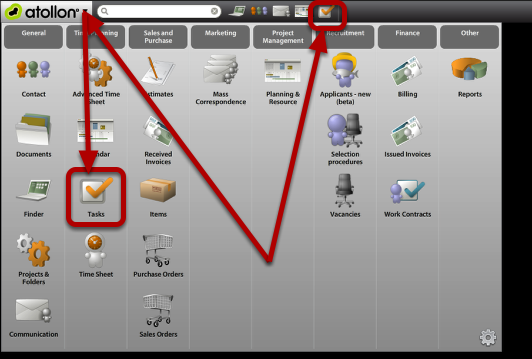
<div id="bkmrk-"><div>[![task-new-1.png](https://help.atollon.com/uploads/images/gallery/2020-03/scaled-1680-/task-new-1.png)](https://help.atollon.com/uploads/images/gallery/2020-03/task-new-1.png)</div><div></div></div>First go to **Atollon** Applications menu &amp; open **Tasks**. Optionally, only move mouse over Tasks icon in toolbar &amp; select **New Task**.

#### Create New Task

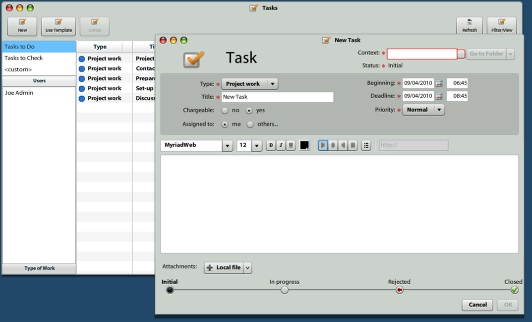
<div id="bkmrk--0"><div>[![task-new-2.png](https://help.atollon.com/uploads/images/gallery/2020-03/scaled-1680-/task-new-2.png)](https://help.atollon.com/uploads/images/gallery/2020-03/task-new-2.png)</div><div></div></div>On tasks overview, click on "**New**" button, the "**New Task**" form will open.  
Select the **Type** of work, write Task **Title**, indicate Task **Beginning** &amp; **Deadline**, set **Priority** &amp; **Chargeability** of the task.  
You can also attach **Local file** (from local file system) or **Document** (from Atollon). Once the Task is sent, the file is uploaded to Atollon on selected folder / project automatically.

#### Assign Task to someone else

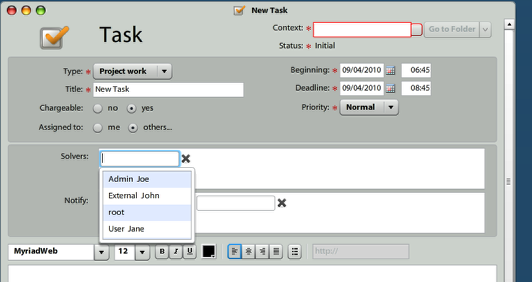
<div id="bkmrk--1"><div>[![task-new-3.png](https://help.atollon.com/uploads/images/gallery/2020-03/scaled-1680-/task-new-3.png)](https://help.atollon.com/uploads/images/gallery/2020-03/task-new-3.png)</div><div></div></div>Click on **Assigned to**: **others...** to select whom you would like to assign the Task in **Solvers** section. Simply start writing user's name to search for desired Solver.

In **Notify**: field you may select users, which will get notification about the Task. For intance, once the Task is not closed within the **Deadline**, the Notify user gets information in his/her Inbox.

After assigning Solver to Task, the user gets notification about new Task. Notifications may be adjusted to organization needs in message templates.

#### Select Task Context

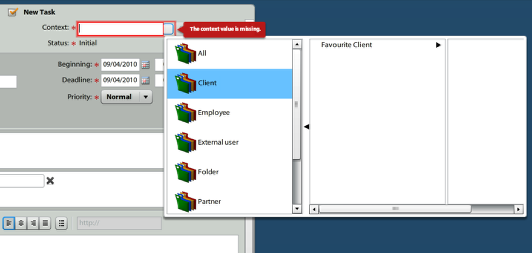
<div id="bkmrk--2"><div>[![task-new-4.png](https://help.atollon.com/uploads/images/gallery/2020-03/scaled-1680-/task-new-4.png)](https://help.atollon.com/uploads/images/gallery/2020-03/task-new-4.png)</div><div></div></div>Task may be stored at **Folder**, **Project** or **Activity** levels. For project management purpose it is necessary to select task's Project.

Simply start typing Contact / Simple Folder name to search for folder &amp; then select Project (just double-click on selected item).

#### Send Task

<div id="bkmrk--3"><div>[![task-new-5.png](https://help.atollon.com/uploads/images/gallery/2020-03/scaled-1680-/task-new-5.png)](https://help.atollon.com/uploads/images/gallery/2020-03/task-new-5.png)</div><div></div></div>Add Task description, if needed and click on **Ok** to send the task. Ok button is greyed once required fields are missing. Please fill-in required fields to enable saving the task.

#### New Task Received

<div id="bkmrk--4"><div>[![task-new-6.png](https://help.atollon.com/uploads/images/gallery/2020-03/scaled-1680-/task-new-6.png)](https://help.atollon.com/uploads/images/gallery/2020-03/task-new-6.png)</div><div></div></div>The task **Solver** gets notification to Communication **To Do** about new task.

#### Accept/Reject Task

<div id="bkmrk--5"><div>[![task-new-7.png](https://help.atollon.com/uploads/images/gallery/2020-03/scaled-1680-/task-new-7.png)](https://help.atollon.com/uploads/images/gallery/2020-03/task-new-7.png)</div><div></div></div>**Accept Task**

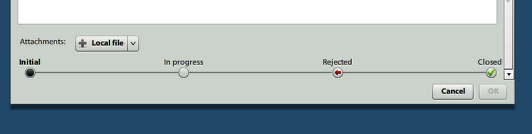
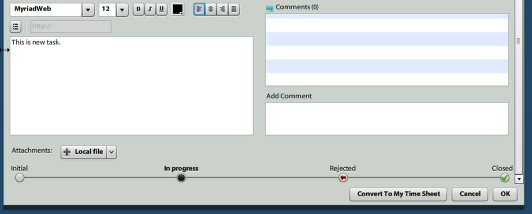
Once you opened task, indicate you are going to work on the task or reject the task with some reason. Click on **In progress** (or similar) task status &amp; press **Ok**.

**Reject Task**

**Add Comment** always when rejecting task. Click on **Rejected** task status &amp; press **Ok**. The task **Solver** will be changed to user, who assigned the task.

### Rights

#### Creating task

User can create task to and asign it to himself/other user, if user has right NEW on his own/other user's task acl.

#### Update Task

Task can be rejected by solver in any case.

Task can be changed by user, only if user has right on head user of edited task.

# Time Sheet & Expenses


# Time Sheet Overview

[![time-sheet-overview.png](https://help.atollon.com/uploads/images/gallery/2020-03/scaled-1680-/time-sheet-overview.png)](https://help.atollon.com/uploads/images/gallery/2020-03/time-sheet-overview.png)

The Time Sheet application allows users to:

- add new ad-hoc Time Sheet records
- get overview about existing records
- confirm Time Sheet records

The above screenshot illustrates several features of Time Sheet application:

1. Select period, for which you want to review your Time Sheets
2. Select whether you want to create Time Sheet or Expense record(s)
3. Confirm your Time Sheet records by sending them For Approval
4. Verify your filter settings
5. Adjust the Time Sheet view settings (collumns) &amp; use mass-change features

## Time Sheet Online Reporting

Users &amp; managers that want to get quick overview about the usage of their time may use quick reporting tool directly integrated into Time Sheet application.

[![time-sheet-2-subtotals.png](https://help.atollon.com/uploads/images/gallery/2020-03/scaled-1680-/time-sheet-2-subtotals.png)](https://help.atollon.com/uploads/images/gallery/2020-03/time-sheet-2-subtotals.png)

Open the Subtotals section of left accordeon. You may select various criteria upon which you can group Time Sheet record. You can even select one grouped record (in screenshot marked yellow) &amp; above records will get filtered (it's function called record drill-down).

This online view is particularly helpful if you want to approve Time Sheet records. You may group them by projects or users to approve the time consumed.

### Adjust Displayed Columns

You may want to see some additional information about Time Sheet records, such as (for instance) Qty calculated in minutes (that is useful for exporting &amp; further calculations in Excel) or you may want to add Tracking Categories visibility to see the Cost Centres, etc.

See the attached screenshot below to see how you can add more columns to Time Sheet records:

[![time-sheet-3-column-settings.png](https://help.atollon.com/uploads/images/gallery/2020-03/scaled-1680-/time-sheet-3-column-settings.png)](https://help.atollon.com/uploads/images/gallery/2020-03/time-sheet-3-column-settings.png)

## Time Sheet Adjustments

You can change multiple records by using Mass-change tool.

[![time-sheet-4-masschange.png](https://help.atollon.com/uploads/images/gallery/2020-03/scaled-1680-/time-sheet-4-masschange.png)](https://help.atollon.com/uploads/images/gallery/2020-03/time-sheet-4-masschange.png)

You can change multiple records's attributes:

- Set chargeability to yes/no
- Change Type of Work
- Change context (project) of Time Sheet record
- Copy Cost to Price (useful when Expenses are re-charged to clients 1:1)

## Time Sheet Approvals

Managers or authorized users are able to approve User's Time Sheets. After approving Time Sheets, the Time Sheet records may be sent to Billing for further invoicing.

To approve Time Sheets, you may filter for users (or show all users), set grouping criteria in Subtotals section and filter only for records that are For Approval (in Approval Status accordeon):

[![time-sheet-5-approvals.png](https://help.atollon.com/uploads/images/gallery/2020-03/scaled-1680-/time-sheet-5-approvals.png)](https://help.atollon.com/uploads/images/gallery/2020-03/time-sheet-5-approvals.png)

After selecting records for approval, you may click Approve Selected / (or All) records.

After Time Sheet records are approved, they may be sent to Billing for invoicing.

## Time Sheet Invoicing

After Time Sheet records are approved, they can be **sent to Billing** for invoicing process.

[![time-sheet-6-invoicing.png](https://help.atollon.com/uploads/images/gallery/2020-03/scaled-1680-/time-sheet-6-invoicing.png)](https://help.atollon.com/uploads/images/gallery/2020-03/time-sheet-6-invoicing.png)

### Sending Time Sheets to Billing

When invoicing Time Sheet, Time Sheet records are merged into Billing items. Each Billing Item will be created with associated Product based on Item Settings. In Item Settings (only in MS Win admin interface) each Type of Work may be associated with different Product.

During Time Sheet invoicing process, it is possible to adjust Billing details, add some fixed fees &amp; adjust how many hours were covered by the fixed fee amount. In Billing, you can also add some other Products / Services to be charged, which allows it to you to add Time &amp; other products &amp; services into one invoice.

#### Approving Billing

[![time-sheet-7-billing.png](https://help.atollon.com/uploads/images/gallery/2020-03/scaled-1680-/time-sheet-7-billing.png)](https://help.atollon.com/uploads/images/gallery/2020-03/time-sheet-7-billing.png)

#### Create Invoice from Billing Items

After Billing Items are approved in Billing application, they can be invoiced.

#### Print &amp; send invoice

In invoice's context menu, select **Print**.

[![time-sheet-9-invoice-print.png](https://help.atollon.com/uploads/images/gallery/2020-03/scaled-1680-/time-sheet-9-invoice-print.png)](https://help.atollon.com/uploads/images/gallery/2020-03/time-sheet-9-invoice-print.png)

You have option to directly create PDF &amp; attach it to your new e-mail. Before sending the e-mail you may select e-mail template &amp; send the e-mail.

[![time-sheet-10-invoice-print-2.png](https://help.atollon.com/uploads/images/gallery/2020-03/scaled-1680-/time-sheet-10-invoice-print-2.png)](https://help.atollon.com/uploads/images/gallery/2020-03/time-sheet-10-invoice-print-2.png)

## Time Sheet Valuation

The Time Sheet rates for wage (internal rate) or price (external rate) may be entered by system automatically, if you fulfill several conditions:

1. You set-up valid **Work Contract** for the user
2. In case you have customized price/rates for the **Folder** (Client), you select either standard or individual Work Price List at Folder/Client Billing Settings.
3. In case you have customized price/rates for the **Project**, you select either standard or individual Work Price List at Project Billing Settings.

The valuation is done by the system automatically after user confirms the Time Sheet records. Manually entered Time Sheet records should be confirmed automatically by system (work-in-progress), automatically entered Time Sheet records should be confirmed by either user or manager.

### The Time Sheet Valuation Procedure

The system tries to find available rates for the Time Sheet in the following order, individually for each of the rates (wage / price):

1. Project's [Work Price List](mks://localhost/en/user-manual/options-and-tools/work-price-list "Work Price List")
2. if not found, then continue to Folder's [Work Price List](mks://localhost/en/user-manual/options-and-tools/work-price-list "Work Price List")
3. if not found, then continue to [Work Contract](mks://localhost/en/user-manual/finance/work-contracts "Work Contracts")

Example:

- You may set individual Project price (external rate) EUR 99 / hour for the "Consultant" Type of contract. No wage (internal rate) is set-up at Project level.
- The user has "Consultant" Type of Contract set at her Work Contract settings, with EUR 25 / hour wage (internal rate).
- The Time sheet entered by User on Project will be valued: EUR 25 / hour wage (internal rate) &amp; EUR 99 / hour price (external rate)

## Time Sheet Settings

### Time Sheet Locking

It is possible to set-up auto-lock Time Sheet entering for X number of (working) days. Working days are setup from Monday to Friday.

In Time Sheet Coefficient Settings screen, set-up the number of working days, after which users will not be able to enter any new or amend existing Time Sheet records. In order to enable updating older records, this lock has to be removed (clean the field &amp; apply).

[![time-sheet-locking.png](https://help.atollon.com/uploads/images/gallery/2020-03/scaled-1680-/time-sheet-locking.png)](https://help.atollon.com/uploads/images/gallery/2020-03/time-sheet-locking.png)

# Enter Time Sheet

This lesson's aim is to provide easy help to **end users** to **enter** their **Time Sheet in Atollon**.

#### Open Time Sheet Application from Atollon menu

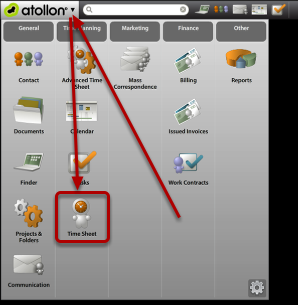
<div id="bkmrk-"><div>[![time-sheet-new-1.png](https://help.atollon.com/uploads/images/gallery/2020-03/scaled-1680-/time-sheet-new-1.png)](https://help.atollon.com/uploads/images/gallery/2020-03/time-sheet-new-1.png)</div><div></div></div>Go to **Atollon** menu (top left corner) and click on Time Sheet icon. The applications menu may display different icons based on user's profile.

#### Enter new Time Sheet record

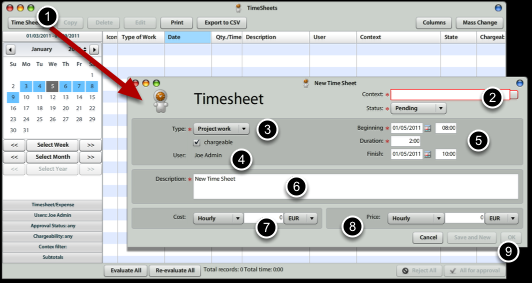
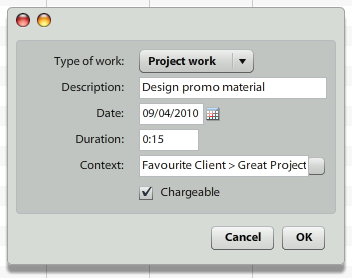
<div id="bkmrk--0"><div>[![time-sheet-new-2.png](https://help.atollon.com/uploads/images/gallery/2020-03/scaled-1680-/time-sheet-new-2.png)](https://help.atollon.com/uploads/images/gallery/2020-03/time-sheet-new-2.png)</div><div></div></div>In order to **enter new Time Sheet record,** you should:

1.) Press on the **Time Sheet** button (top left) in Time Sheet application.  
2.) Select **Context**: Client &gt; Project &gt; Activity (Milestone) for new Time Sheet record (it is customizable, which level is required)  
3.) Select **Type of Work**  
4.) Set whether the Time Sheet is **chargeable** to client or not  
5.) Select **Start Date** &amp; **Duration** (HH:MM), optionally also **End Date &amp; Time**  
6.) Write work **description**

7, 8) **Cost** &amp; **Price** Information  
You do not need to write Cost or Price, if you subscribed to **Octopus** Billing Automation solution. This information is not available to users, who do not have rights to view **Work Contracts** (in case of Cost) or **Price Lists** (in case of Price).

9.) Press **Ok** or **Save &amp; New**, if you want to continue on the same project.

#### Copy existing Time Sheet records

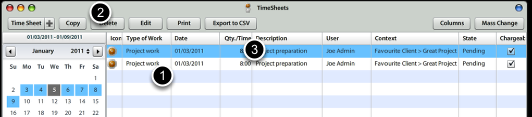
<div id="bkmrk--1"><div>[![time-sheet-new-3.png](https://help.atollon.com/uploads/images/gallery/2020-03/scaled-1680-/time-sheet-new-3.png)](https://help.atollon.com/uploads/images/gallery/2020-03/time-sheet-new-3.png)</div><div></div></div>Once you want to create similar record, you can select existing record in Time Sheet grid and press **Copy**. The new record is displayed in grid and highlighted.

#### Edit existing Time Sheet record

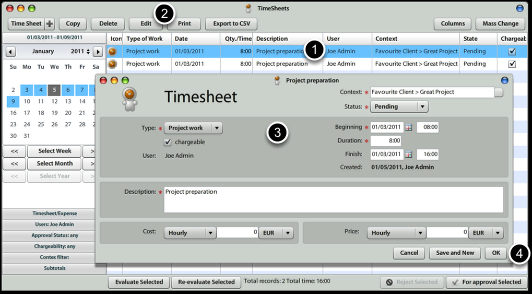
<div id="bkmrk--2"><div>[![time-sheet-new-4.png](https://help.atollon.com/uploads/images/gallery/2020-03/scaled-1680-/time-sheet-new-4.png)](https://help.atollon.com/uploads/images/gallery/2020-03/time-sheet-new-4.png)</div><div></div></div>To edit existing Time Sheet record, just select one &amp; press **Edit** button.  
You can make any changes to the record &amp; press **Ok** button.  
If you change any criteria that will make your record disappear (for instance you change the date range outside of filter), you should be notified.

#### Revise Time Sheet records before they are sent for approval

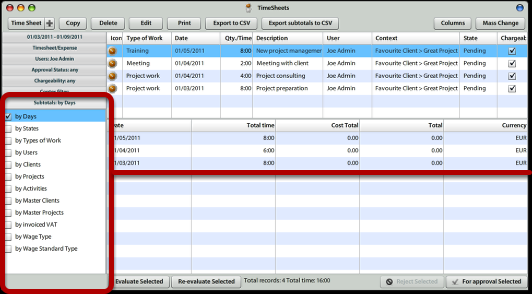
<div id="bkmrk--3"><div>[![time-sheet-new-5.png](https://help.atollon.com/uploads/images/gallery/2020-03/scaled-1680-/time-sheet-new-5.png)](https://help.atollon.com/uploads/images/gallery/2020-03/time-sheet-new-5.png)</div><div></div></div>Before confirming your Time Sheet records, you should **check** whether everything you wanted was entered. You can open quick Time Sheet report, available at **Subtotals** section (bottom left). By selecting one of the grouping criteria, you will get summary below your Time Sheet. By clicking on any of the summary rows, you get detail above.

#### Send Time Sheet for approval

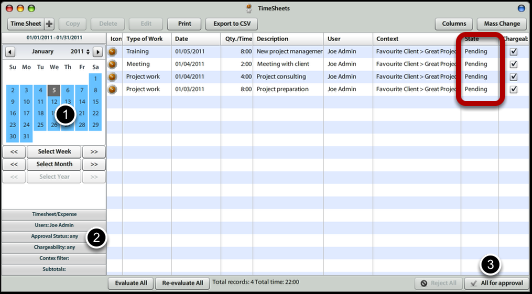
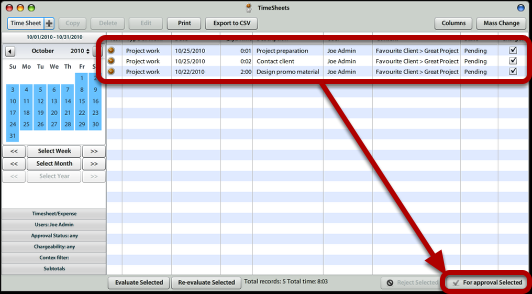
<div id="bkmrk--4"><div>[![time-sheet-new-6.png](https://help.atollon.com/uploads/images/gallery/2020-03/scaled-1680-/time-sheet-new-6.png)](https://help.atollon.com/uploads/images/gallery/2020-03/time-sheet-new-6.png)</div><div></div></div>You can **send** one or more Time Sheet records **for approval**. Only items in **Pending** state are sent for approval.

1.) Select correct time period (month, week, day)  
2.) Make sure you selected all pending items (Approval Status is Any or Pending)  
3.) Click on button **All (Selected) for Approval**

# Project Expenses

This tutorial shows the way how to enter regular project expenses.

Project expenses may be entered using Time Sheet / Expense Sheet application or using Received Invoices.

#### Add new project Expense

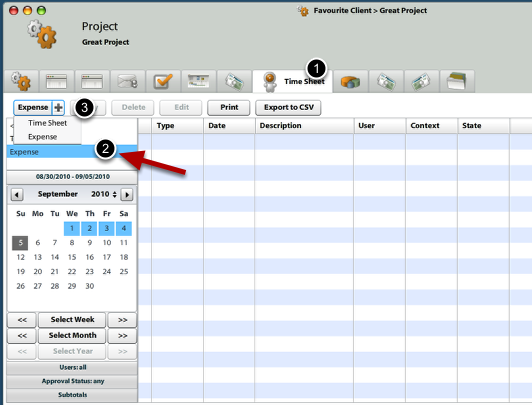
<div id="bkmrk-"><div>[![expenses-project-1.png](https://help.atollon.com/uploads/images/gallery/2020-03/scaled-1680-/expenses-project-1.png)](https://help.atollon.com/uploads/images/gallery/2020-03/expenses-project-1.png)</div><div></div></div>Open the project, where you would like to enter new expenses.  
1.) On Time Sheet tab, you may entere new expenses.  
2.) You can filter for only expense records (this will hide Time Sheet records) by clicking on Expense filter top left.  
3.) Press on (+) on the button to select New expense record creation

#### Enter Expense details

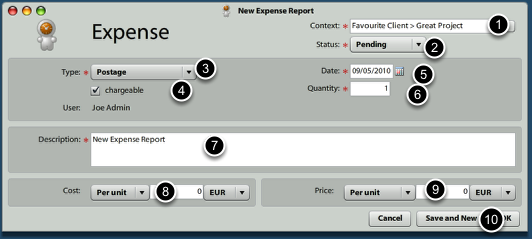
<div id="bkmrk--0"><div>[![expenses-project-2.png](https://help.atollon.com/uploads/images/gallery/2020-03/scaled-1680-/expenses-project-2.png)](https://help.atollon.com/uploads/images/gallery/2020-03/expenses-project-2.png)</div><div></div></div>1.) Current project has been entered automatically, but you can change it  
2.) Status may be changed later, once you have all expenses entered  
3.) Select Type of Expense  
4.) Set whether the Expense should be entered into Billing  
5.) Set when the Expense incurred  
6.) Set the quantity  
7.) Write some notes, for instance who (from client side) ordered this expense  
8.) What was the item / total cost of Expense?  
9.) What are we going to charge to clients?  
10.) Submit

#### Send expenses for billing approval

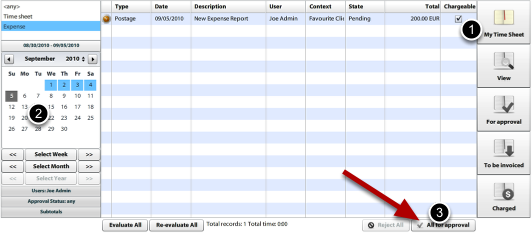
<div id="bkmrk--1"><div>[![expenses-project-3.png](https://help.atollon.com/uploads/images/gallery/2020-03/scaled-1680-/expenses-project-3.png)](https://help.atollon.com/uploads/images/gallery/2020-03/expenses-project-3.png)</div><div></div></div>After you entered all expenses, you should send the for billing approval. It is necessary to confirm expenses entered into the system to avoid errors and inform your colleagues that you would like these expenses be billed.

1.) Select **My Time Sheet**  
2.) Select **period**, for wich you are confirming your expense records  
3.) Send **All (selected) for approval**

#### Approve expenses for billing

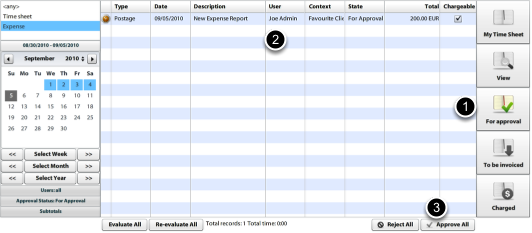
<div id="bkmrk--2"><div>[![expenses-project-4.png](https://help.atollon.com/uploads/images/gallery/2020-03/scaled-1680-/expenses-project-4.png)](https://help.atollon.com/uploads/images/gallery/2020-03/expenses-project-4.png)</div><div></div></div>Person responsible for approving Time Sheet and/or **Expenses** should **approve** expenses before they are entered to billing.

1.) Open Time Sheet / Expense Sheet and click on **For approval** button  
2.) Revise the expenses  
3.) **Approve all (selected)** expenses

#### Send approved expenses to billing

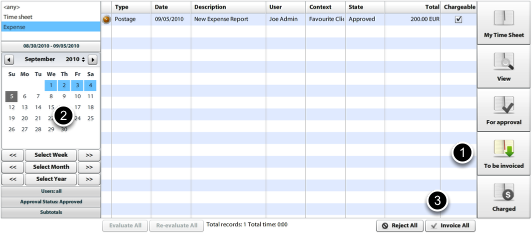
<div id="bkmrk--3"><div>[![expenses-project-5.png](https://help.atollon.com/uploads/images/gallery/2020-03/scaled-1680-/expenses-project-5.png)](https://help.atollon.com/uploads/images/gallery/2020-03/expenses-project-5.png)</div><div></div></div>Approved expenses may be billed using **Atollon Octopus** Billing Manager tool. In order to send approved expenses to billing, do the following:

1.) On Time Sheet / Expense Sheet tab / application select **To be invoiced** button  
2.) **Set time period**, which you wan to be billed  
3.) Click on **Invoice All (selected)** button

This procedure will create new Billing Item in Billing tool.

# Time Tracker

This lesson shows how to track time based on tasks assigned to Solvers.

Atollon Time Tracker is used to measure time spent on solving tasks. Time measured by Time Tracker is entered into Time Sheet. It is adviced to confirm the resulting every day using Time Sheet confirmation tool.

#### Display Time Tracker &amp; Tasks at the same time

<div id="bkmrk-"><div>[![time-tracker-1.png](https://help.atollon.com/uploads/images/gallery/2020-03/scaled-1680-/time-tracker-1.png)](https://help.atollon.com/uploads/images/gallery/2020-03/time-tracker-1.png)</div><div></div></div>Display tasks &amp; Time Tracker on the same screen. Time Tracker is placed as widget on Atollon's side bar.

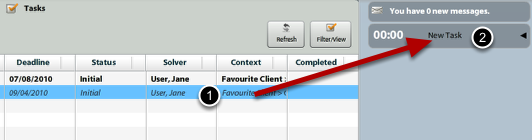
#### Drag &amp; Drop Task to Time Tracker

<div id="bkmrk--0"><div>[![time-tracker-2.png](https://help.atollon.com/uploads/images/gallery/2020-03/scaled-1680-/time-tracker-2.png)](https://help.atollon.com/uploads/images/gallery/2020-03/time-tracker-2.png)</div><div></div></div>Select the task using mouse &amp; move it on top of the Time Tracker widget.

Time Tracker starts counting time spend on solving the task.

#### Interrupt current Task

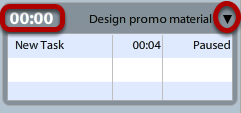
<div id="bkmrk--1"><div>[![time-tracker-3.png](https://help.atollon.com/uploads/images/gallery/2020-03/scaled-1680-/time-tracker-3.png)](https://help.atollon.com/uploads/images/gallery/2020-03/time-tracker-3.png)</div><div></div></div>You can interrupt the task either by starting to solve other task or by pausing current task. To pause current task, just hover over Time Tracker counter to **pause** it. In order to **switch** to another task, just **drag &amp; drop another task** on the Time Tracker. The previous task remains halted in Time Tracker **Queue**.

In order to open Time Tracker queue, click on the arrow on the rights side of the Time Tracker.

#### Stop the Time Tracker

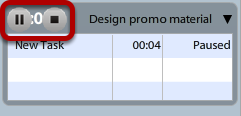
<div id="bkmrk--2"><div>[![time-tracker-4.png](https://help.atollon.com/uploads/images/gallery/2020-03/scaled-1680-/time-tracker-4.png)](https://help.atollon.com/uploads/images/gallery/2020-03/time-tracker-4.png)</div><div></div></div>Once you finish your work on the task, just hover with your mouse over Time Tracker counter &amp; press stop button.

#### Adjust time &amp; save to Time Sheet

<div id="bkmrk--3"><div>[![time-tracker-5.png](https://help.atollon.com/uploads/images/gallery/2020-03/scaled-1680-/time-tracker-5.png)](https://help.atollon.com/uploads/images/gallery/2020-03/time-tracker-5.png)</div><div></div></div>Revise whether time measured by Time Tracker is in order &amp; save it to your Time Sheet.

#### Confirm your Time Sheet

<div id="bkmrk--4"><div>[![time-tracker-6.png](https://help.atollon.com/uploads/images/gallery/2020-03/scaled-1680-/time-tracker-6.png)](https://help.atollon.com/uploads/images/gallery/2020-03/time-tracker-6.png)</div><div></div></div>By the end of the day (week/month), revise the time saved in your Time Sheet and **send it for approval**.

Just open your **Time Sheet** (Atollon &gt; Time Sheet), select the time period (left), see whether all records are properly entered, add new lines, if needed &amp; send all Time Sheet records for approval by pressing **All (selected) for approval**.

# Standard Texts

Usually checking Time Sheet entries by managers when preparing work reports for clients is time consuming due to checking contents of the reports (their texts).

Standard texts are used to speed-up &amp; improve quality of Time Sheet records data entry. When users enter Time Sheet records, they get option to select one or more "standard texts" &amp; adjust it to their needs.

Standard texts not only allow adding description to client &amp; internal description, they also help users preset Type of Work (which is important management controlling variable).

Open Options &amp; Tools &gt; Time &amp; Planning &gt; Standard Texts to enter the texts you need.

[![standard-texts-settings.png](https://help.atollon.com/uploads/images/gallery/2020-03/scaled-1680-/standard-texts-settings.png)](https://help.atollon.com/uploads/images/gallery/2020-03/standard-texts-settings.png)

# Dashboard


# Set-up Dashboard

#### How to Add/Remove Dashboard Widgets?

It is quite easy! Follow this manual:

[![dashboard-setup-1.png](https://help.atollon.com/uploads/images/gallery/2020-03/scaled-1680-/dashboard-setup-1.png)](https://help.atollon.com/uploads/images/gallery/2020-03/dashboard-setup-1.png)

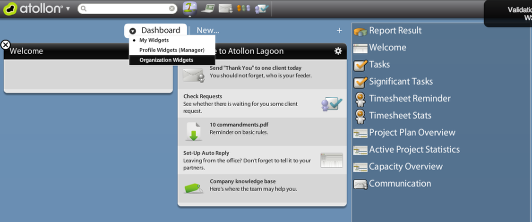
- After you **click on plus (1)** you'll get **widget menu on right side (2).** Choose widgets you would like to have on your dashboard, **drag&amp;drop them into Dashboard (3)**.

[![dashboard-setup-2.png](https://help.atollon.com/uploads/images/gallery/2020-03/scaled-1680-/dashboard-setup-2.png)](https://help.atollon.com/uploads/images/gallery/2020-03/dashboard-setup-2.png)

#### How to Adjust Report Widget?

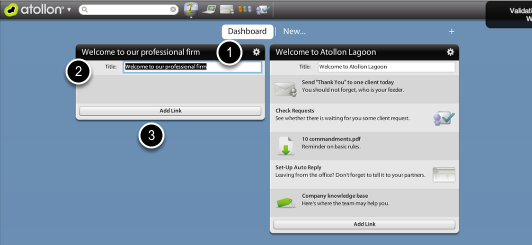
- You can even create more dashboards for different needs (f.e.marketing dashboards, sales, project planning, etc.)
- You can swith them by using **top menu (1)**

[![dashboard-setup-3.png](https://help.atollon.com/uploads/images/gallery/2020-03/scaled-1680-/dashboard-setup-3.png)](https://help.atollon.com/uploads/images/gallery/2020-03/dashboard-setup-3.png)

- Setup Report Results

1. choose report (create special ones)
2. setup how many results you want to see
3. drag&amp;drop colomns you want to see
4. click on OK

[![dashboard-setup-4.png](https://help.atollon.com/uploads/images/gallery/2020-03/scaled-1680-/dashboard-setup-4.png)](https://help.atollon.com/uploads/images/gallery/2020-03/dashboard-setup-4.png)

- You can see all your widgets including report results on your dashboar

#### How to adjust Dashboard for the whole organization?

Users that are authorized to update Organization settings (usually Admins or Power Users) can set-up home screen of Dashboard for the whole company. Using dashboard switch on home page you can show settings of **Organization Widgets** &amp; update them (Add/Remove Dashboard widgets for the whole Organization).

1.) Click on (+) icon on Dashboard top menu

2.) Click on (&gt;) drop-down icon next to Dashboard top menu &amp; switch to **Organization Widgets**

3.) Adjust any widgets (add/remove) that are displayed for the whole organization

[![dashboard-org-widgets.png](https://help.atollon.com/uploads/images/gallery/2020-03/scaled-1680-/dashboard-org-widgets.png)](https://help.atollon.com/uploads/images/gallery/2020-03/dashboard-org-widgets.png)

# Welcome Widget

Create intranet for your employees in minutes. Atollon Lagoon Welcome widget helps you help your employees &amp; other users focus on the most important activities.

Atollon Lagoon Welcome Widget allows you to:

Add any link(s) on the user's dashboard:

<div id="bkmrk-shortcut-to-atollon-">- shortcut to Atollon Lagoon application
- shortcut to application's function
- shortcut to any Atollon Lagoon settings
- link to external URL
- shortcut to download/open internal document

</div>#### Add Welcome widget to Dashboard (select for whom)

<div id="bkmrk-click-on-%28%2B%29-button-"><div>[![dashboard-welcome-1.png](https://help.atollon.com/uploads/images/gallery/2020-03/scaled-1680-/dashboard-welcome-1.png)](https://help.atollon.com/uploads/images/gallery/2020-03/dashboard-welcome-1.png)</div><div>1. Click on **(+)** button on top of Atollon Lagoon Dashboard
2. On black arrow **(&gt;) option** select who's Dashboard is configured (you can select ether **My Widgets** used for personal needs, **Profile Widgets** (used for all users having the same profile), **Organization Widgets** (for users in the same Organization)

</div></div>In case you need to set-up Dashboard for **other user profiles** (eg. Sales, Consultants, Programmers, Accountants, Finance, Lawyers, etc.), you need to switch your own user profile in **User Settings** (Setting &gt; Users &gt; edit). Afterwards you will be able to amend any other User Profile.

#### Add Welcome widget to Dashboard

<div id="bkmrk-"><div>[![dashboard-welcome-2.png](https://help.atollon.com/uploads/images/gallery/2020-03/scaled-1680-/dashboard-welcome-2.png)](https://help.atollon.com/uploads/images/gallery/2020-03/dashboard-welcome-2.png)</div><div></div></div>Drag &amp; drop the Welcome widget on the empty space

You can add several Welcome widgets on any of the dashboard panels.

After adding the Welcome widget, close the editation of widgets by pressing **(+)** button again.

#### Edit Welcome widget contents

<div id="bkmrk-click-on-settings-bu"><div>[![dashboard-welcome-3.png](https://help.atollon.com/uploads/images/gallery/2020-03/scaled-1680-/dashboard-welcome-3.png)](https://help.atollon.com/uploads/images/gallery/2020-03/dashboard-welcome-3.png)</div><div>1. Click on **Settings** button in the widget header.
2. Change the **widget title**

</div></div>The widget is now in EDIT mode. You can add it's components (rows) - links, shortcuts, etc.

#### Add shortcut to Atollon Lagoon application

<div id="bkmrk--0"><div>[![dashboard-welcome-4.png](https://help.atollon.com/uploads/images/gallery/2020-03/scaled-1680-/dashboard-welcome-4.png)](https://help.atollon.com/uploads/images/gallery/2020-03/dashboard-welcome-4.png)</div><div></div></div>You can simply **Drag &amp; Drop** any **application** **to Dashboard** &amp; place **on top of the Welcome widget** to create shortcut to the application.

After you place the application shorcut on Welcome widget, you can rename it and add some description.

#### Add shortcut to Atollon Lagoon application's function

<div id="bkmrk--1"><div>[![dashboard-welcome-5.png](https://help.atollon.com/uploads/images/gallery/2020-03/scaled-1680-/dashboard-welcome-5.png)](https://help.atollon.com/uploads/images/gallery/2020-03/dashboard-welcome-5.png)</div><div></div></div>You can Drag &amp; Drop any function from application's drop-down menu and put it on top of the Welcome widget. This will create a shortcut to the function. You need (at least temporarily) add the application on the Application task bar. You can do it in Settings &gt; Application Settings.

#### Add shortcut to any Atollon Lagoon settings

<div id="bkmrk--2"><div>[![dashboard-welcome-6.png](https://help.atollon.com/uploads/images/gallery/2020-03/scaled-1680-/dashboard-welcome-6.png)](https://help.atollon.com/uploads/images/gallery/2020-03/dashboard-welcome-6.png)</div><div></div></div>You can Drag &amp; Drop any item(s) from **Settings** onto the Welcome widget. For example Mailbox settings allow users to set-up Auto-reply when unavailable ...

#### Add link to external URL

<div id="bkmrk--3"><div>[![dashboard-welcome-7.png](https://help.atollon.com/uploads/images/gallery/2020-03/scaled-1680-/dashboard-welcome-7.png)](https://help.atollon.com/uploads/images/gallery/2020-03/dashboard-welcome-7.png)</div><div></div></div>You can add any number of external links. When copying/adding the links, please make sure you add also http:// or https:// (for secure access) in front of the web page address (URL).

##### Dynamic URL parameters

If you want to pass some dynamic parameters in url (like username, session etc.), there is a list of keywords, which will be replaced with actual value. Here it goes:

<div id="bkmrk-public-static-const-"><div><div>```
public static const SESSION:String = "${SESSION}";
public static const SERVER:String = "${SERVER}";
public static const ORGANIZATION:String = "${ORGANIZATION}";
public static const USER_ID:String = "${USER_ID}";
public static const USERNAME:String = "${USERNAME}";
public static const WSDL_FOLDER:String = "${WSDL}";
public static const DOMAIN_ROOT:String = "${DOMAIN}";
public static const ENDPOINT:String = "${ENDPOINT}";
public static const BASE_URL:String = "${BASE_URL}";
```

</div></div></div>Example: [https://lifehacker.com/](https://lifehacker.com/)?username=${USERNAME} will be translated to [https://lifehacker.com/](https://lifehacker.com/)?username=johny@atollon

##### Atollon URL

It is also possible to use "Atollon URL" - that is LINK you get by copying object that has "Share" button available. For example **atollon://finder/openDetail/?id=133457101&amp;type=project** may be link to open some project...

#### Add shortcut to open document

<div id="bkmrk--4"><div>[![dashboard-welcome-8.png](https://help.atollon.com/uploads/images/gallery/2020-03/scaled-1680-/dashboard-welcome-8.png)](https://help.atollon.com/uploads/images/gallery/2020-03/dashboard-welcome-8.png)</div><div></div></div>You can open any folder / project with document(s) and Drag &amp; Drop the document on top of the Dashboard. After adding the shortcut to open document, you may rename it &amp; add description.

##### Remove item from Welcome widget

<div id="bkmrk--5"><div>[![dashboard-welcome-9.png](https://help.atollon.com/uploads/images/gallery/2020-03/scaled-1680-/dashboard-welcome-9.png)](https://help.atollon.com/uploads/images/gallery/2020-03/dashboard-welcome-9.png)</div><div></div></div>Removing the item is quite simple. Just take one of the items and Drag &amp; Drop it outside the widget -&gt; on desktop of Atollon Lagoon.

After you have done all your edits, you can save them by pressing the Settings button in the widget title again.

Now the widget is in VIEW mode again.

# Calendar


# Calendar Overview

Atollon Calendar is really simple to use feature, see the bacis view below.

Advantage of using Atollon Calendar is the fact that it's part of your sales or service delivery process. Calendar events may be tracked in relation to your clients, deals, projects, etc.

Atollon calendar is also integrated to your time tracking, resource management, etc.

Events have different colors - <span class="short_text" id="bkmrk-header-color-accordi" lang="en"><span class="hps">header</span> <span class="hps">color according to</span> <span class="hps">user, body is set by type of event</span></span>

[![calendar-overview.png](https://help.atollon.com/uploads/images/gallery/2020-03/scaled-1680-/calendar-overview.png)](https://help.atollon.com/uploads/images/gallery/2020-03/calendar-overview.png)

You can swith to multi-user calendar using 4th icon on screen bellow.

[![calendar-icos.png](https://help.atollon.com/uploads/images/gallery/2020-03/scaled-1680-/calendar-icos.png)](https://help.atollon.com/uploads/images/gallery/2020-03/calendar-icos.png)

#### Multi-user calendar

[![calendar-multi-view.png](https://help.atollon.com/uploads/images/gallery/2020-03/scaled-1680-/calendar-multi-view.png)](https://help.atollon.com/uploads/images/gallery/2020-03/calendar-multi-view.png)

# Atollon CalDAV Settings

Atollon supports synchronising your calendar with your mobile device or any **CalDAV** compatible calendar application.

### Update your Atollon password

In order to access your calendar using CalDAV, you need to first change your password in "**Change password**" dialog. <span style="color: rgb(0, 0, 0); background-color: rgb(248, 202, 198);">CalDAV account is initiated after password change.</span>

[![change-password.png](https://help.atollon.com/uploads/images/gallery/2020-06/scaled-1680-/change-password.png)](https://help.atollon.com/uploads/images/gallery/2020-06/change-password.png)

### Access Credentials

Your Atollon user account is used to access CalDAV calendar server.

You can check your own access to CalDAV using simple tool in Atollon Calendar app directly. Go to your Calendar and click on Options button to see your **full username** and **CalDAV URL**.

[![macosx-calendar-settings.png](https://help.atollon.com/uploads/images/gallery/2020-07/scaled-1680-/macosx-calendar-settings.png)](https://help.atollon.com/uploads/images/gallery/2020-07/macosx-calendar-settings.png)

- Your username should be mentioned in its full format, which is [username@instancename](mailto:username@instancename)
- Full CalDAV URL to your Atollon calendar is: [https://instancename.atollon.com/cdav/instancename/user@instancemane](https://instancename.atollon.com/cdav/instancename/user@instancemane)
- Port is 443 (https)

For "**instancename**" you should get your organization's instance name, for example **acme.atollon.com**.

Various CalDAV clients (iPhone, Android, Mac OS X calendar, etc.) will need the information in different formats. Below you can find How to on some of the most frequent solutions.

### Atollon Calendar Clients Configuration Examples

[Atollon Calendar in iPhone](https://help.atollon.com/books/atollon-core/page/atollon-calendar-in-iphone "Atollon Calendar in iPhone")

[Atollon Calendar in Mac OS X](https://help.atollon.com/books/atollon-core/page/atollon-calendar-in-mac-os-x "Atollon Calendar in Mac OS X")

[Atollon Calendar in Android](https://help.atollon.com/books/atollon-core/page/atollon-calendar-in-android "Atollon Calendar in Android")

# Atollon Calendar in iPhone

If you want to connect your iPhone calendar to Atollon, please make sure you recently <span style="text-decoration: underline; background-color: rgb(248, 202, 198);">**changed your Atollon's user password**</span>.

Below you can find a guide on how to set-up your access to Atollon calendar using iPhone. iPhone has built-in support for CalDAV, therefore you don't need to install anything, just add new CalDAV account to your Account Settings.

Below see the step-by-step guide:

#### Go to iPhone Settings &gt; Calendar

[![IMG_5238.PNG](https://help.atollon.com/uploads/images/gallery/2024-01/scaled-1680-/img-5238.PNG)](https://help.atollon.com/uploads/images/gallery/2024-01/img-5238.PNG)

#### Accounts

[![IMG_5239.PNG](https://help.atollon.com/uploads/images/gallery/2024-01/scaled-1680-/img-5239.PNG)](https://help.atollon.com/uploads/images/gallery/2024-01/img-5239.PNG)

#### Add Account

[![IMG_5240.PNG](https://help.atollon.com/uploads/images/gallery/2024-01/scaled-1680-/img-5240.PNG)](https://help.atollon.com/uploads/images/gallery/2024-01/img-5240.PNG)

#### Select Other

[![IMG_5241.PNG](https://help.atollon.com/uploads/images/gallery/2024-01/scaled-1680-/img-5241.PNG)](https://help.atollon.com/uploads/images/gallery/2024-01/img-5241.PNG)

#### Add CalDAV Account

[![IMG_5242.PNG](https://help.atollon.com/uploads/images/gallery/2024-01/scaled-1680-/img-5242.PNG)](https://help.atollon.com/uploads/images/gallery/2024-01/img-5242.PNG)

#### Add CalDAV Settings

- **Server**: instancename.atollon.com/cdav/instancename
- **Username**: [username@instancename](mailto:username@instancename)
- **Password**: your Atollon password
- **Description**: My Atollon CalDAV

[![IMG_5243.PNG](https://help.atollon.com/uploads/images/gallery/2024-01/scaled-1680-/img-5243.PNG)](https://help.atollon.com/uploads/images/gallery/2024-01/img-5243.PNG)

After this step you may select only Calendar events (not yet Reminders) to be synced. This won't make the account working unfortunately. You need to go back to the My Atollon CalDAV account settings again and adjust Advanced Settings of the newly created account.

#### Adjust Advanced Settings

[![IMG_5244.PNG](https://help.atollon.com/uploads/images/gallery/2024-01/scaled-1680-/img-5244.PNG)](https://help.atollon.com/uploads/images/gallery/2024-01/img-5244.PNG)

#### Add full URL to Atollon's CalDAV account

- **Account URL**: instancename.atollon.com/cdav/instancename/user@instancename

[![IMG_5245.PNG](https://help.atollon.com/uploads/images/gallery/2024-01/scaled-1680-/img-5245.PNG)](https://help.atollon.com/uploads/images/gallery/2024-01/img-5245.PNG)

Now your account should be connected.

You can go to your calendar and force calendar refresh. Depending on your refresh settings, calendar should check new events in 5, 10, 15 minute intervals automatically (or you can opt for manual refresh).

#### Manual Calendar Refresh

Go to your iPhone calendar. Click on **Calendars** link at the bottom.

[![iphone-cal-7.png](https://help.atollon.com/uploads/images/gallery/2020-06/scaled-1680-/iphone-cal-7.png)](https://help.atollon.com/uploads/images/gallery/2020-06/iphone-cal-7.png)

#### Refresh

Just pull the settings screen down and all your calendars in iPhone will refresh.

[![iphone-cal-8.png](https://help.atollon.com/uploads/images/gallery/2020-06/scaled-1680-/iphone-cal-8.png)](https://help.atollon.com/uploads/images/gallery/2020-06/iphone-cal-8.png)

Enjoy your Atollon calendar in iPhone :-)

# Atollon Calendar in Mac OS X

### Mac OS X Calendar Settings

##### **Go to Calendar &gt; Preferences &gt; Accounts**

[![macosx-calendar-1.png](https://help.atollon.com/uploads/images/gallery/2020-06/scaled-1680-/macosx-calendar-1.png)](https://help.atollon.com/uploads/images/gallery/2020-06/macosx-calendar-1.png)

##### **Add new Other CalDAV Account**

[![macosx-calendar-2.png](https://help.atollon.com/uploads/images/gallery/2020-06/scaled-1680-/macosx-calendar-2.png)](https://help.atollon.com/uploads/images/gallery/2020-06/macosx-calendar-2.png)

##### **Select Account Type: Advanced**

[![macosx-calendar-4.png](https://help.atollon.com/uploads/images/gallery/2020-06/scaled-1680-/macosx-calendar-4.png)](https://help.atollon.com/uploads/images/gallery/2020-06/macosx-calendar-4.png)

# Atollon Calendar in Android

If you want to use Atollon CalDAV calendar API, please make sure you recently changed your Atollon's user password.

Below you can find a guide on how to set-up your access to Atollon calendar using One Caledar application for Android 10.

##### From GooglePlay app store install One Caledar

[![Screenshot_20200720-2.png](https://help.atollon.com/uploads/images/gallery/2020-07/scaled-1680-/Screenshot_20200720-2.png)](https://help.atollon.com/uploads/images/gallery/2020-07/Screenshot_20200720-2.png)

##### Open OneCaledar application and slect preffered theme 

[![Screenshot_20200720-3.png](https://help.atollon.com/uploads/images/gallery/2020-07/scaled-1680-/Screenshot_20200720-3.png)](https://help.atollon.com/uploads/images/gallery/2020-07/Screenshot_20200720-3.png)

##### Select account type CalDAV

[![Screenshot_20200720-4.png](https://help.atollon.com/uploads/images/gallery/2020-07/scaled-1680-/Screenshot_20200720-4.png)](https://help.atollon.com/uploads/images/gallery/2020-07/Screenshot_20200720-4.png)

##### Fill-in Atollon CalDAV account details and push Connect button

[![Screenshot_20200720-5.png](https://help.atollon.com/uploads/images/gallery/2020-07/scaled-1680-/Screenshot_20200720-5.png)](https://help.atollon.com/uploads/images/gallery/2020-07/Screenshot_20200720-5.png)

##### Check found Atollon caledar and push Done button

[![Screenshot_20200720-6.png](https://help.atollon.com/uploads/images/gallery/2020-07/scaled-1680-/Screenshot_20200720-6.png)](https://help.atollon.com/uploads/images/gallery/2020-07/Screenshot_20200720-6.png)

##### Done

[![Screenshot_20200720-7.png](https://help.atollon.com/uploads/images/gallery/2020-07/scaled-1680-/Screenshot_20200720-7.png)](https://help.atollon.com/uploads/images/gallery/2020-07/Screenshot_20200720-7.png)

##### Optionally save account credentials and push menu symbol

[![RBuScreenshot_20200720-8.png](https://help.atollon.com/uploads/images/gallery/2020-07/scaled-1680-/RBuScreenshot_20200720-8.png)](https://help.atollon.com/uploads/images/gallery/2020-07/RBuScreenshot_20200720-8.png)

##### To refresh calendar data push Sync

[![WKwScreenshot_20200720-9.png](https://help.atollon.com/uploads/images/gallery/2020-07/scaled-1680-/WKwScreenshot_20200720-9.png)](https://help.atollon.com/uploads/images/gallery/2020-07/WKwScreenshot_20200720-9.png)

##### Got new event from Atollon CalDAV

[![Screenshot_20200720-10.png](https://help.atollon.com/uploads/images/gallery/2020-07/scaled-1680-/Screenshot_20200720-10.png)](https://help.atollon.com/uploads/images/gallery/2020-07/Screenshot_20200720-10.png)

##### Click New event to show detail

[![Screenshot_20200720-11.png](https://help.atollon.com/uploads/images/gallery/2020-07/scaled-1680-/Screenshot_20200720-11.png)](https://help.atollon.com/uploads/images/gallery/2020-07/Screenshot_20200720-11.png)

##### Click New event to edit event

[![Screenshot_20200720-12.png](https://help.atollon.com/uploads/images/gallery/2020-07/scaled-1680-/Screenshot_20200720-12.png)](https://help.atollon.com/uploads/images/gallery/2020-07/Screenshot_20200720-12.png)

##### Click somewhere in the calendar to Add event

[![Screenshot_20200720-14.png](https://help.atollon.com/uploads/images/gallery/2020-07/scaled-1680-/Screenshot_20200720-14.png)](https://help.atollon.com/uploads/images/gallery/2020-07/Screenshot_20200720-14.png)

##### See event in Atollon Calendar, after view change

[![lagoon_calendar.png](https://help.atollon.com/uploads/images/gallery/2020-07/scaled-1680-/lagoon_calendar.png)](https://help.atollon.com/uploads/images/gallery/2020-07/lagoon_calendar.png)

##### Aplication details

[![mytScreenshot_20200720-13.png](https://help.atollon.com/uploads/images/gallery/2020-07/scaled-1680-/mytScreenshot_20200720-13.png)](https://help.atollon.com/uploads/images/gallery/2020-07/mytScreenshot_20200720-13.png)

##### [One Callendar FAQ](https://www.onecalendar.nl/support/faq "One Callendar FAQ")

# Atollon Dictionary

If you are unfamiliar with one of the terms specified in Atollon Help, please find your term below. In case you would like to explain more terms, please send us your question.

#### Atollon

Atollon is digital island, virtual desktop environment to manage small and medium sized sales &amp; services businesses. Atollon comprises **Core** functionality that is useful to any Small and Medium Enterprise and may be extended by more or less advanced applications, focused on solving needs of various industries (Professional Services, Engineering, Recruitment, ...) and functional areas (Sales, Marketing, Support, Service Delivery, Project Management, ...).

#### External User

External users are your contacts (clients/partners) that are allowed to access the system using external / add-on applications using Atollon API.

Access to Context (Folders, Projects, Activities) is provided using Roles. Once you create new External User and assign the user on the project to **External User Role**, he/she will see all communication, documents &amp; tasks (based on set-up of access rights of each user) as well as some other information.

Before using this feature, we suggest you to **test &amp; check**, whether by allowing external users enter your Atollon, you do not provide **sensitive information** or information, which you would not like to be shown. Please consult Atollon if you would like to **customize access rights** for these users.

Atollon provides (within defined limits) External Users access for free. Conditions for access of External Users may change over time, as we are going to limit the number of functions to be used by External Users, mainly from security reasons.

#### Power User

In general, it is any Atollon user accessing the system on daily basis.

#### Atollon Champion

Key Atollon user in each company.

#### On-site

Atollon Server Platform running in **client's premises** or in any premises outside of Atollon.com own network / hosting infrastructure. In on-site mode, client is usually fully responsible for complete maintainance of the solution, including performance, back-ups, monitoring, security protection, etc.

#### SaaS

Software-as-a-Service is mode of operation of any information system that is provided usually online (from "cloud"). Atollon is provided in cloud service Atollon.com. Benefit of SaaS is that the technical system operation burden lies on Provider, not the Customer. Provider must take care of performance, scalability, regular back-up, security protection, operating systems maintainance and administration, etc.