# Contexts
# Contexts Overview
## Introduction
Atollon Finder is the main **content navigator** in Atollon. Atollon stores all data in **context** that is visible through Finder.
### Finder Video Tutorial

## Finder Main Window
First column in Finder displays **filter** for **Folder Types**, which are stored in **Organization**'s **root**. You can directly search for all folders by selecting "All" option or you can select one particular Folder Types only (for instance "Clients").
The button for creating **new** Folders in Finder is context-sensitive. It's list of available Folders is changed automatically based on selected Folder (and it's Folder Type) in Finder. Each Folder Type may create different Folders. For instance you can only create New **Sales Opportunity** Project Folder under **Client** and **not** **Partnership Project**, which belongs to **Partners** Contact Folders only.
## Finder Structure
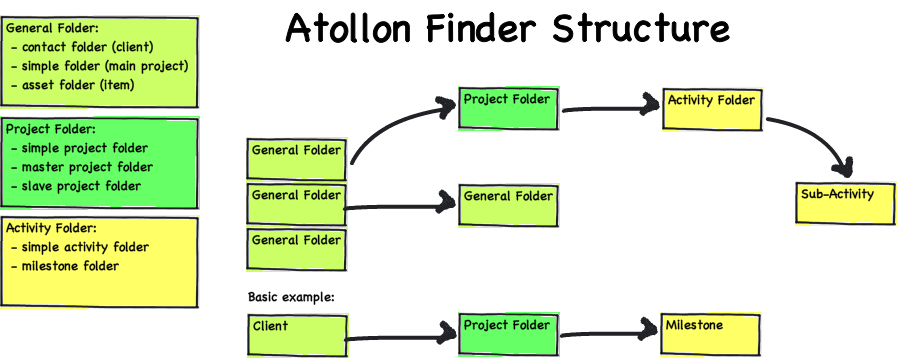
The basic context structure contains the following **Folders**:
Contact Folder > Project Folder > Milestone Folder
See the illustration below for more details:
[](https://help.atollon.com/uploads/images/gallery/2020-03/context-finder-scheme.png)
## Creating New Folders
New Folders in Finder are created using Folder Templates.
### Creating New Folder
In Finder's root level can be created only General Folders, incl. Simple Folders and Contact Folders (Clients, Partners). New General Folder may be created under any other General Folder, therefore you can create the whole tree of folders.
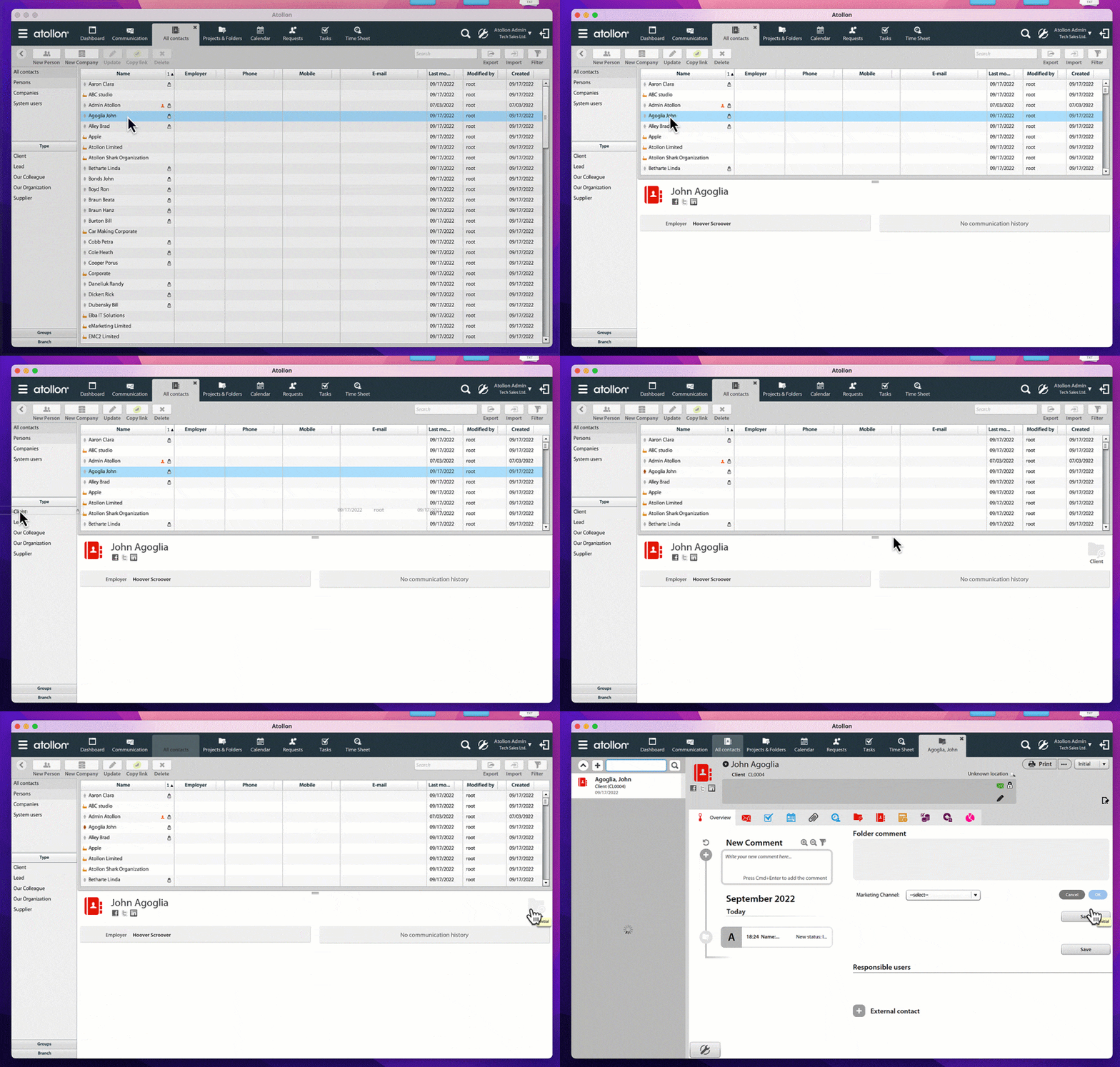
#### Create folder to contact
Existing contact (company or person) may have a folder in ATOLLON, which is core for any CRM functionality. Easily drag & drop contact to chosen contact type (Client, Supplier, Partner, etc.)
[](https://help.atollon.com/uploads/images/gallery/2022-09/Quick-create-client-from-contact.gif)
### Creating New Project Folder
Project Folder must be created under any General Folder (based on Folder relations settings).
### Creating New Activity/Milestone
Activity/Milestone Folder may be created only under Project Folder.
## Searching in Finder
You can search in Finder only in one particular (selected) level. Finder displays all Folder Types in each level together. You can differentiate Folder Types by using different colors (applied for each Folder Status differently).
Main Atollon search bar (top Toolbar) searches immediately in Finder's root level. It is useful therefore to find appropriate Client first, before looking into Client's projects.
Once you select any Folder in Finder, you can search another levels as well.
Finder Filtering
You can filter Finder for:
- Folder Base Status (Intital, Active & Closed)
- Responsible User (user responsible for Client, Partner, Simple Folder, etc.)
- Organization Dimensions (Organizational Units, Departments, etc. - which must be set-up during implementation)
## Folder Status
Each Finder Folder may have various States. These States are customizable for each Folder Type. For instance Clients in the database may have states indicating their relationship with the company, such as Lead, Prospect, Potential, Current, Hot, Lost). Each status has also Base Status, which is Initial, Active & Closed.
Finder displays by default automatically only Folders in Initial & Active States. By changing Finder's filter, you can display all States (incl. Closed Folders).
## Finder Access Rights
Access Rights for Finder's Folders are based on Folder Templates. Each Folder Template may define how to set access rights for each individual new Folder. New Folder's access rights may be taken from (inherited from) Organization's root, parent Folder or any other folder defined by Administrator.
Access to Finder Folders may be extended by adding Users into Roles or by customizing each individual Folder's Access Rights.
Because Access Rights are usually inherited (tree-based), there may be Folders in finder that are not visible by everyone.
## Finder Tabs Customization
It is possible to customize each Folder's detail using Activity Panel Settings. The detail may vary for each **Folder Type** and **User Profile**. Therefore each Islander may display different Tabs based on their User Profile, for instance administrative staff may display different Tabs in comparison to management or end users.
## Master/Slave Project Structure (Campaigns)
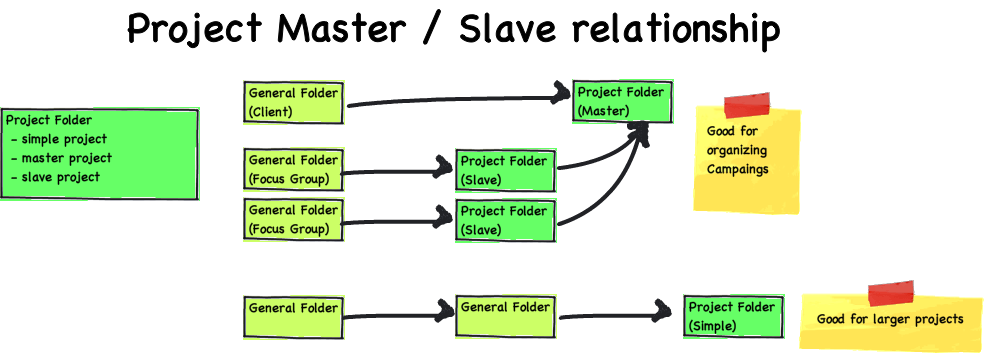
Project Folders may be bound in Master/Slave structure. See the illustration below:
[](https://help.atollon.com/uploads/images/gallery/2020-03/context-projects-scheme.png)
#### Example
Project Master/Slave relationships are used to track mainly campaigns, where Master Project is Campaign, Slave Project is Campaign Member. Campaign Member project has relation to it's Master Campaign.
### Campaign Overview
### Messaging
It is possible to display all messages sent/stored in connection to Campaign Memberships in one central location, which is the Campaign. This allows Islanders to get overview about all campaign communications.
### Billing
It is possible to get overview about billing status of any item of Campaign Memberships. This way you can easily get financial status of paid trainings, seminars, conferences, etc.
## Finder Configuration
See [Context Settings](mks://localhost/en/user-manual/general/Finder/context-settings "en/user-manual/general/Finder/context-settings") documentation for more information.
## Folder Options
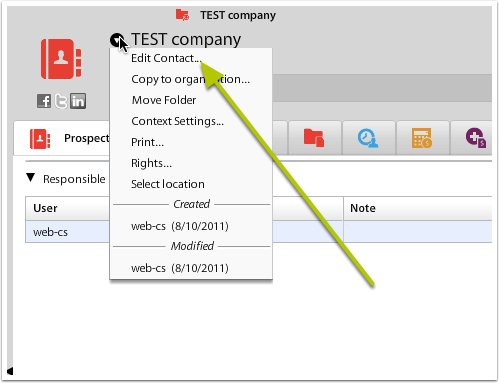
Go to the Folder detail and open Edit XYZ (where XYZ is the Folder Type)
[](https://help.atollon.com/uploads/images/gallery/2020-03/folder-options-menu.png)
### Folder Advanced Options
#### Change Folder Type
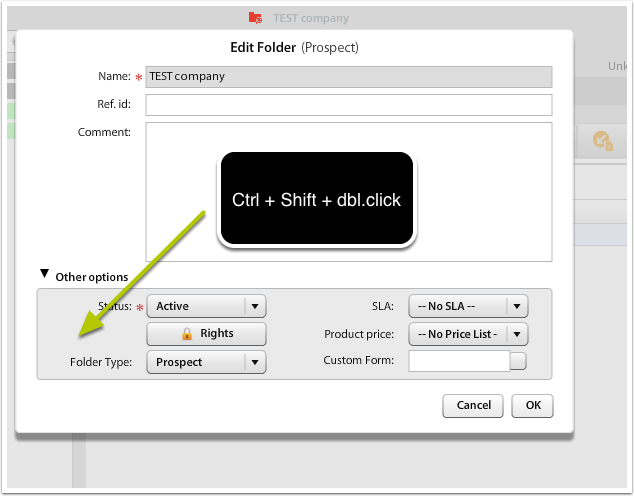
In case you want to change Folder Type, you can go to view Other options and use "secret" :-) key stroke: Ctrl + Shift + dbl. click to unhide options: Folder Type and Custom Form.
Please note that changing Folder Type this way may be dangerous and can cause inconsistencies. Ie when changing Folder Type, you have to be careful to adjust access rights of the folder or custom form.
[](https://help.atollon.com/uploads/images/gallery/2020-03/folder-options-advanced.png)
# Projects & Folders Application
Application **Projects & Folders** is used to quickly report on main Finder's Folders, including General Folder, Project Folder & Activity Folder.
You can easily show your potential clients, your Sales Opportunities in Presentation phase, your service contracts or Cases in In Progress phase, etc.
## Using the Application
[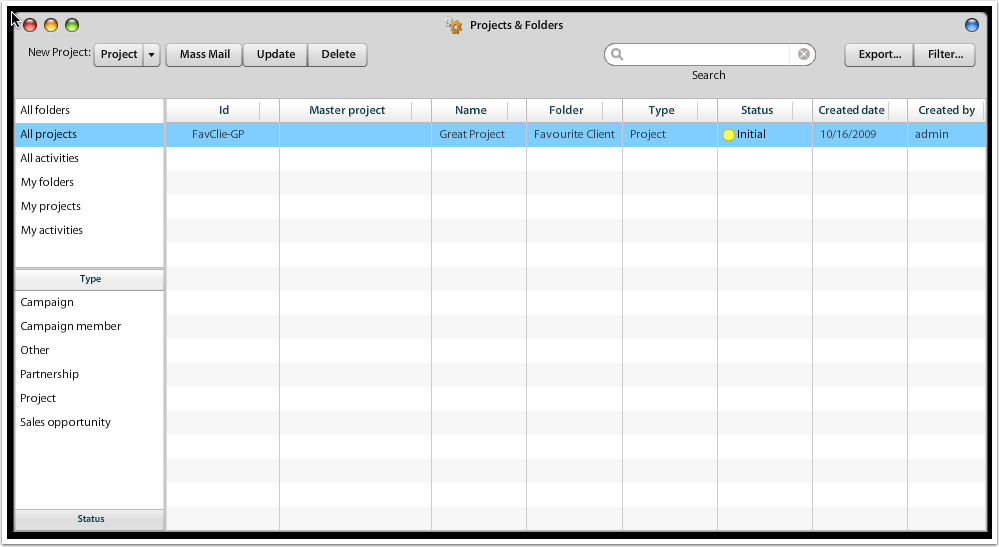](https://help.atollon.com/uploads/images/gallery/2020-03/projects-folders-overview.png)
The left side bar (views) are used to filter **Folders**, **Projects** & **Activities**, either **your own** or **all** where you are allowed to access (list).
You can filter folders, projects & activities from top down & decide:
1. Show My / All Folders/Projects/Activities
2. Show only one type of folder (project, activity)
3. Show only one status of folder (project, activity)
### Examples
There are several scenarios, how to use this application:
#### **Show my potential/active/lost clients**
Go to left side bar, select:
1. My folders
2. Below list of types of folders is displayed, select "Client"
3. Below list of Client's states is displayed, select "Potential"
Now you show only potential clients.
#### Show Active Cases/Projects
If your company tracks service cases, they are usually treated as specific project type. Therefore, if you want to display all active Cases, you can select:
1. All projects
2. Select project Type: "Case"
3. Select desired status in bottom part of the accordeon
## Using quick Mass Mail on projects
If you want to send all your External contacts on projects some announcement, this tool is quite suitable. You can also use general Reporting for the same task.
You can filter projects that you would like to send message to:
1. Select All projects option
2. Select the Type of the project
3. Select the Status of the project (if necessary)
You can now optionally select only particular projects, or you can press **Mass Mail** button on top of the application.
In Mass Mail contacts selector, you may check option Send mass mail to "External contacts on project". Continue by pressing **Mass Mail Wizard**.
## Delete Project
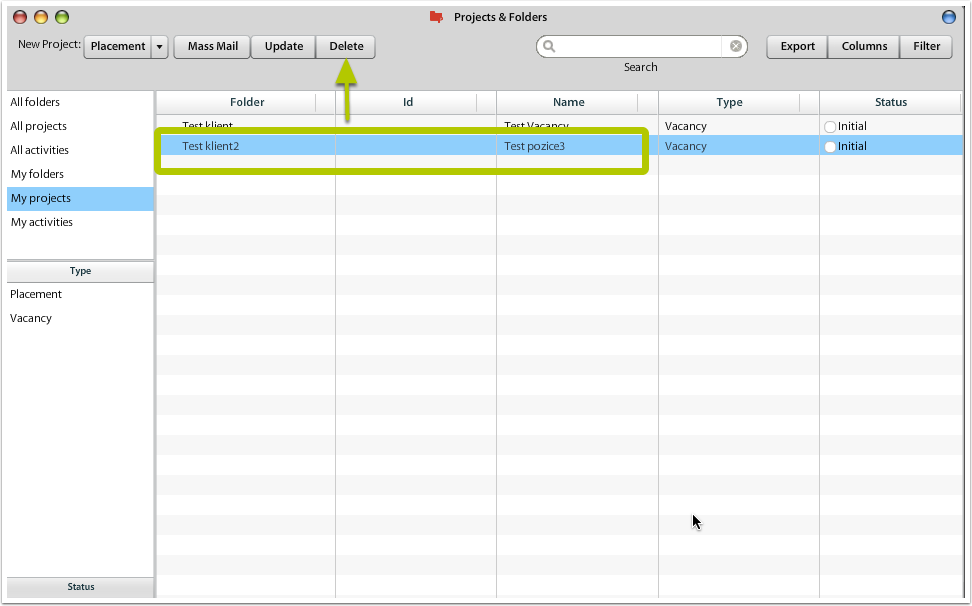
You may delete any project that has no financial data or documents stored. Also some other data stored project may cause no possibility to delete the project. In case you know what data prevent you from deleting the project, you may first clear them and later on try to delete the project.
[](https://help.atollon.com/uploads/images/gallery/2020-03/projects-folders-delete.png)
# Folders
### Cloning folders to other organization
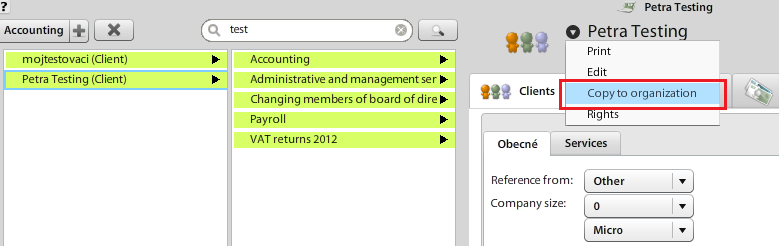
To clone folder into another organisation, there is a context menu item (in Finder), for executing this function.
[](https://help.atollon.com/uploads/images/gallery/2020-03/folders-copy-to-other-org.png)
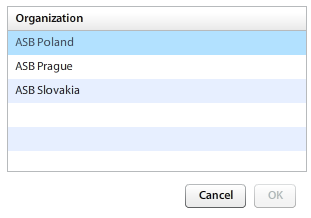
Click on this button will list all organizations. After selecting organisation and click "OK" button
[](https://help.atollon.com/uploads/images/gallery/2020-03/folders-copy-select-org.png)
##### There are the following actions executed
1. Check, if settings in both organizations are the same: it will be checked by organization\_default settings. If nodes for folder type, project type, activity type, folder states and so on, are different in current and destination organization, the server resutrn error about it. Otherwise it runs next steps:
2. Get folder save the copy in destination organization and run next sub-steps
1. The folder copy will have clear reference id
2. Copy global and custom form values
3. Copy messages only. These messages are assigned only current folder (not projects)
4. For each projects, assigned to source folder, do:
1. Copy project to destination folder (in destination organization)
2. Copy global and custom form values
3. Copy messages assigned only to current project (not from activites)
4. For each activity from source project do
1. Copy activity to destination project
2. Copy global form values (custom form on activity does not exist)
3. Copy messages, only from current activites
4. Recursively copy activites
# Projects
### New Project
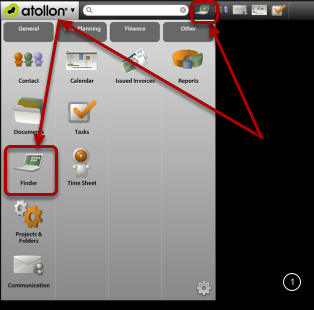
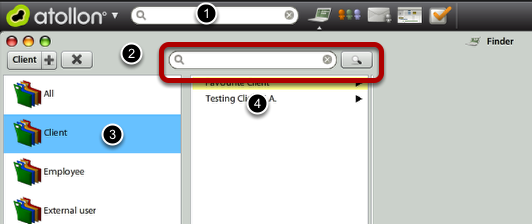
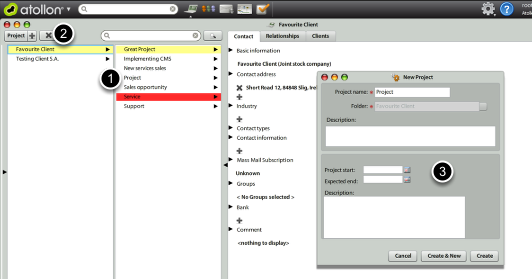
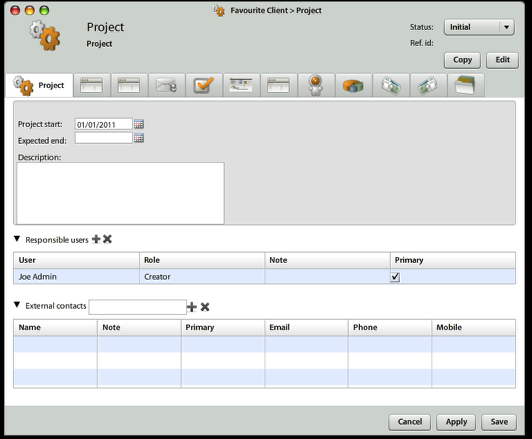
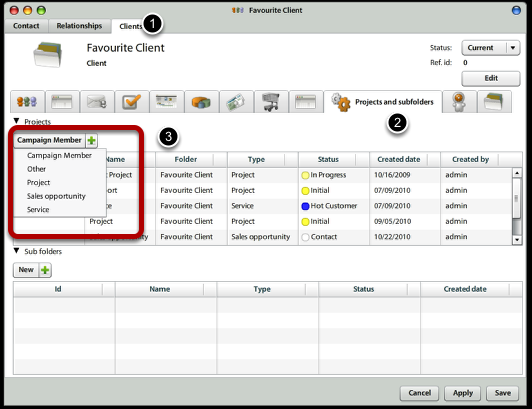
This lesson shows how to create new project for your client in simple **Client** > **Project** Finder structure.
#### Open Finder to locate your client
[](https://help.atollon.com/uploads/images/gallery/2020-03/project-new-1.png)
[](https://help.atollon.com/uploads/images/gallery/2020-03/project-new-2.png)
[](https://help.atollon.com/uploads/images/gallery/2020-03/project-new-3.png)
[](https://help.atollon.com/uploads/images/gallery/2020-03/project-new-4.png)
[](https://help.atollon.com/uploads/images/gallery/2020-03/project-new-5.png)