# Contacts


# Contacts Overview

## Contacts Main Window

Contacts are split to company and person within Atollon. You can create them separately, but it is possible to link person with company using contact relationships.

Contacts database is used to store primary contact information (e-mails, phone, mobile, social URLs, etc.), contact addresses (various types), bank account information and several other fields.

## Contact Types

Once you set **Contact Type** information (client, partner, employee, etc.), new Contact Folder is created automatically in Finder. Contact Folder may contain additional information &amp; functions based on Folder Type, for instance Form (with various custom fields), Messaging Tab, Calendar, Tasks, Projects &amp; Folders, Time Sheet, Orders, Invoices and much more.

### Set Contact Type

Open any existing contact or create new, see the Contact Type section and select the appropriate contact type, such as:

- Client
- Partner
- Employee
- Supplier
- ...

You can also set Contact Type for multiple contacts at the same time using Drag &amp; Drop function. Simply select more contacts and Drag &amp; Drop them on displayed Contact Type (left panel in Contacts application).

### Un-set Contact Type

It is possible to un-set contact's Contact Type only by removing particular Contact Folder from Finder.

### Create new/Adjust Contact Type

It is possible to create / remove Contact Types using [Finder configuration](mks://localhost/en/user-manual/general/Finder/context-settings "en/user-manual/general/Finder/context-settings"). Simply remove or add Folder type in Context Settings.

## Contact Information

Contact information is the basic e-mail, phone, mobile, Facebook account, Twitter account or LinkedIn account stored in connection with the contact (person or company).

It is possible to add more contact information records to each contact.

If there are more contact information records, one of them may be set as primary (for instance phone (work) from set of all phone numbers).

One primary contact channel (e-mail (work) for instance) may be selected for all contact information records.

### Contact Information Types Customization

It is possible to add/remove Contact Information from Atollon and in this way customize list of Contact Information, such as e-mail (home), e-mail (work), e-mail (other) for some other values.

Go to Windows Admin client &gt; Settings &gt; Contacts &gt; Settings and select appropriate configuration list.

## Contact Groups

It is possible to add each contact (person or company) into one or more Contact Groups.

### Contact Groups &amp; Mass Mail

The membership of the contact in Contact Group is used mainly to use Mass Mail functions. You can double-click the Contact Group in Contacts application and more details of the Contact Group may appear. It is also possible to allow/disallow sending the contact mass mail using the selected Contact Group this way.

### Add Contact to Contact Group

There are more ways to do this task. One of them is simply drag &amp; drop selected contacts into group displayed in accordeon on left panel in contacts database. Another is to open each contact individually and select appropriate checkbox in Contact Groups fields. Description may be added that associates contact with the Contact Group.

## Contact Relations

It is possible to link contacts together. There are the following relations available:

- person x company relations - indicates employer / employee relationship
- company x company relations - indicates two types of relations: equal level (partners) or master/slave level (mother / division)
- person x person relations - indicates two types of relations: equal level (friends) or master/slave level (superior / subordinate)

Person x company relations may have additional attributes, such as Position in company and Department, incl. some notes.

Contact relations are displayed in tree and you can browse contacts relationship tree into almost indefinite level, which helps to understand influence to your sales opportunities or clients and may help you build your referral business.

# Contact Groups

### Add Group Category

**Group Category** is container for storing several contacts (distribution) groups. It is particularly useful once you have too many contact groups.

#### Advanced

##### Access Rights

Only authorized users may add new Group Category. The rights are defined in Atollon Directory, where you can find the default Access Rights Node at: Root &gt; Organization Folders &gt; Contacts Controller &gt; Distribution Group Category.

# New Contact in Detail

#### Person vs Company

## [![contact-new-1.png](https://help.atollon.com/uploads/images/gallery/2020-03/scaled-1680-/contact-new-1.png)](https://help.atollon.com/uploads/images/gallery/2020-03/contact-new-1.png)
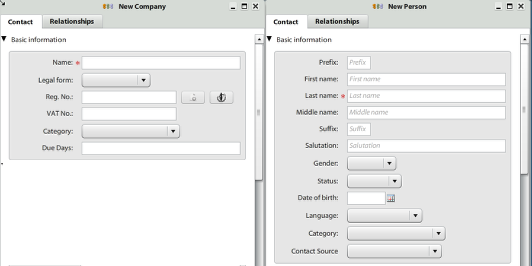
##### New company

 **Legal form** - eg. Inc., s.r.o., a.s. ...,  
 **Reg. No.** - it's company registration number,  
 **VAT No.** - it's company VAT number,  
 **Category** - most simplest categorisation,  
 **Due Days** - it's number of days when the invoices are in due.

##### New person

 **Prefix**  
 **Fist name**  
 **Last name**  
 **Middle name**  
 **Suffix**  
 **Salutation** - this field will be transfered on e-mails while using the ${SALUTATION} tag in e-mail template. See the section ${wiki:EmailTemplating}  
 **Gender**  
 **Status**  
 **Date of birth**  
 **Language**  
 **Category** - most simplest categorisation,  
 **Contact Source** - where we get this contact (should be modified) - eg. web, newspaper, friend, competitor ...

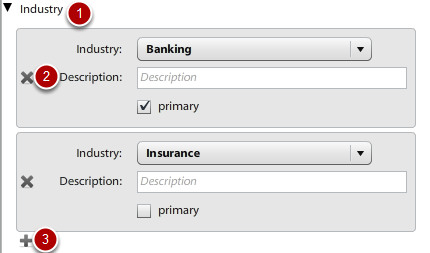
#### Industry (only for new company)

<div id="bkmrk--0"><div>[![contact-new-2.png](https://help.atollon.com/uploads/images/gallery/2020-03/scaled-1680-/contact-new-2.png)](https://help.atollon.com/uploads/images/gallery/2020-03/contact-new-2.png)</div><div></div></div>Fields:  
 **Industry** - for selecting company industry.  
 **Description** - for additional description of that industry for specific company.  
 **Primary** - check box for selecting which industry is the primary one.

Functions:  
 1. **Collapse/expand** section - by clicking text with black arrow.  
 2. **Remove** industry from contact - by clicking the cross (which is red when going your mouse cursor over).  
 3. **Add** new industry to contact - by clicking the plus (which is green when going your mouse cursor over).

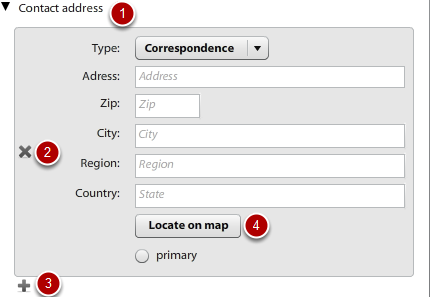
#### Contact address

<div id="bkmrk--1"><div>[![contact-new-3.png](https://help.atollon.com/uploads/images/gallery/2020-03/scaled-1680-/contact-new-3.png)](https://help.atollon.com/uploads/images/gallery/2020-03/contact-new-3.png)</div><div></div></div>Fields:  
 **Type** - user-definable type of address (eg. Correspondece, Invoicing, Delivery, ...)  
 **Address**   
 **Zip**  
 **City**  
 **Region**  
 **Country**  
 **Primary**

Functions:  
 1. **Collapse/expand** section - by clicking text with black arrow.  
 2. **Remove** contact address from contact - by clicking the cross (which is red when going your mouse cursor over).  
 3. **Add** new contact address to contact - by clicking the plus (which is green when going your mouse cursor over).  
 4. **Locate address on map** - by clicking the Locate on map button (this will open new window with google maps).

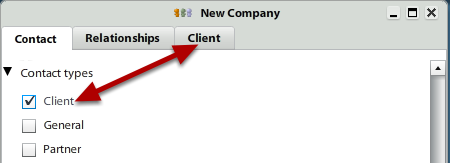
#### Contact types

<div id="bkmrk--2"><div>[![contact-new-4.png](https://help.atollon.com/uploads/images/gallery/2020-03/scaled-1680-/contact-new-4.png)](https://help.atollon.com/uploads/images/gallery/2020-03/contact-new-4.png)</div><div></div></div>Fields:  
 **Depends on implementation**. There might be ten or no one.

Functions:  
 By selecting one or many check boxes there will appear one or many new tab with same name. With this we are saying that "this new contact is Client and we want to see it in Finder (see the section ${wiki:Finder} under the folder called Client".

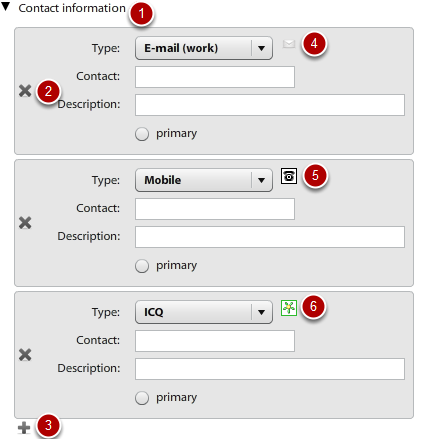
#### Contact information

<div id="bkmrk--3"><div>[![contact-new-5.png](https://help.atollon.com/uploads/images/gallery/2020-03/scaled-1680-/contact-new-5.png)](https://help.atollon.com/uploads/images/gallery/2020-03/contact-new-5.png)</div><div></div></div>Fields:  
 **Type** - various types of contact (eg. E-mail, Skype, ICQ, Facebook, Linked-in, Cell phone, ...)  
 **Contact** - field for filling up the phone number, ICQ number, e-mail address ...  
 **Description**

Functions:  
 1. **Collapse/expand** section - by clicking text with black arrow.  
 2. **Remove** contact information from contact - by clicking the cross (which is red when going your mouse cursor over).  
 3. **Add** new contact information to contact - by clicking the plus (which is green when going your mouse cursor over).  
 4., 5., 6. **Contact information-specific icon** and **function**. By clicking this icon you may:  
 a. **write new e-mail** with prefilled recipient,  
 b. **call cell phone/land line** (with using Skype),  
 c. **add ICQ** number to your account,  
 d. **visit facebook/linked-in account**,  
 e. etc.

#### Mass Mail Subscription

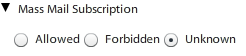
<div id="bkmrk--4"><div>[![contact-new-6.png](https://help.atollon.com/uploads/images/gallery/2020-03/scaled-1680-/contact-new-6.png)](https://help.atollon.com/uploads/images/gallery/2020-03/contact-new-6.png)</div><div></div></div>This is usefull section when you are using **mass mailing** system function (see the section ${wiki:Mass mail}

Functions:  
\- By selecting one of the field you tell to system if this contact allowed you to send mass mails (newsletters, promotions, ...) to it.

#### Groups

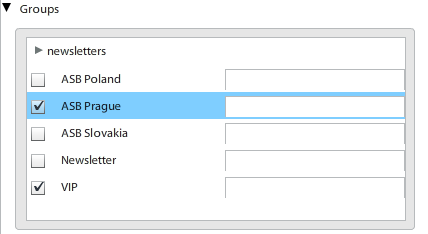
<div id="bkmrk--5"><div>[![contact-new-7.png](https://help.atollon.com/uploads/images/gallery/2020-03/scaled-1680-/contact-new-7.png)](https://help.atollon.com/uploads/images/gallery/2020-03/contact-new-7.png)</div></div>The Groups name means **distribution groups** which are use to send mass mails to it (see the section ${wiki:Mass mail}.

All that fields are **variable**.

Fields:  
 **newsletters** - the field with arrow before is category. In the Groups you may categorise your distribution groups.  
 **ASB Poland/Slovakia/Prague, Newsletter, VIP** - this is distribution groups as client wants it. By selecting it we are telling taht "this contact will appear in this group and if we are sending mass mail to ASB Prague or VIP we wants its to recieve that message".

Functions:  
 Confused with how to add or remove distribution group?  
\- For **adding** new group see the section ${wiki:Description/Contact Window}.  
\- For **removing** group contact our support or use windows client.

#### Bank

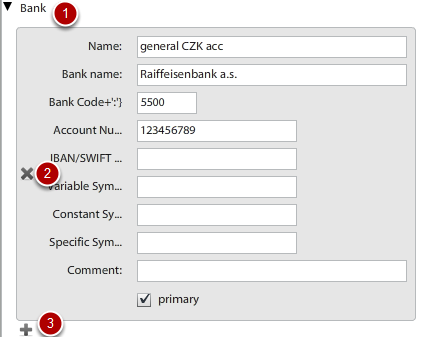
<div id="bkmrk--6"><div>[![contact-new-8.png](https://help.atollon.com/uploads/images/gallery/2020-03/scaled-1680-/contact-new-8.png)](https://help.atollon.com/uploads/images/gallery/2020-03/contact-new-8.png)</div><div></div></div>Add new bank account eg. for invoicing informations.

Fields:  
 **Name**  
 **Bank name**  
 **Bank Code**  
 **Account Number**  
 **IBAN/SWIFT**  
 **Variable Symbol**  
 **Constant Symbol**  
 **Specific Symbol**  
 **Comment**  
 **Primary**

Functions:  
 1. **Collapse/expand** section - by clicking text with black arrow.  
 2. **Remove** Bank from contact - by clicking the cross (which is red when going your mouse cursor over).  
 3. **Add** new Bank to contact - by clicking the plus (which is green when going your mouse cursor over).

#### Comment

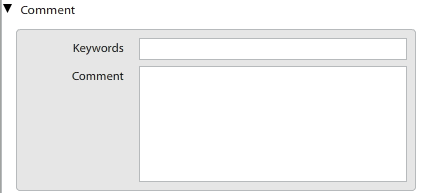
<div id="bkmrk--7"><div></div><div>[![contact-new-9.png](https://help.atollon.com/uploads/images/gallery/2020-03/scaled-1680-/contact-new-9.png)](https://help.atollon.com/uploads/images/gallery/2020-03/contact-new-9.png)</div></div>This section is just for your comments and keywors. It is not too much visible in system and it is not used often.

### Contact relations

Contact relationship section is divided to two sub sections.  
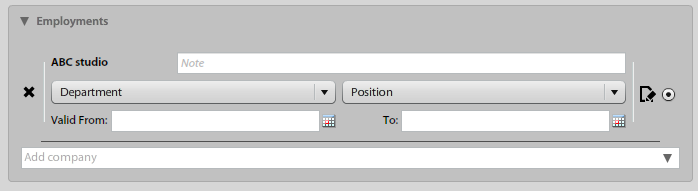
 **Employees** section is for persons related with this company. It might be direct employees or persons which are rented by company. The relation is definded by columns **Position**, **Department**, **Valid from**, **Valid to**.  
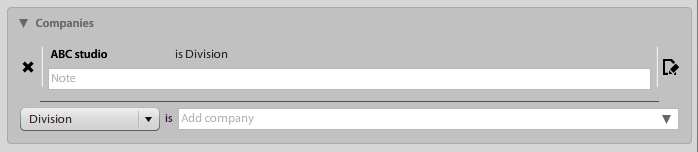
 **Companies** section is for related comapanies. The relation is defined by columnt **Relation**.

#### Employees/Employments

<div id="bkmrk--8"><div>[![contact-person-employments.png](https://help.atollon.com/uploads/images/gallery/2020-03/scaled-1680-/contact-person-employments.png)](https://help.atollon.com/uploads/images/gallery/2020-03/contact-person-employments.png)</div><div></div></div>Fields:  
 **Name** - if you are adding new person to that company, you may start writting to this field and the contact will be found.  
 **Position** - variable field. Just select if you want to specify person position in selected company  
 **Department** - variable field. Just select if you want to specify person department. There might be value External for those person which are rent by this company.  
 **Valid from** - time from the person is working in the company.  
 **Valid to -** time to the person is working in the company.  
 **Note**  
 **Primary**

#### Person 1:1 relations

[![contact-person-person-relations.png](https://help.atollon.com/uploads/images/gallery/2020-03/scaled-1680-/contact-person-person-relations.png)](https://help.atollon.com/uploads/images/gallery/2020-03/contact-person-person-relations.png)

Functions:  
 1. **Add new related person** - by clicking the plus icon.  
 2. **Remove related person** - by clicking the cross icon.  
 3. **Create new person** - if the person you want to add is no currently in the system you may use this button to create it at fist.  
 4. **Edit selected person** - click on the one row in table and select person you want to edit. Then click this button to do that.

### Companies Relations

<div id="bkmrk--10"><div>[![contact-company-related.png](https://help.atollon.com/uploads/images/gallery/2020-03/scaled-1680-/contact-company-related.png)](https://help.atollon.com/uploads/images/gallery/2020-03/contact-company-related.png)</div><div></div></div>Fields:  
 **Name** - if you want to add new related company, you may start writting to this field and the contact will be found.  
 **Relation** - variable field with **Parent&lt;--&gt;Child** structure. This mean that you may select **Controlling company** or **Division**. So in the collapset section you may see the Controlling company in one way and Divison from the opposite look. See the [Contact relationships - section collapsed](mks://localhost/en/user-manual/Windows_and_Tabs_Description/020-Relationship_tab "en/user-manual/Windows_and_Tabs_Description/020-Relationship_tab") to learn about this kind of structure.  
 **Note**

#### Footer - no additional information

<div id="bkmrk--11"><div>[![contact-new-10.png](https://help.atollon.com/uploads/images/gallery/2020-03/scaled-1680-/contact-new-10.png)](https://help.atollon.com/uploads/images/gallery/2020-03/contact-new-10.png)</div><div></div></div>Functions:  
 1. **Cancel** - to close this window without saving.  
 2. **Next** - to process to next window (which is the fist one you created in the step ${wiki:Description/New CompanyPerson Window/Contact Types)  
 3. **Save** - to save all changes and close this window.

### Contact duplicity checking

System checks for the contact duplicity.

##### Company

1. The **name** is similar to already created one =&gt; Similar contact.
2. The company **registration number** is same as the one already created =&gt; Same contact.
3. If the registration number is not entered, the VAT number is checked and must be unique

##### Person

1. The **first name and the last name** is similar to already created one =&gt; Similar contact
2. Persons **e-mail** address or **cell phone** is same as the one already created =&gt; Same contact.