# Calendar
# Calendar Overview
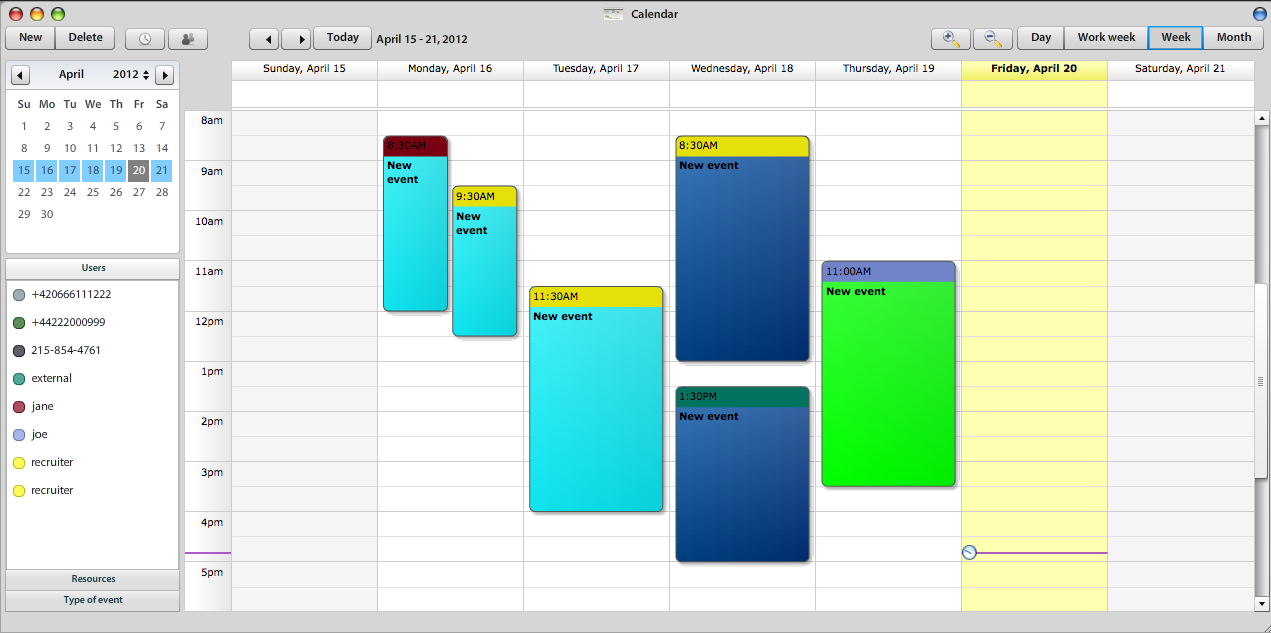
Atollon Calendar is really simple to use feature, see the bacis view below.
Advantage of using Atollon Calendar is the fact that it's part of your sales or service delivery process. Calendar events may be tracked in relation to your clients, deals, projects, etc.
Atollon calendar is also integrated to your time tracking, resource management, etc.
Events have different colors -
[](https://help.atollon.com/uploads/images/gallery/2020-03/calendar-overview.png)
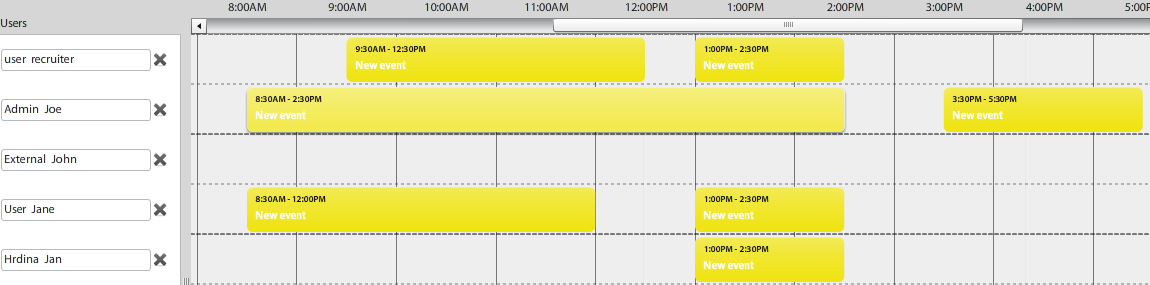
You can swith to multi-user calendar using 4th icon on screen bellow.
[](https://help.atollon.com/uploads/images/gallery/2020-03/calendar-icos.png)
#### Multi-user calendar
[](https://help.atollon.com/uploads/images/gallery/2020-03/calendar-multi-view.png)
# Atollon CalDAV Settings
Atollon supports synchronising your calendar with your mobile device or any **CalDAV** compatible calendar application.
### Update your Atollon password
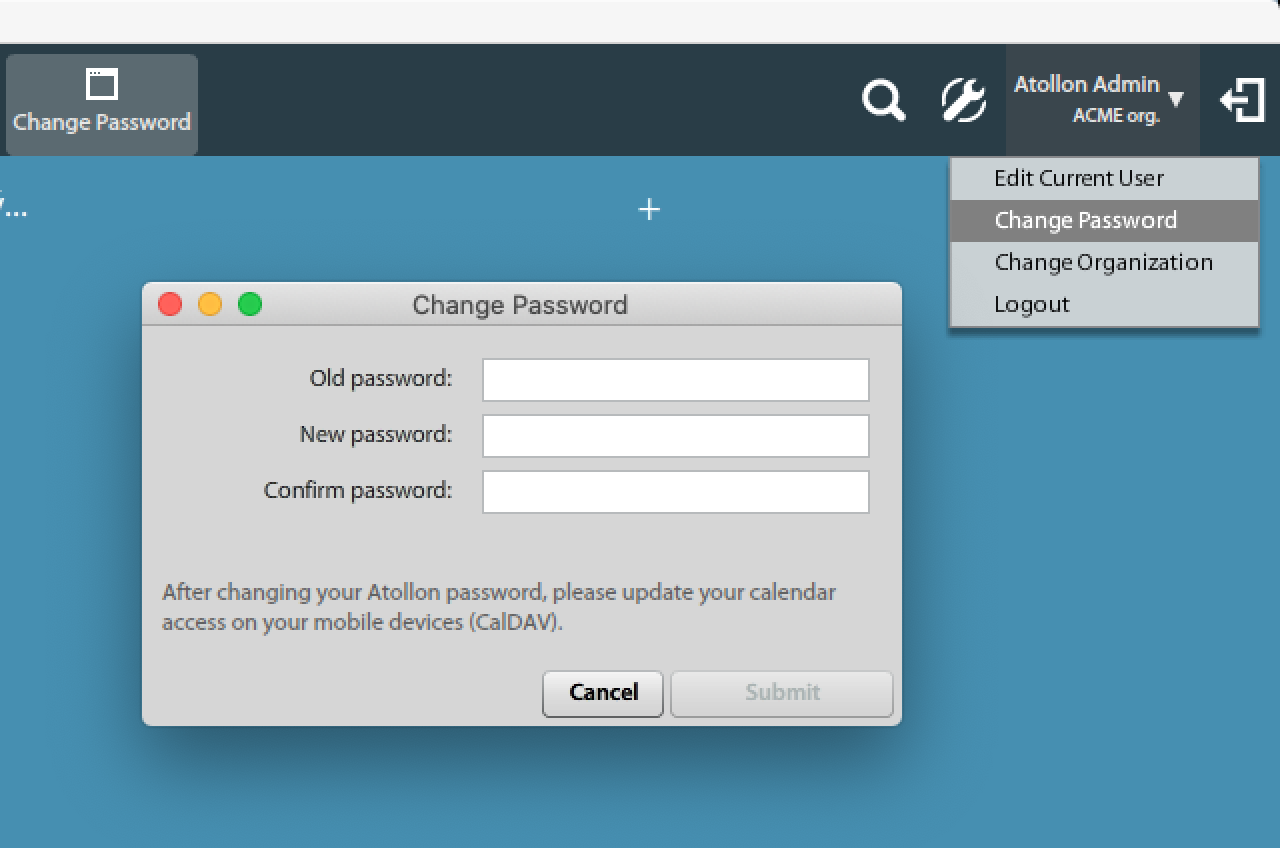
In order to access your calendar using CalDAV, you need to first change your password in "**Change password**" dialog. CalDAV account is initiated after password change.
[](https://help.atollon.com/uploads/images/gallery/2020-06/change-password.png)
### Access Credentials
Your Atollon user account is used to access CalDAV calendar server.
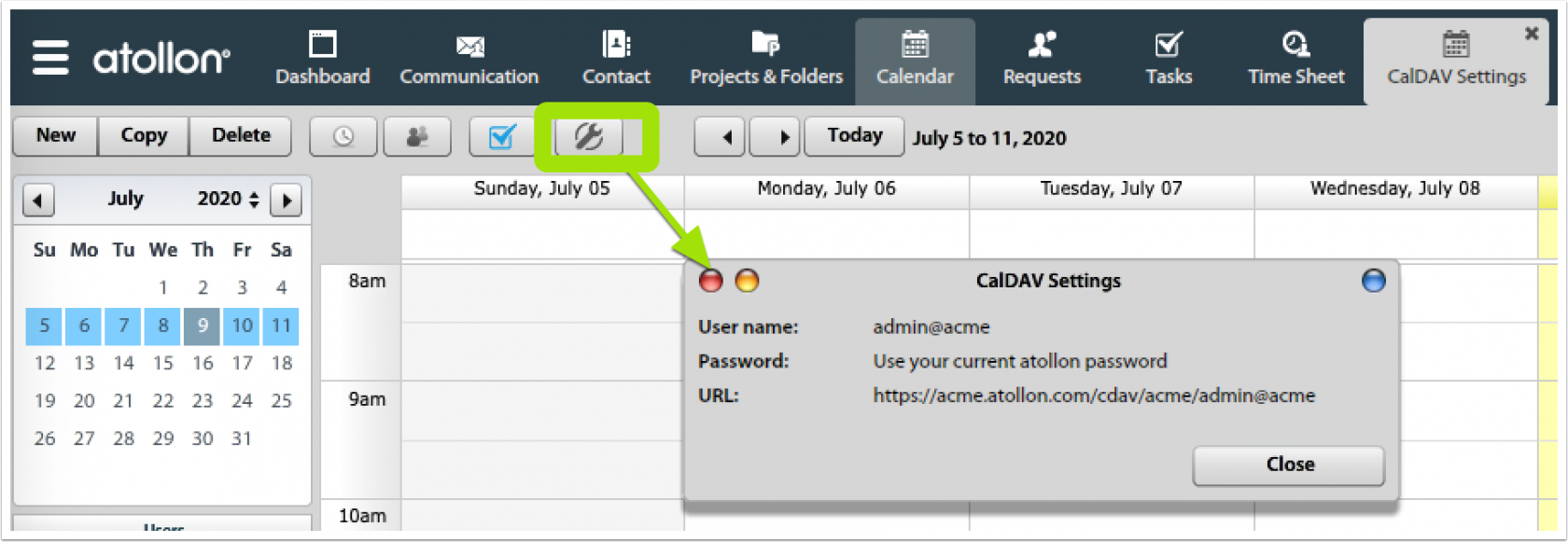
You can check your own access to CalDAV using simple tool in Atollon Calendar app directly. Go to your Calendar and click on Options button to see your **full username** and **CalDAV URL**.
[](https://help.atollon.com/uploads/images/gallery/2020-07/macosx-calendar-settings.png)
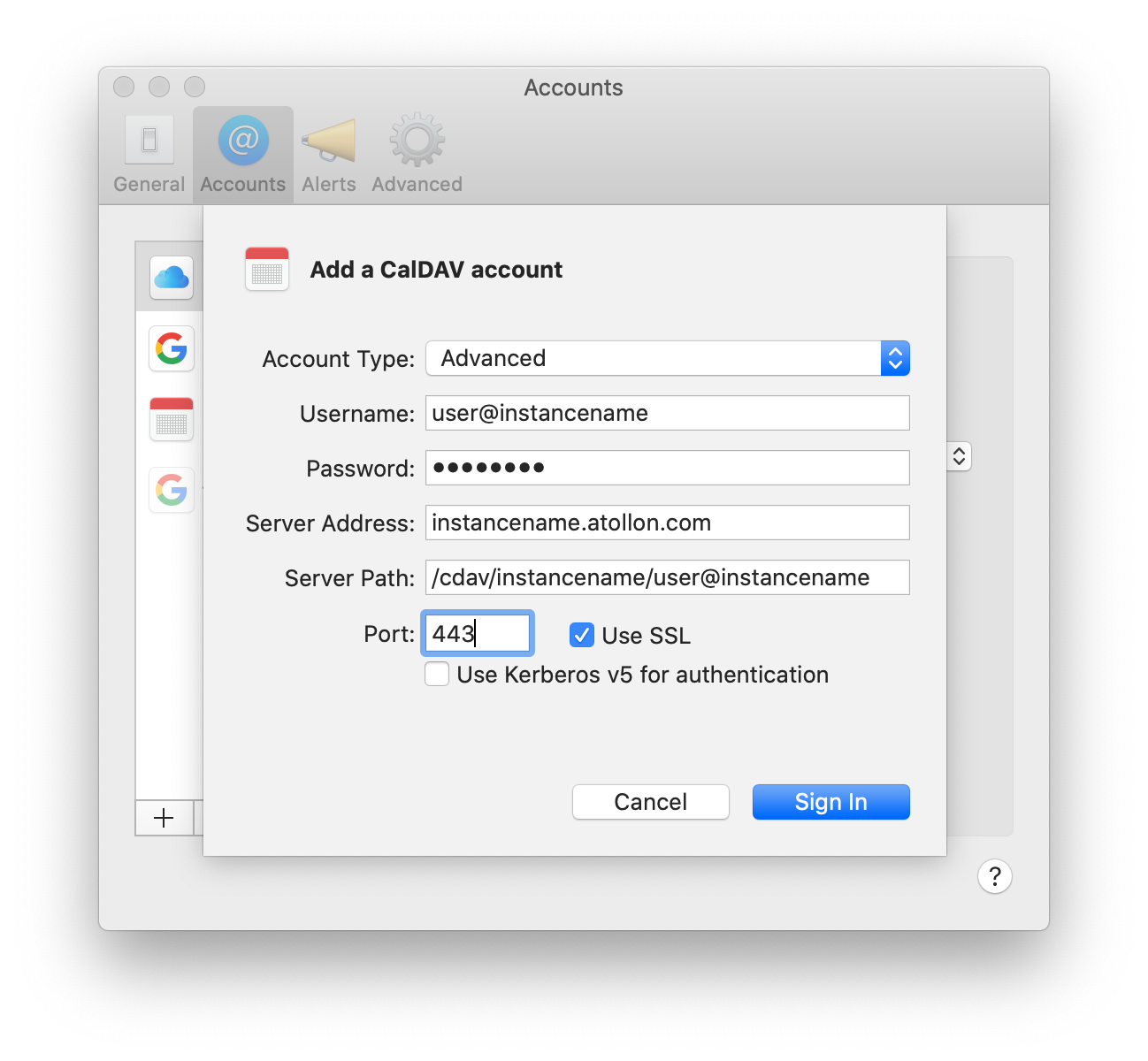
- Your username should be mentioned in its full format, which is [username@instancename](mailto:username@instancename)
- Full CalDAV URL to your Atollon calendar is: [https://instancename.atollon.com/cdav/instancename/user@instancemane](https://instancename.atollon.com/cdav/instancename/user@instancemane)
- Port is 443 (https)
For "**instancename**" you should get your organization's instance name, for example **acme.atollon.com**.
Various CalDAV clients (iPhone, Android, Mac OS X calendar, etc.) will need the information in different formats. Below you can find How to on some of the most frequent solutions.
### Atollon Calendar Clients Configuration Examples
[Atollon Calendar in iPhone](https://help.atollon.com/books/atollon-core/page/atollon-calendar-in-iphone "Atollon Calendar in iPhone")
[Atollon Calendar in Mac OS X](https://help.atollon.com/books/atollon-core/page/atollon-calendar-in-mac-os-x "Atollon Calendar in Mac OS X")
[Atollon Calendar in Android](https://help.atollon.com/books/atollon-core/page/atollon-calendar-in-android "Atollon Calendar in Android")
# Atollon Calendar in iPhone
If you want to connect your iPhone calendar to Atollon, please make sure you recently **changed your Atollon's user password**.
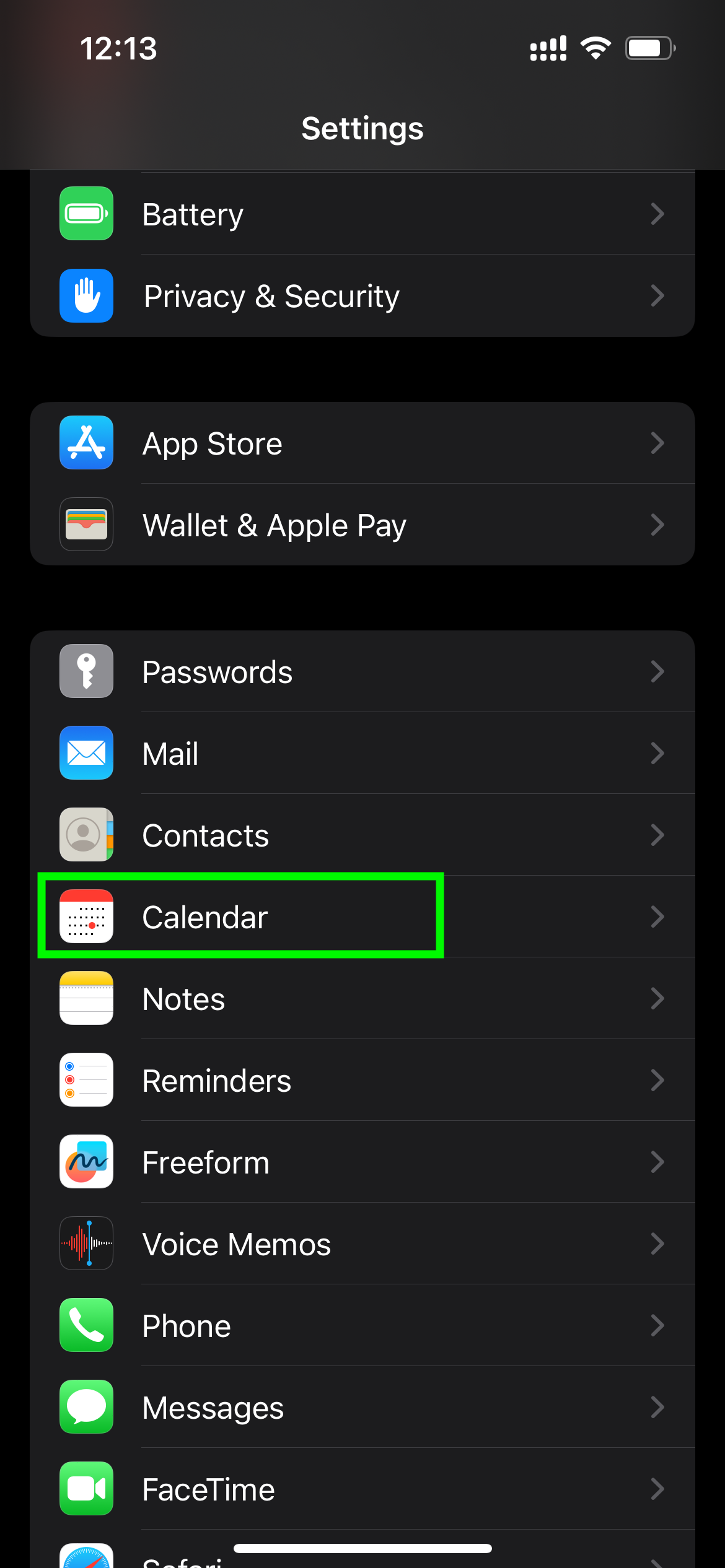
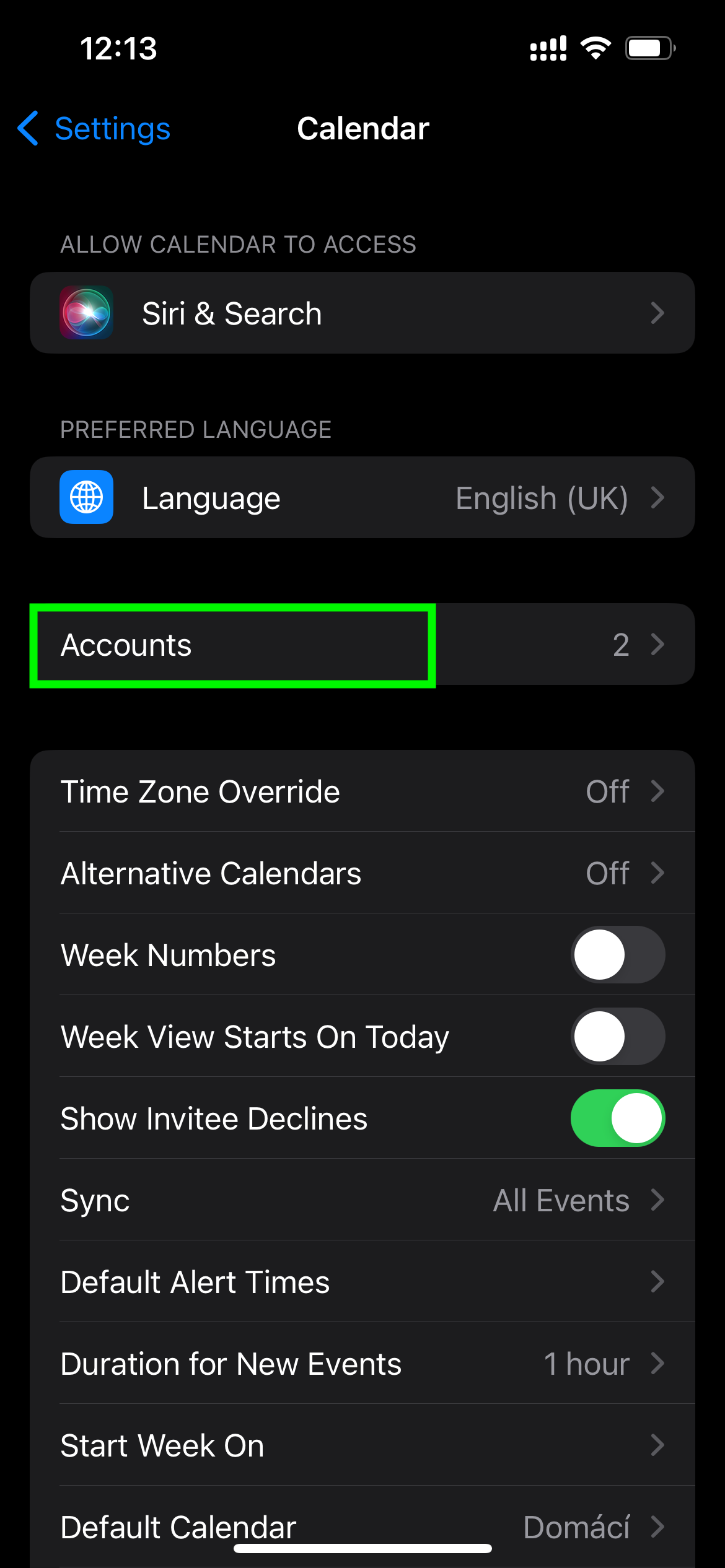
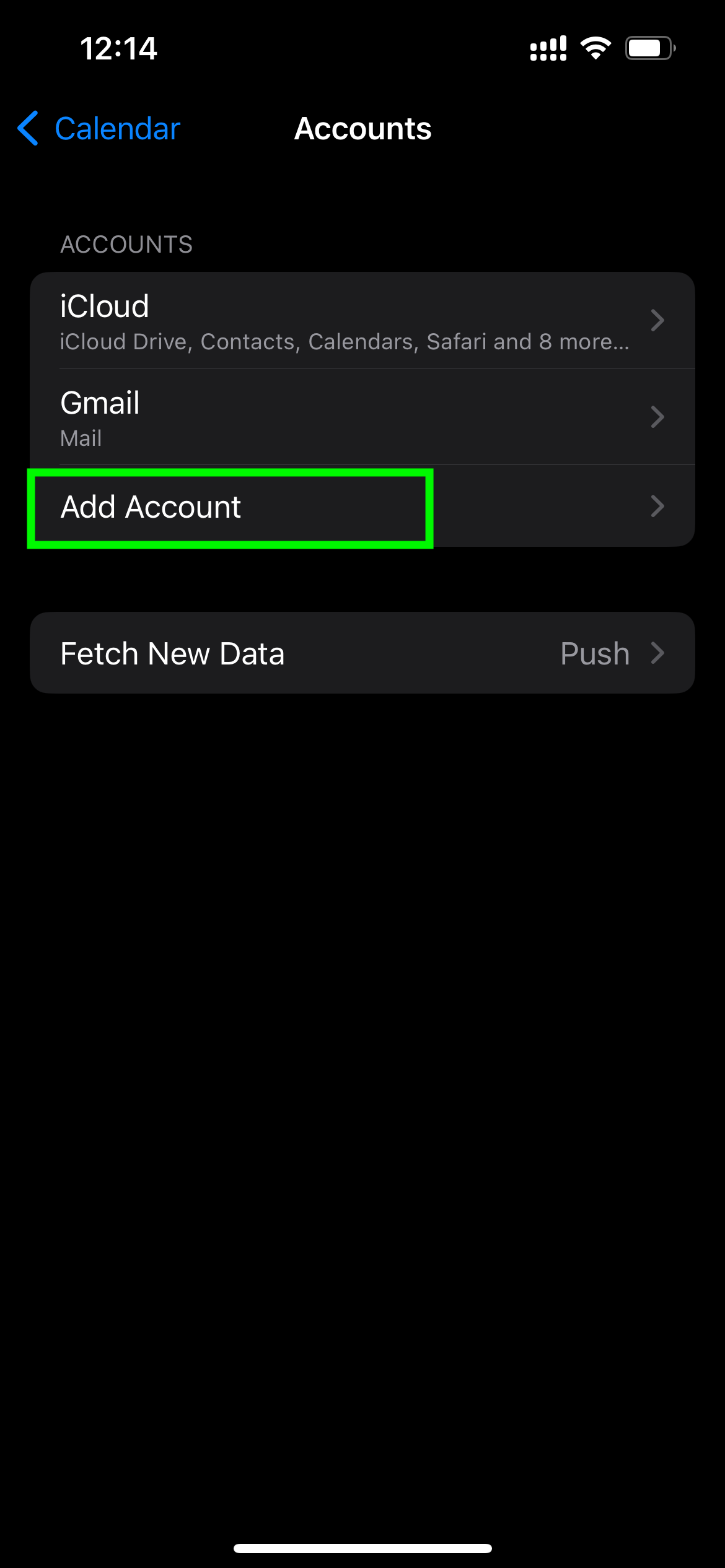
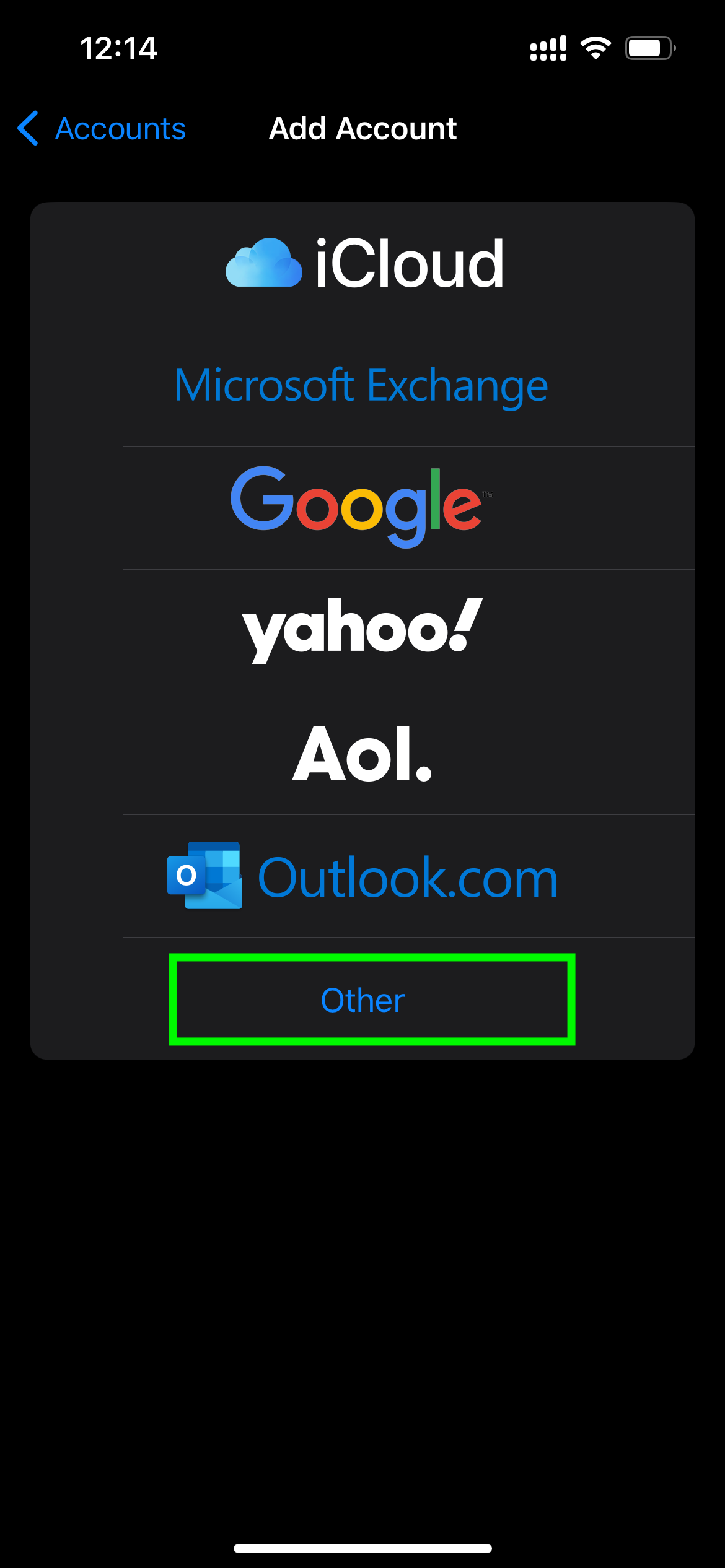
Below you can find a guide on how to set-up your access to Atollon calendar using iPhone. iPhone has built-in support for CalDAV, therefore you don't need to install anything, just add new CalDAV account to your Account Settings.
Below see the step-by-step guide:
#### Go to iPhone Settings > Calendar
[](https://help.atollon.com/uploads/images/gallery/2024-01/img-5238.PNG)
#### Accounts
[](https://help.atollon.com/uploads/images/gallery/2024-01/img-5239.PNG)
#### Add Account
[](https://help.atollon.com/uploads/images/gallery/2024-01/img-5240.PNG)
#### Select Other
[](https://help.atollon.com/uploads/images/gallery/2024-01/img-5241.PNG)
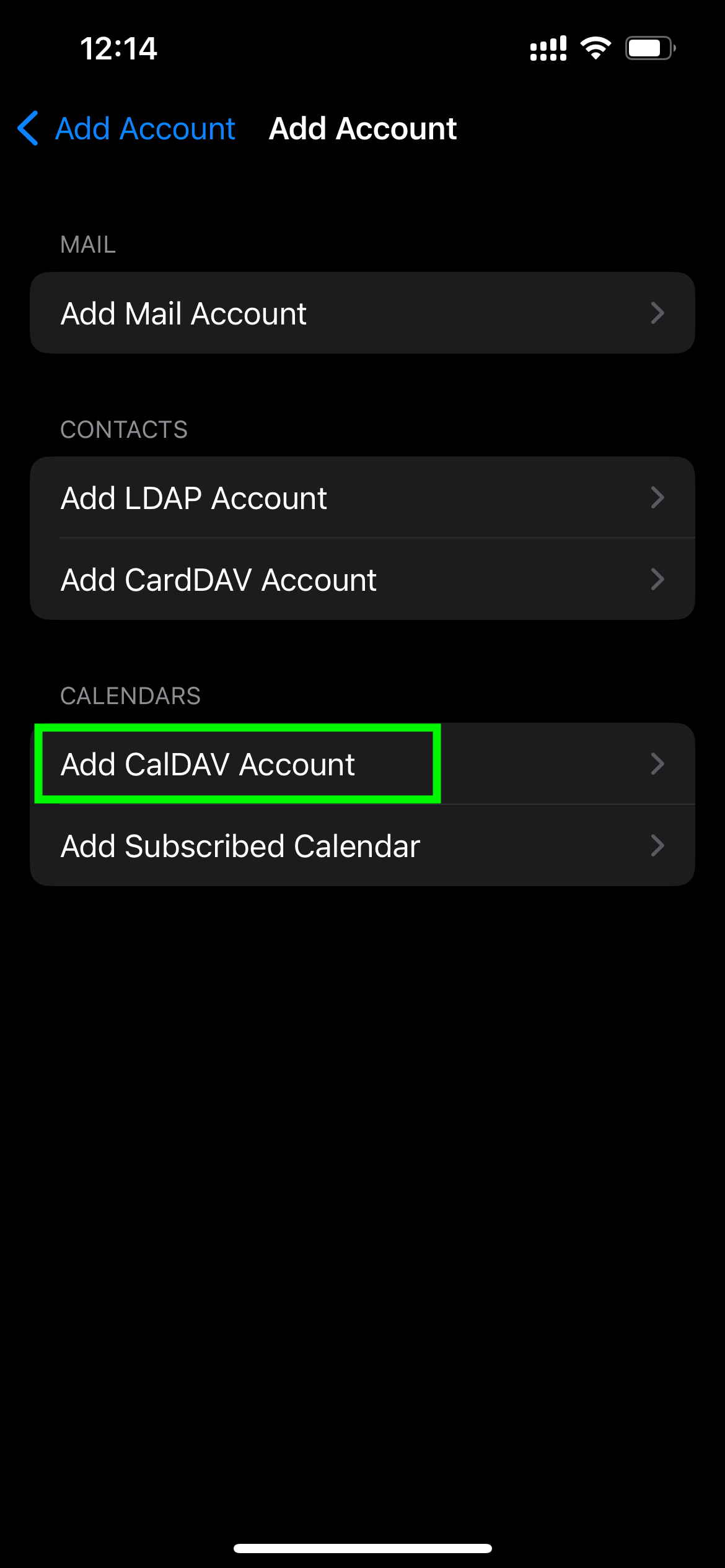
#### Add CalDAV Account
[](https://help.atollon.com/uploads/images/gallery/2024-01/img-5242.PNG)
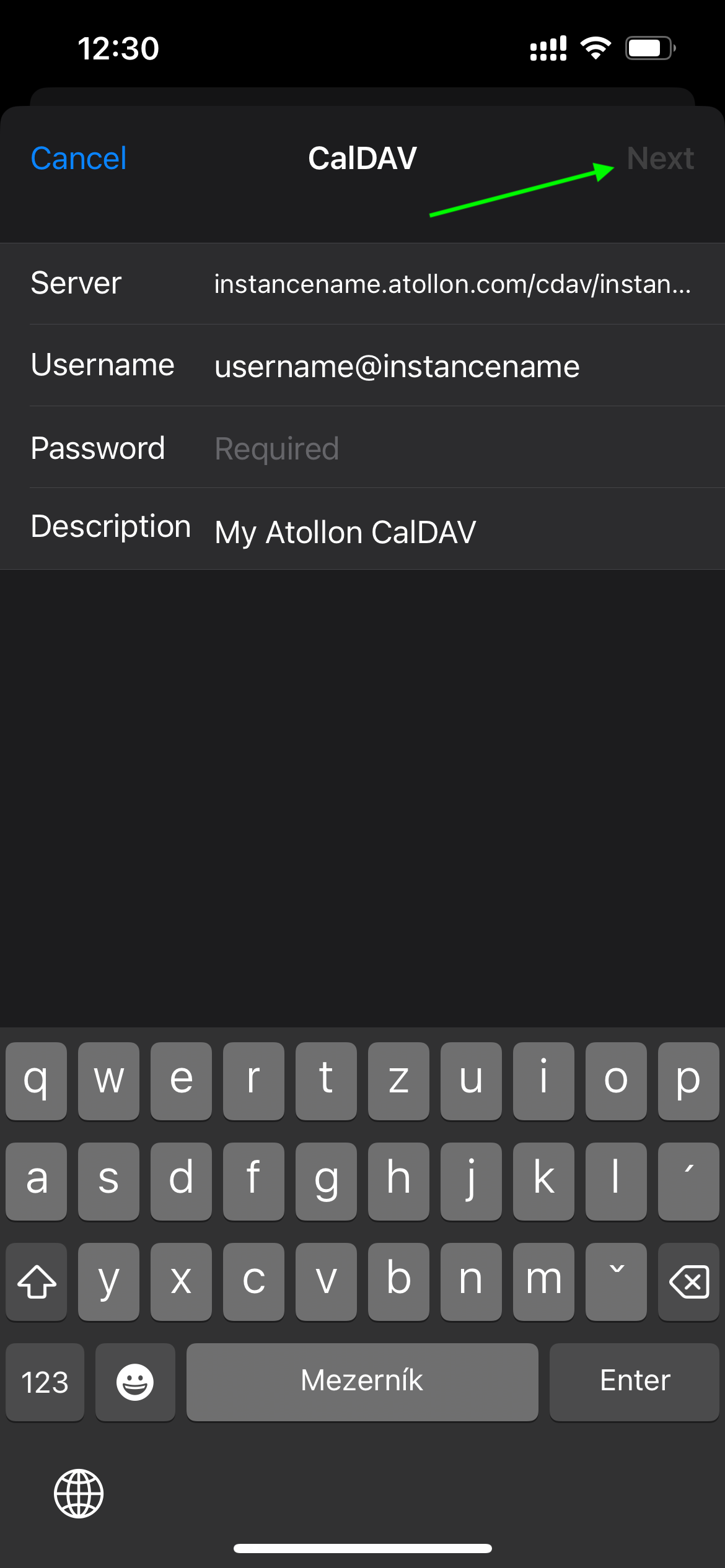
#### Add CalDAV Settings
- **Server**: instancename.atollon.com/cdav/instancename
- **Username**: [username@instancename](mailto:username@instancename)
- **Password**: your Atollon password
- **Description**: My Atollon CalDAV
[](https://help.atollon.com/uploads/images/gallery/2024-01/img-5243.PNG)
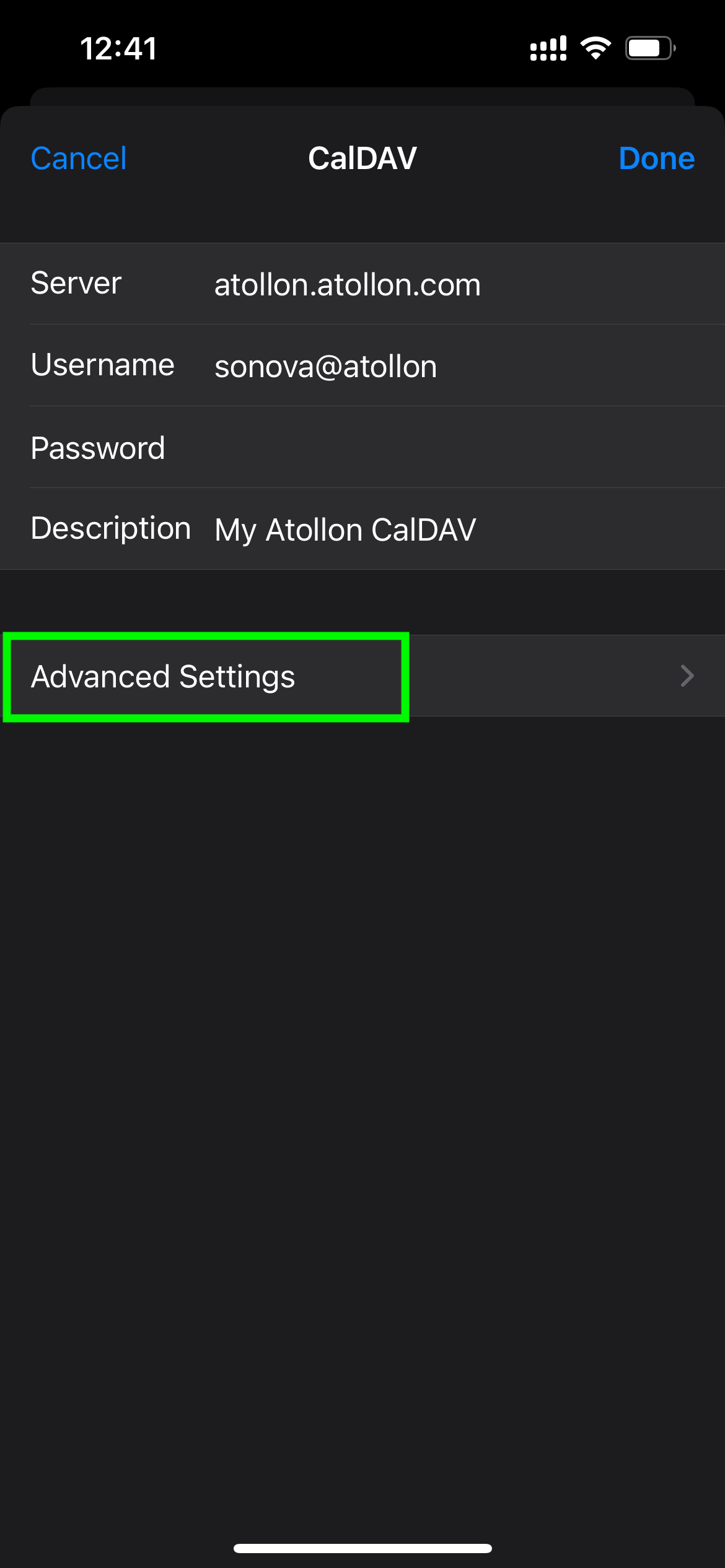
After this step you may select only Calendar events (not yet Reminders) to be synced. This won't make the account working unfortunately. You need to go back to the My Atollon CalDAV account settings again and adjust Advanced Settings of the newly created account.
#### Adjust Advanced Settings
[](https://help.atollon.com/uploads/images/gallery/2024-01/img-5244.PNG)
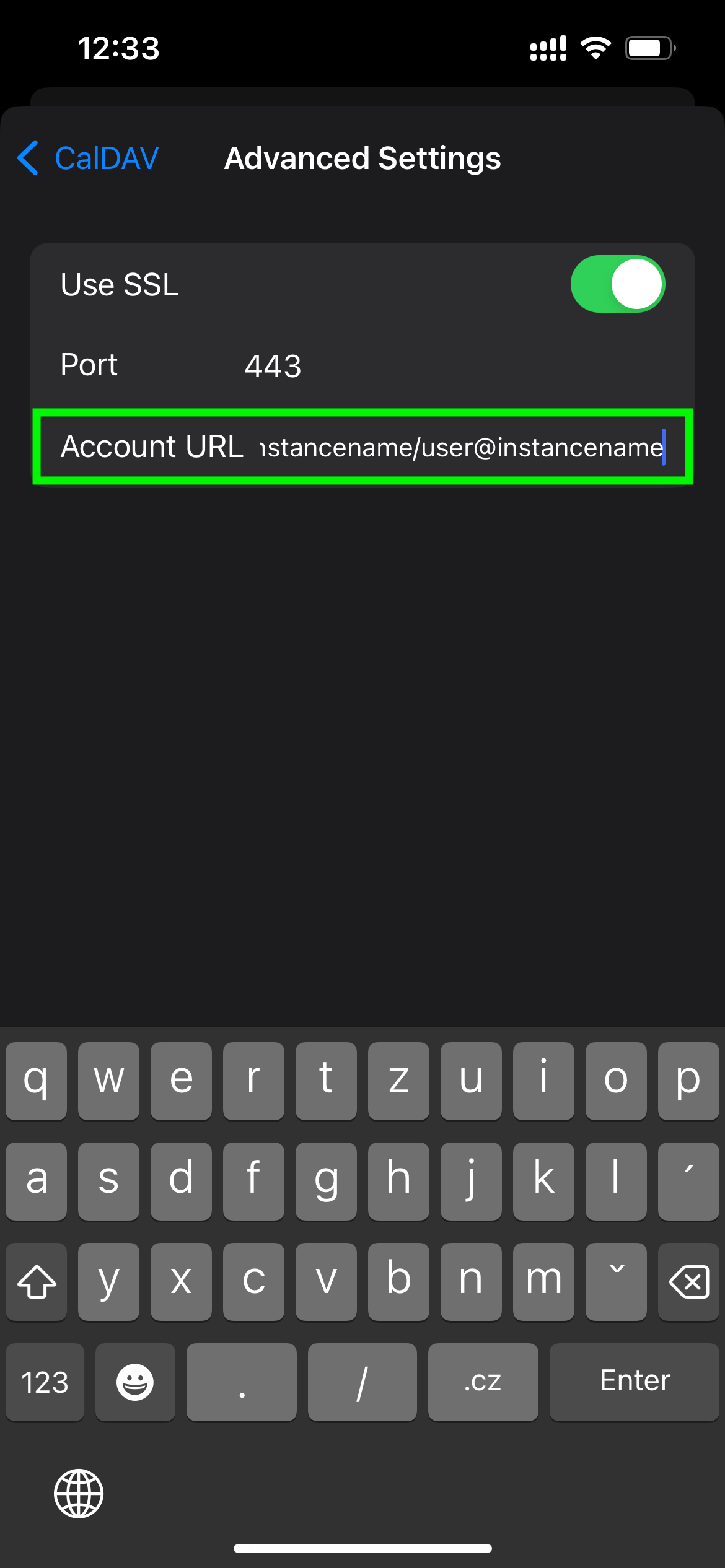
#### Add full URL to Atollon's CalDAV account
- **Account URL**: instancename.atollon.com/cdav/instancename/user@instancename
[](https://help.atollon.com/uploads/images/gallery/2024-01/img-5245.PNG)
Now your account should be connected.
You can go to your calendar and force calendar refresh. Depending on your refresh settings, calendar should check new events in 5, 10, 15 minute intervals automatically (or you can opt for manual refresh).
#### Manual Calendar Refresh
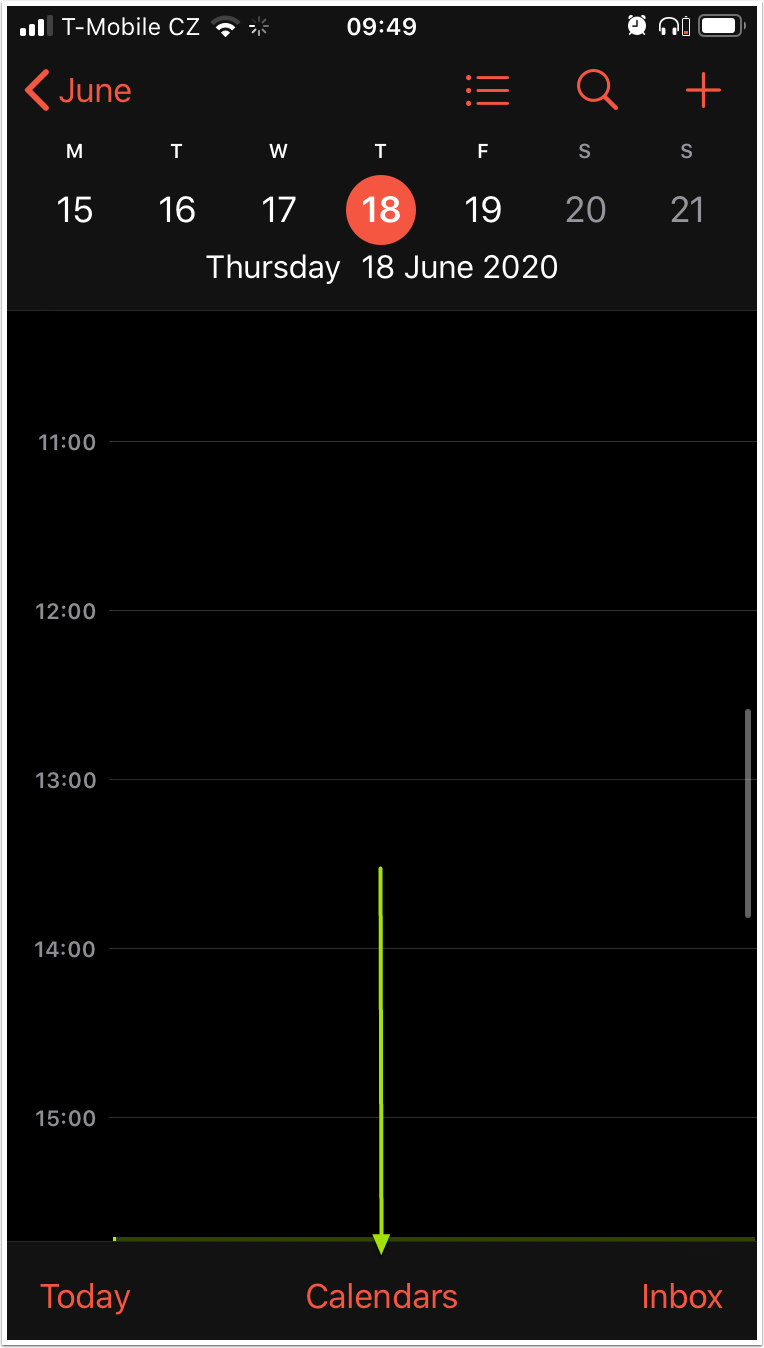
Go to your iPhone calendar. Click on **Calendars** link at the bottom.
[](https://help.atollon.com/uploads/images/gallery/2020-06/iphone-cal-7.png)
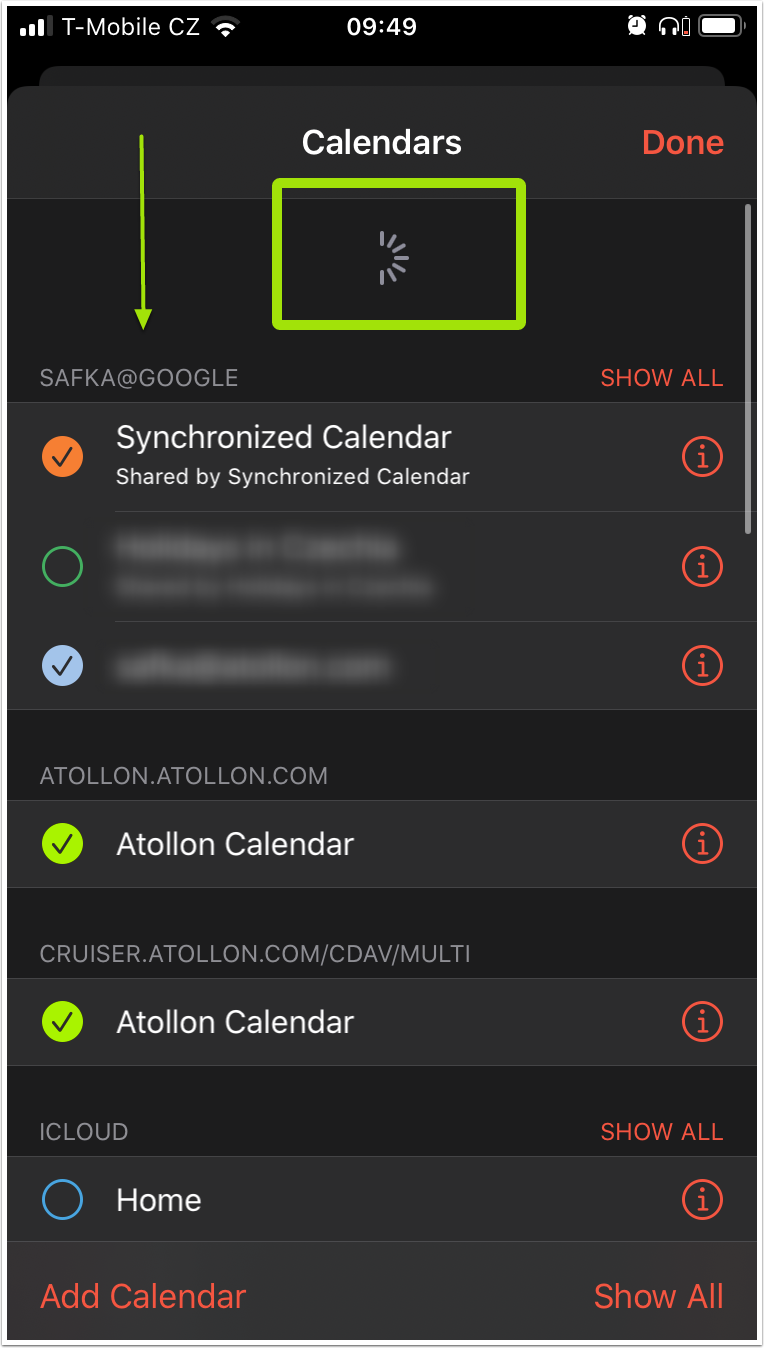
#### Refresh
Just pull the settings screen down and all your calendars in iPhone will refresh.
[](https://help.atollon.com/uploads/images/gallery/2020-06/iphone-cal-8.png)
Enjoy your Atollon calendar in iPhone :-)
# Atollon Calendar in Mac OS X
### Mac OS X Calendar Settings
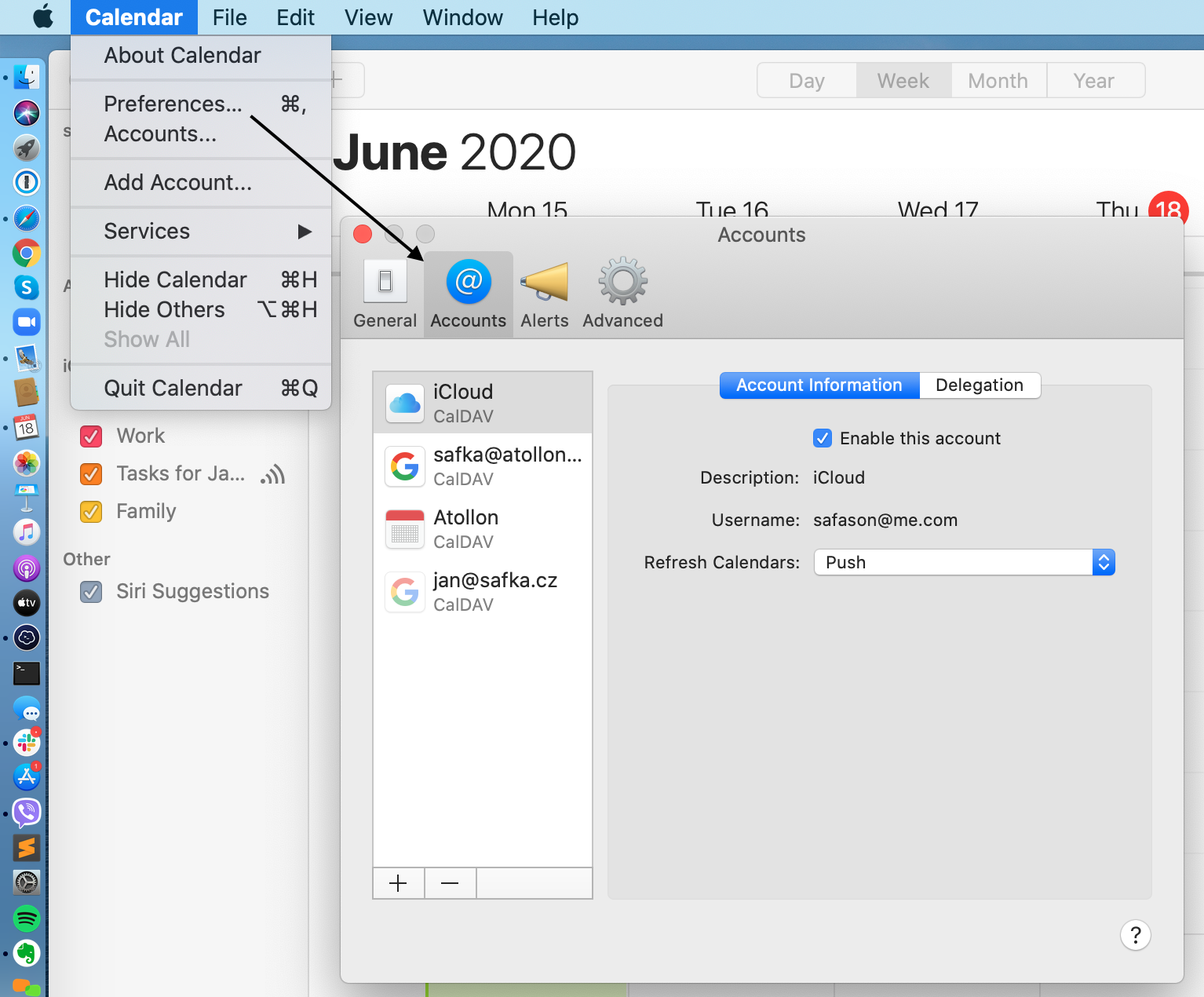
##### **Go to Calendar > Preferences > Accounts**
[](https://help.atollon.com/uploads/images/gallery/2020-06/macosx-calendar-1.png)
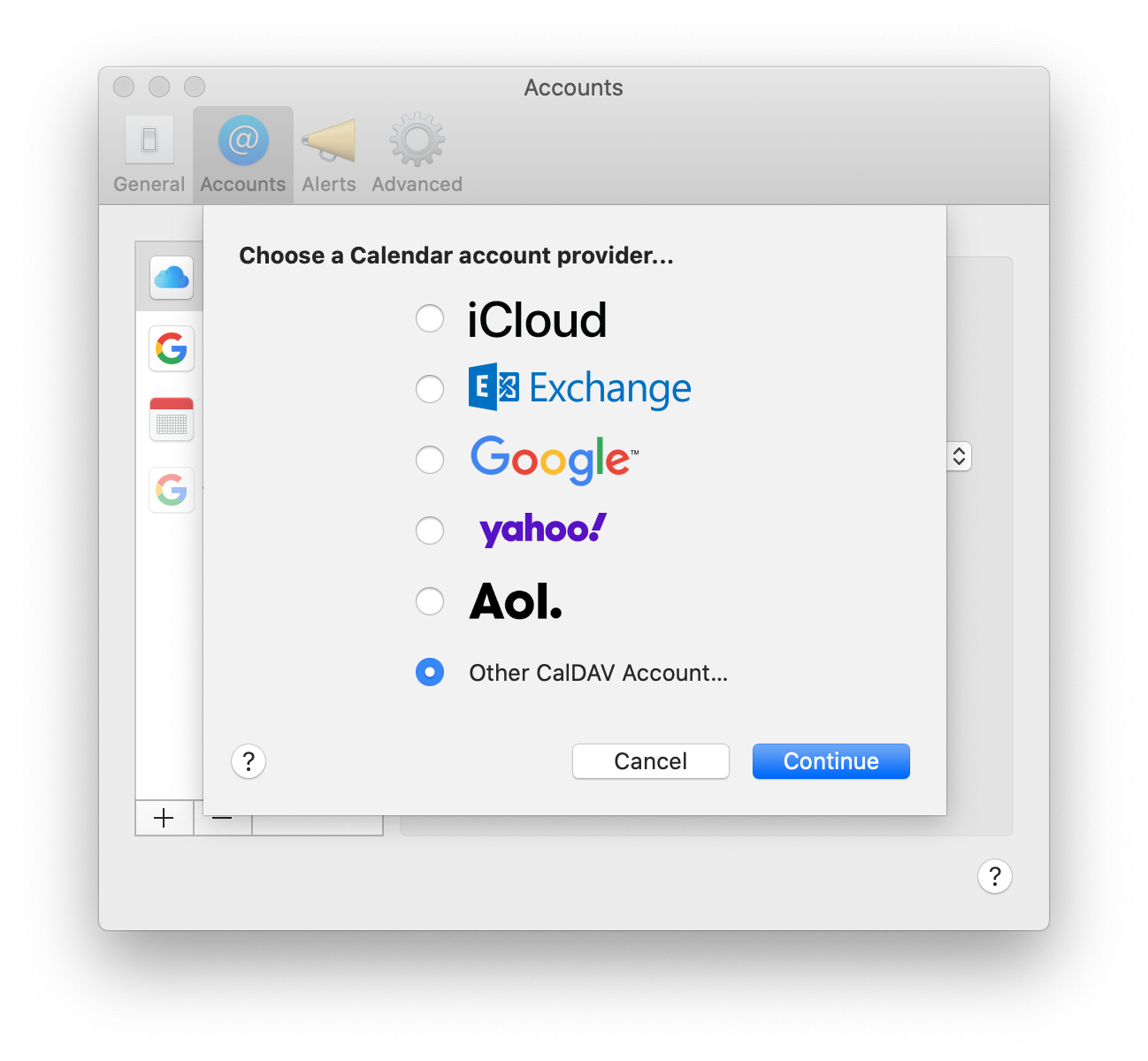
##### **Add new Other CalDAV Account**
[](https://help.atollon.com/uploads/images/gallery/2020-06/macosx-calendar-2.png)
##### **Select Account Type: Advanced**
[](https://help.atollon.com/uploads/images/gallery/2020-06/macosx-calendar-4.png)
# Atollon Calendar in Android
If you want to use Atollon CalDAV calendar API, please make sure you recently changed your Atollon's user password.
Below you can find a guide on how to set-up your access to Atollon calendar using One Caledar application for Android 10.
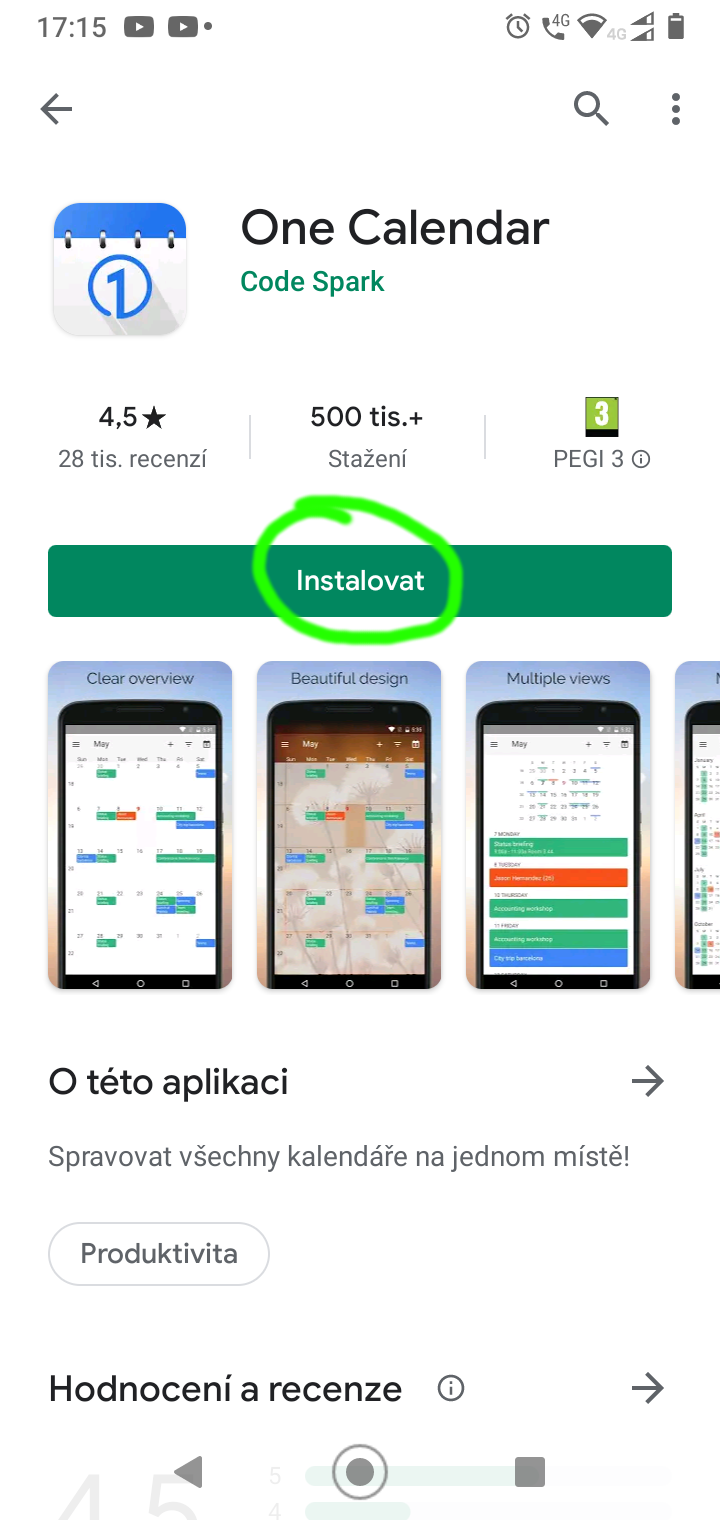
##### From GooglePlay app store install One Caledar
[](https://help.atollon.com/uploads/images/gallery/2020-07/Screenshot_20200720-2.png)
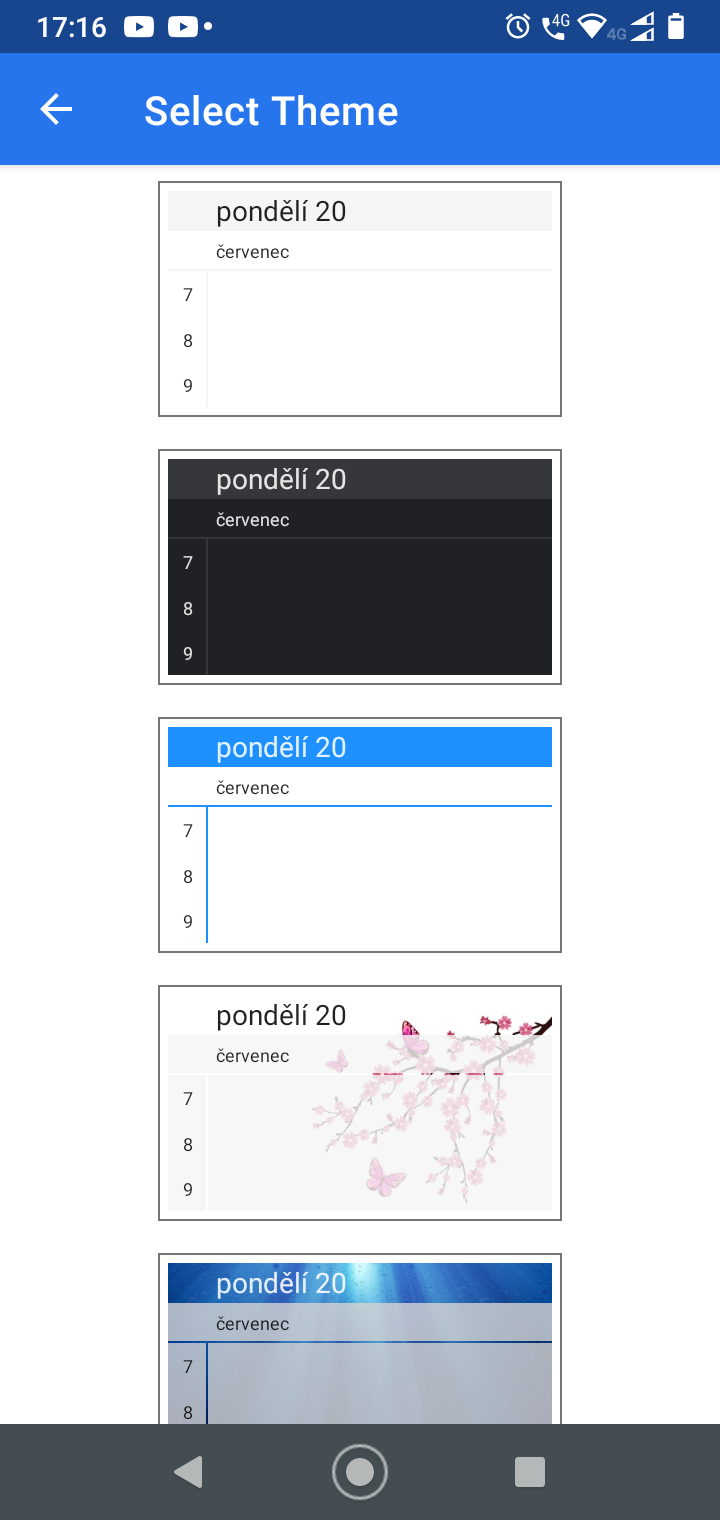
##### Open OneCaledar application and slect preffered theme
[](https://help.atollon.com/uploads/images/gallery/2020-07/Screenshot_20200720-3.png)
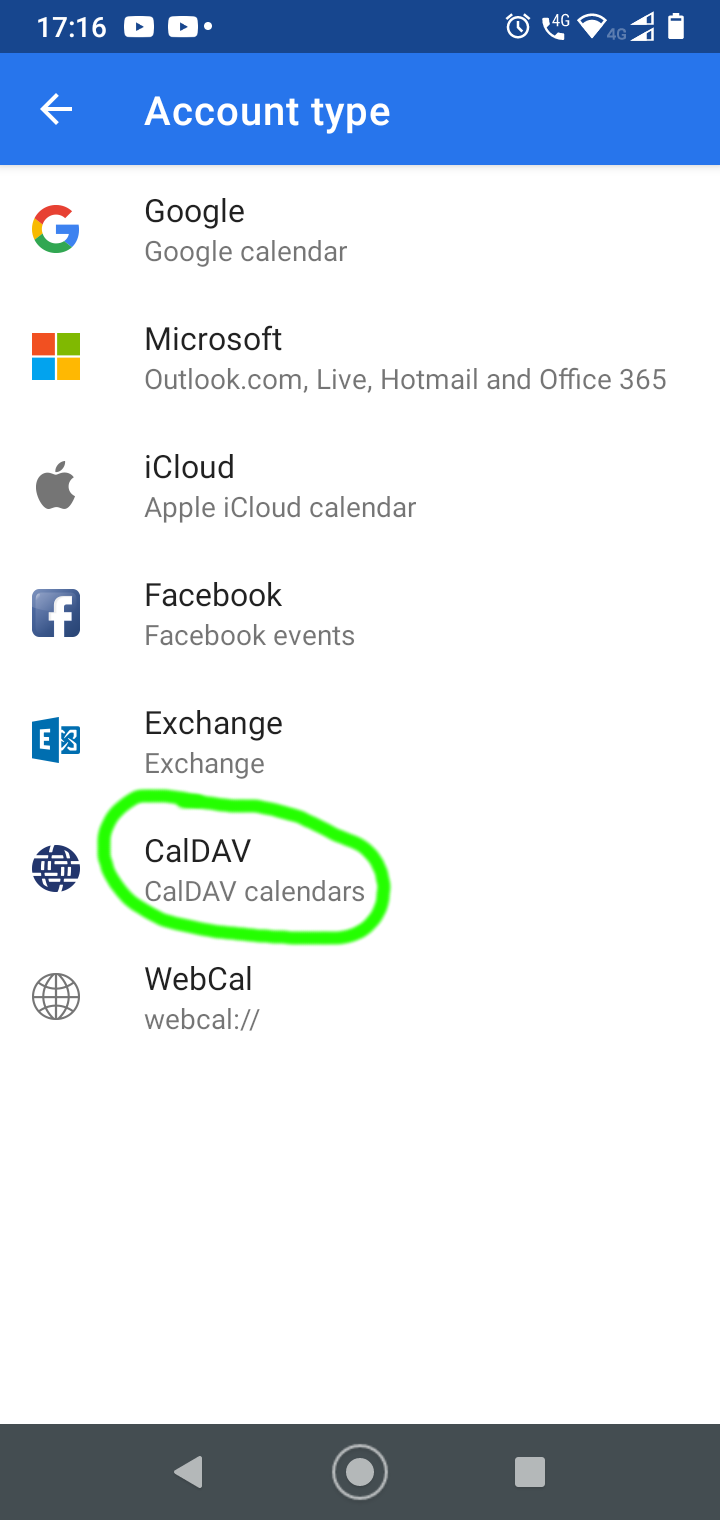
##### Select account type CalDAV
[](https://help.atollon.com/uploads/images/gallery/2020-07/Screenshot_20200720-4.png)
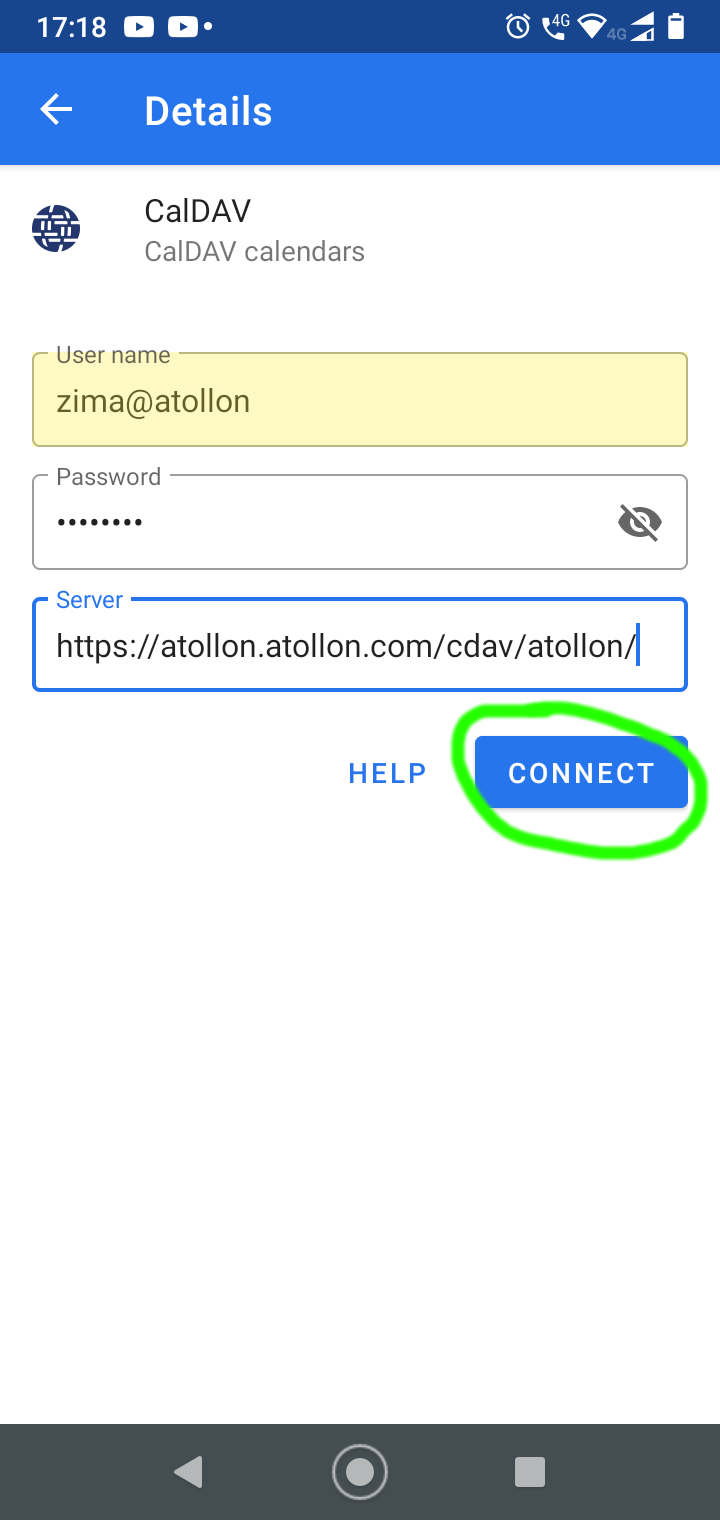
##### Fill-in Atollon CalDAV account details and push Connect button
[](https://help.atollon.com/uploads/images/gallery/2020-07/Screenshot_20200720-5.png)
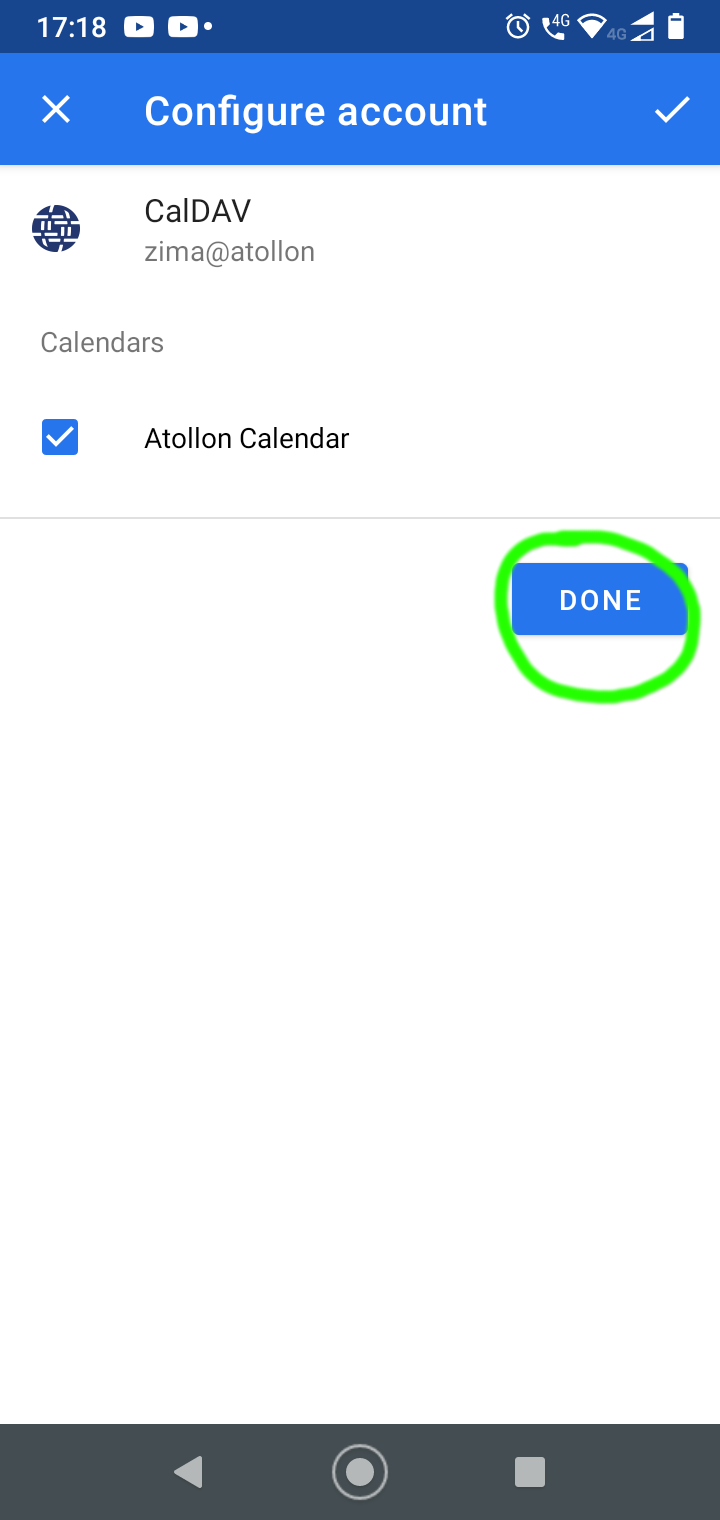
##### Check found Atollon caledar and push Done button
[](https://help.atollon.com/uploads/images/gallery/2020-07/Screenshot_20200720-6.png)
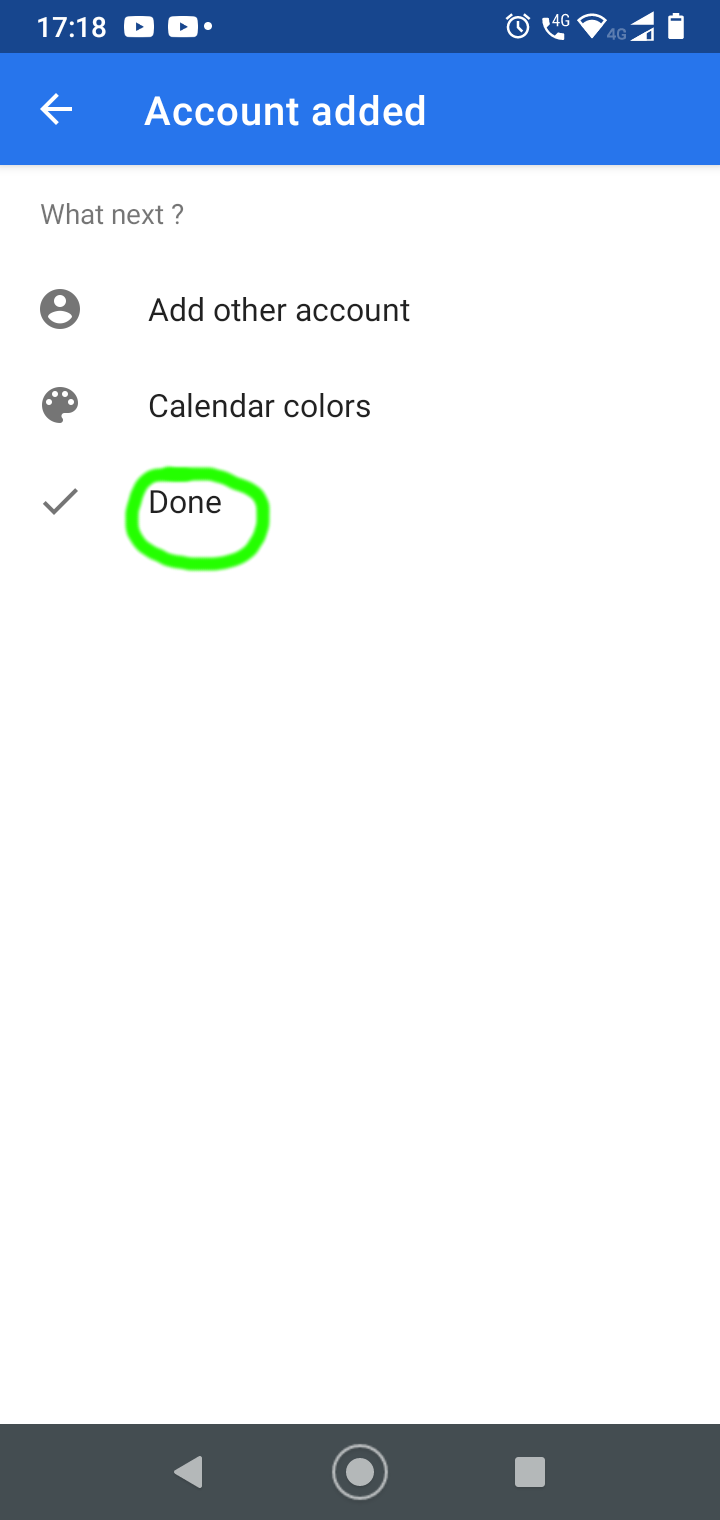
##### Done
[](https://help.atollon.com/uploads/images/gallery/2020-07/Screenshot_20200720-7.png)
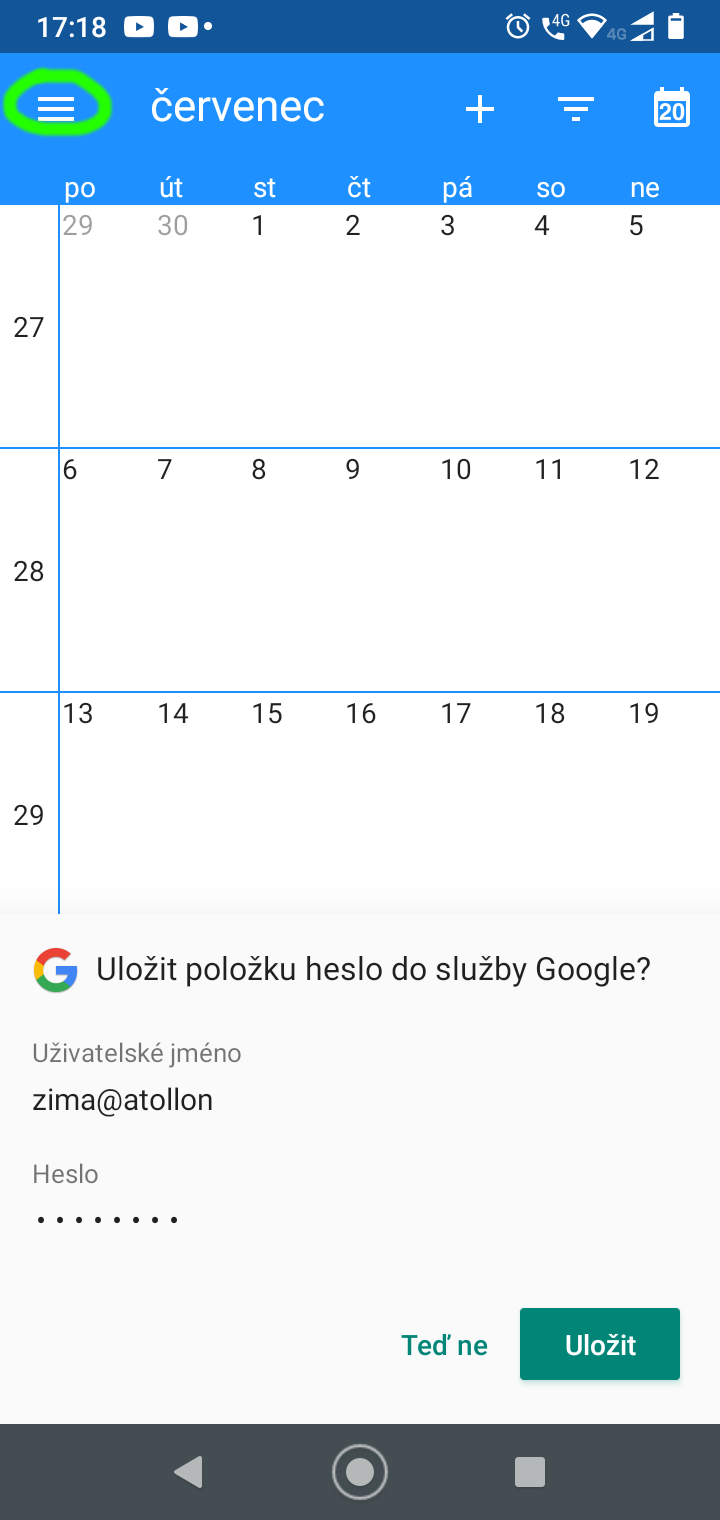
##### Optionally save account credentials and push menu symbol
[](https://help.atollon.com/uploads/images/gallery/2020-07/RBuScreenshot_20200720-8.png)
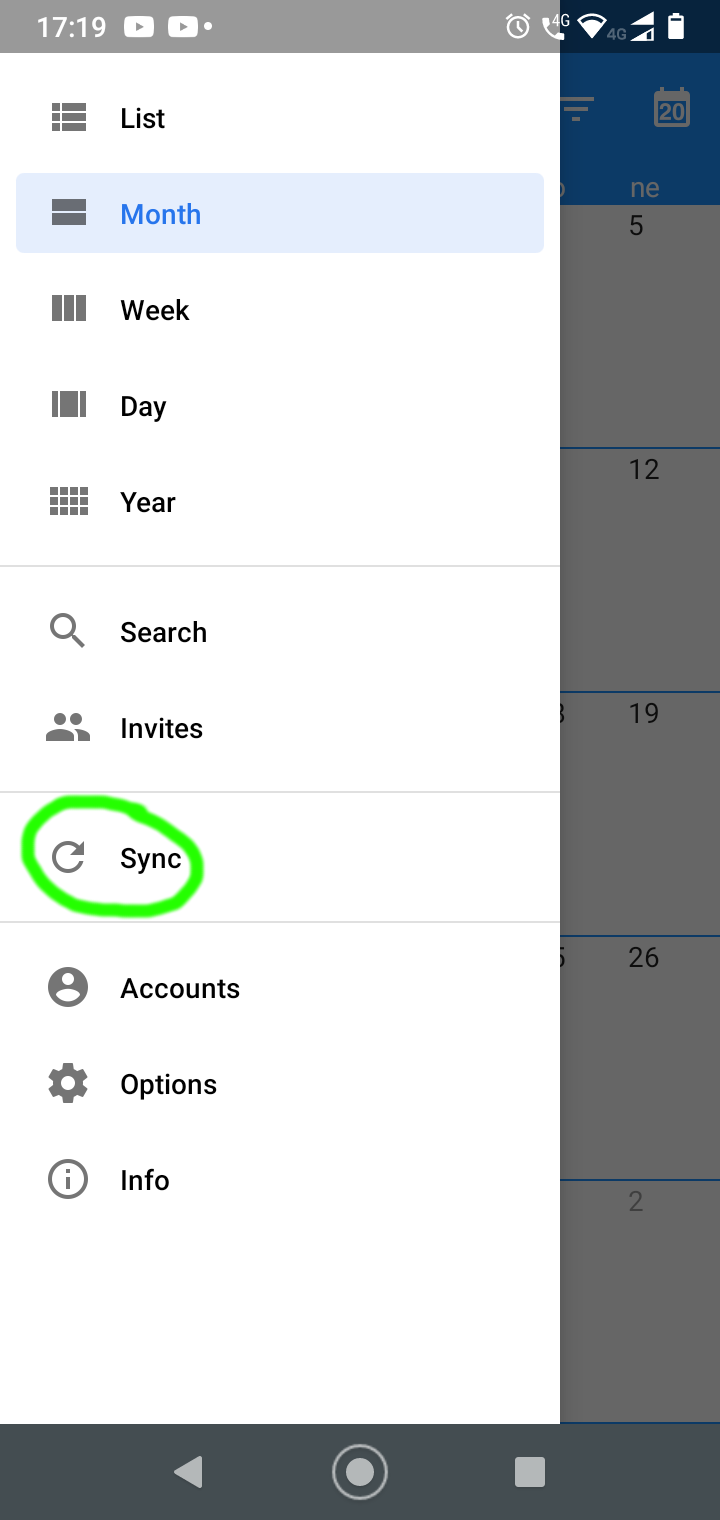
##### To refresh calendar data push Sync
[](https://help.atollon.com/uploads/images/gallery/2020-07/WKwScreenshot_20200720-9.png)
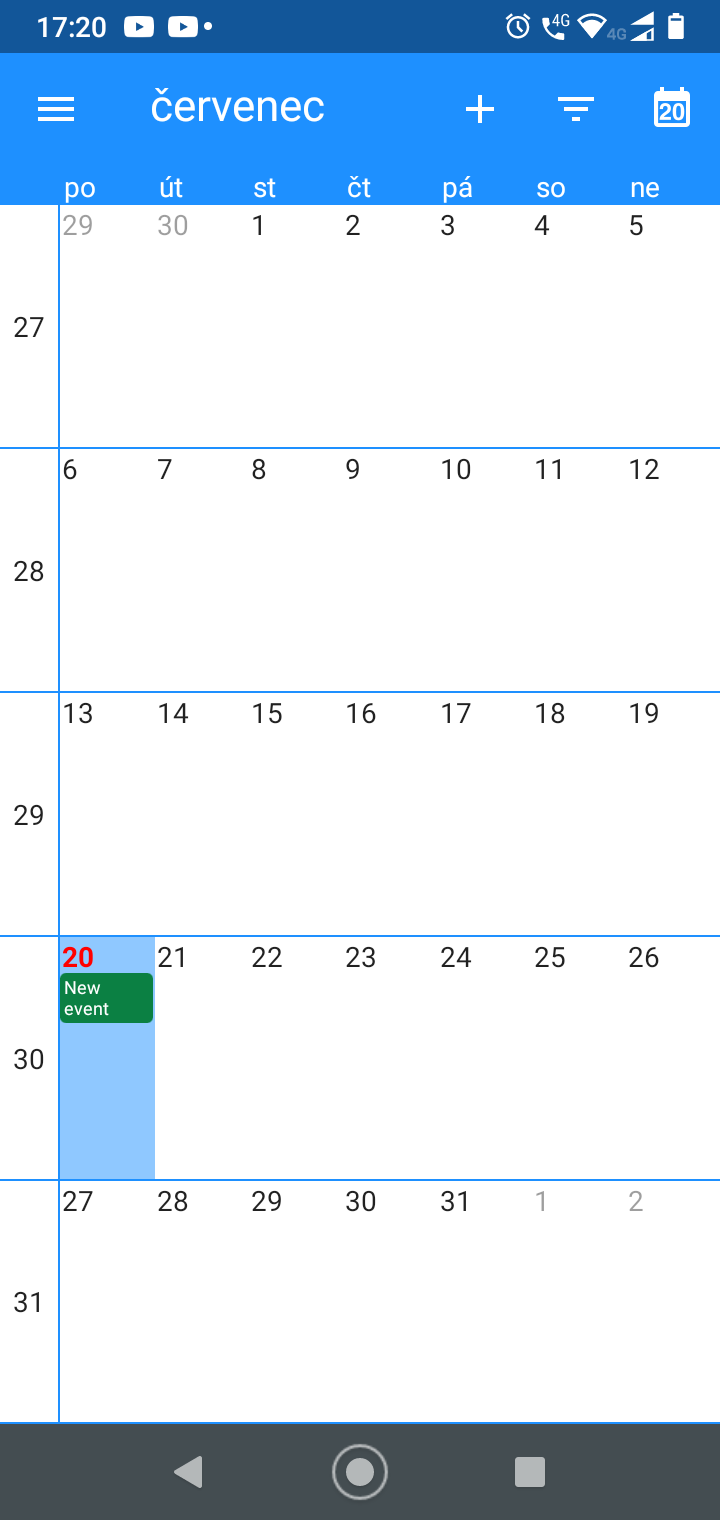
##### Got new event from Atollon CalDAV
[](https://help.atollon.com/uploads/images/gallery/2020-07/Screenshot_20200720-10.png)
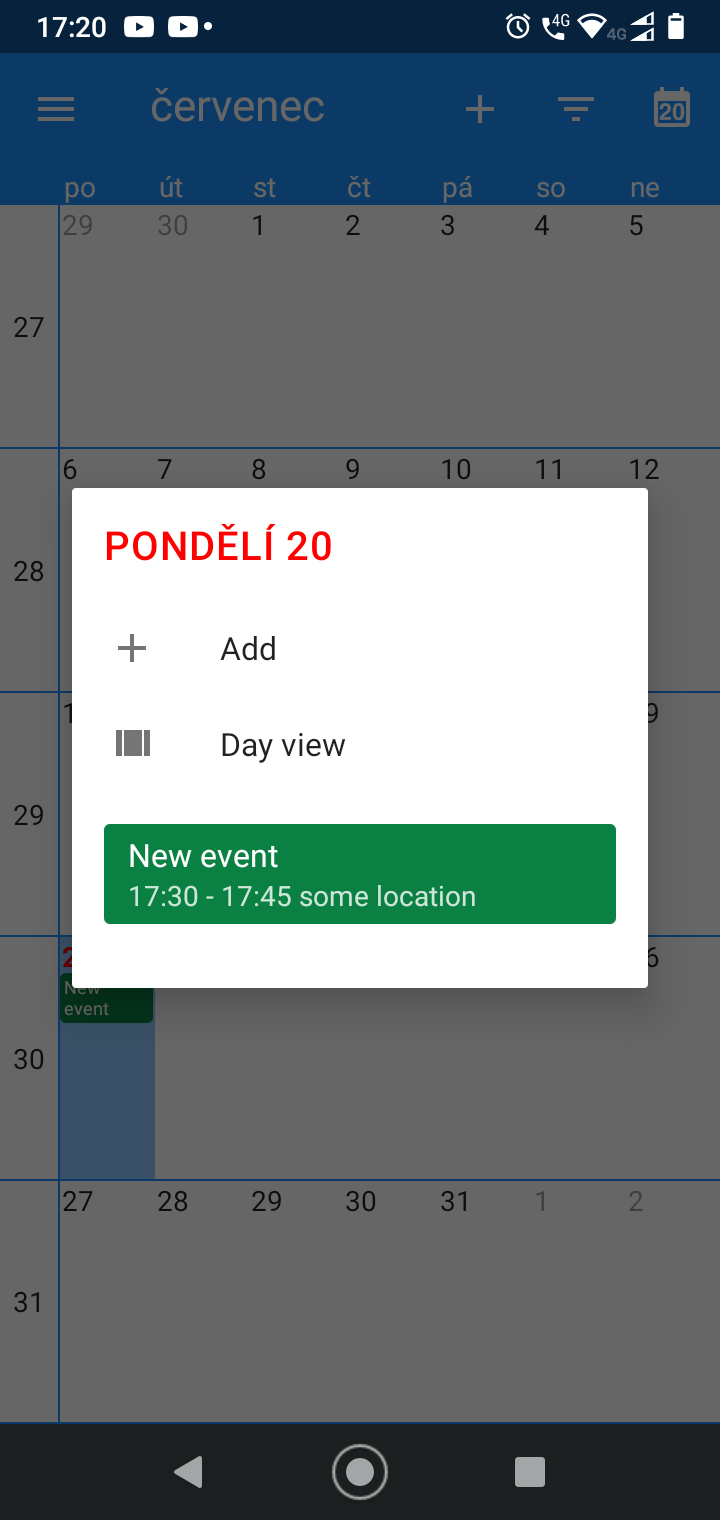
##### Click New event to show detail
[](https://help.atollon.com/uploads/images/gallery/2020-07/Screenshot_20200720-11.png)
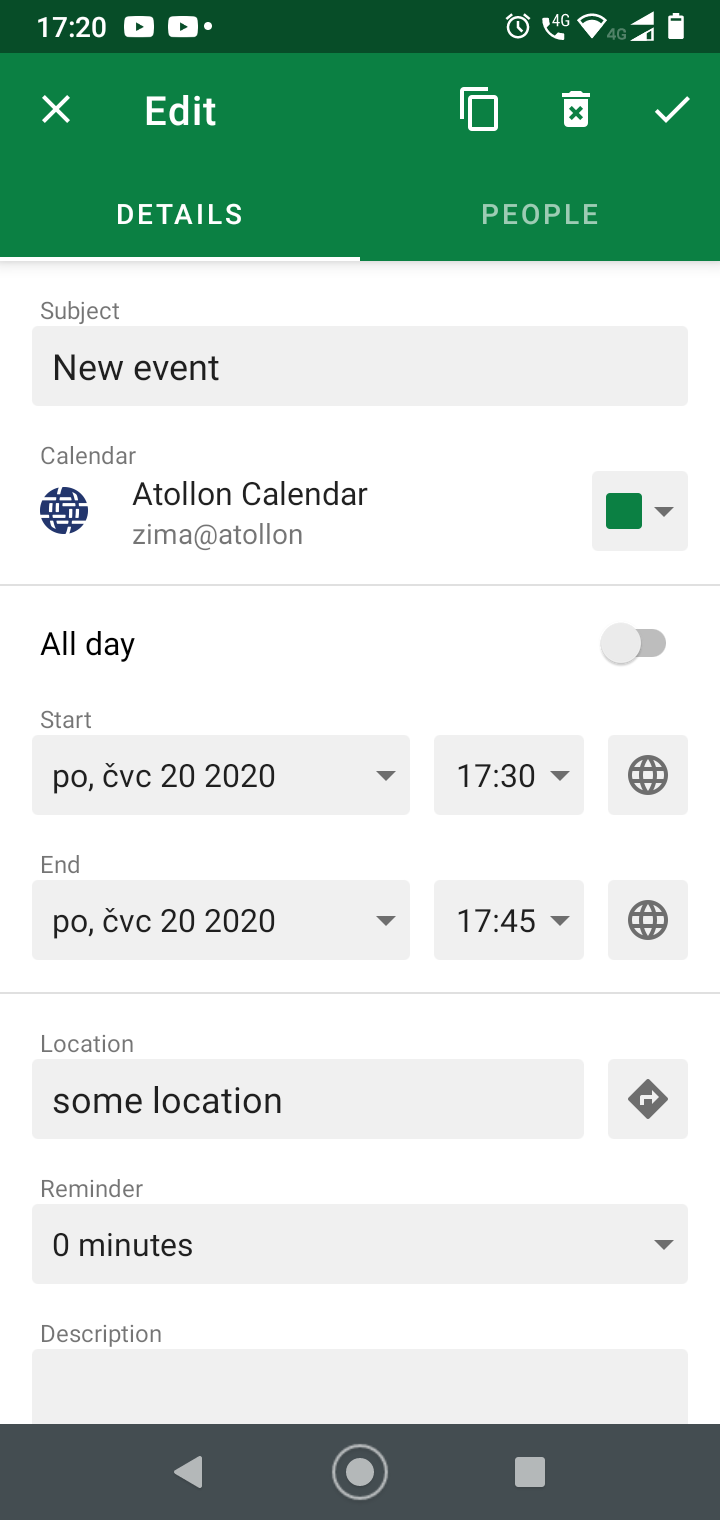
##### Click New event to edit event
[](https://help.atollon.com/uploads/images/gallery/2020-07/Screenshot_20200720-12.png)
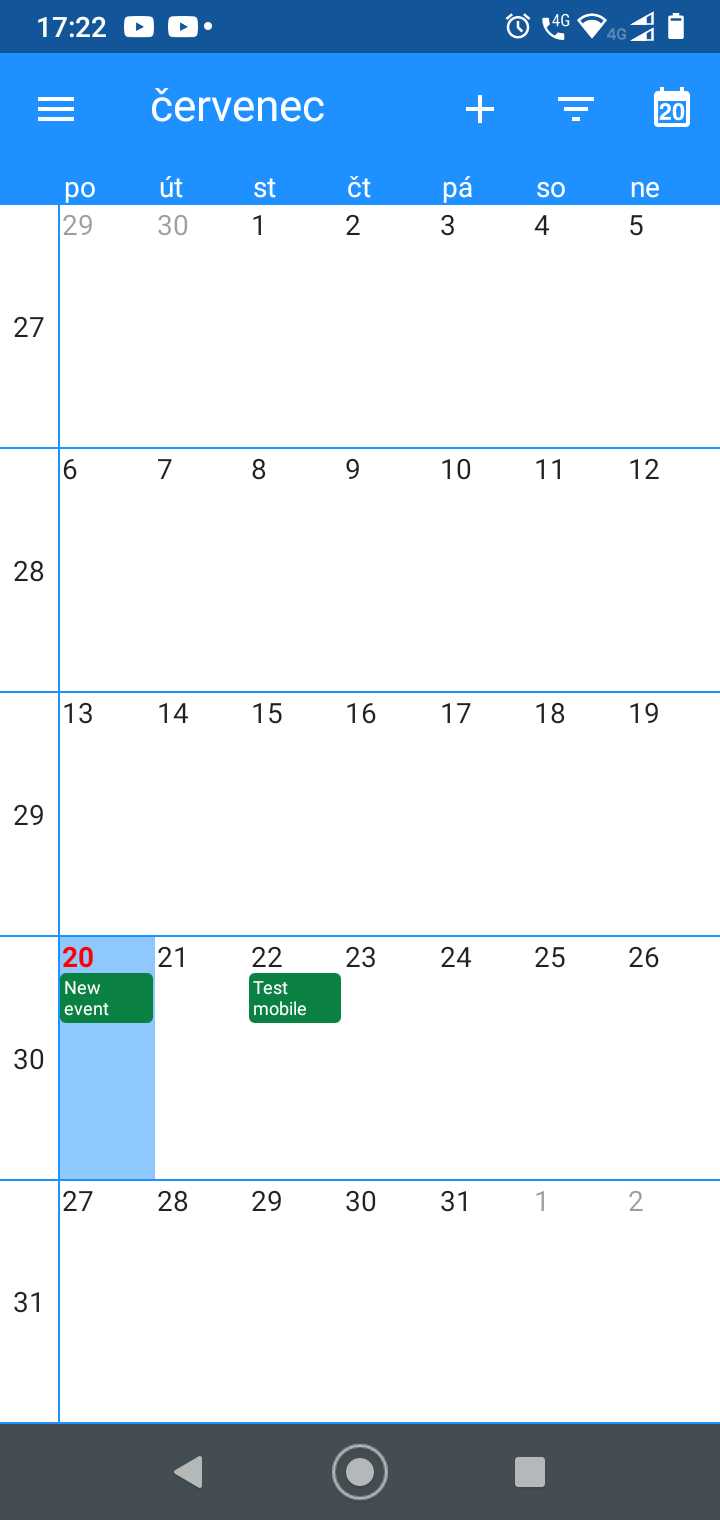
##### Click somewhere in the calendar to Add event
[](https://help.atollon.com/uploads/images/gallery/2020-07/Screenshot_20200720-14.png)
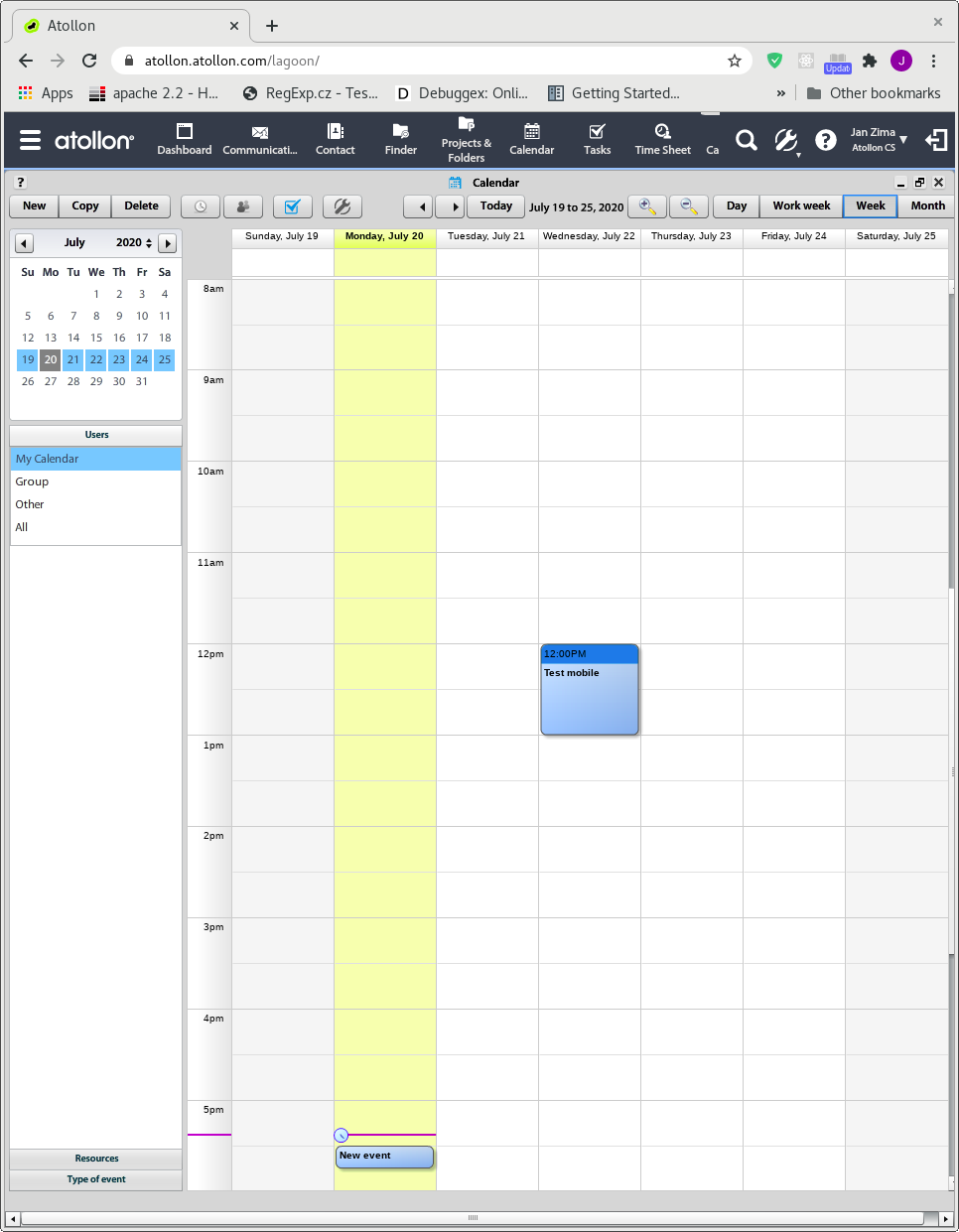
##### See event in Atollon Calendar, after view change
[](https://help.atollon.com/uploads/images/gallery/2020-07/lagoon_calendar.png)
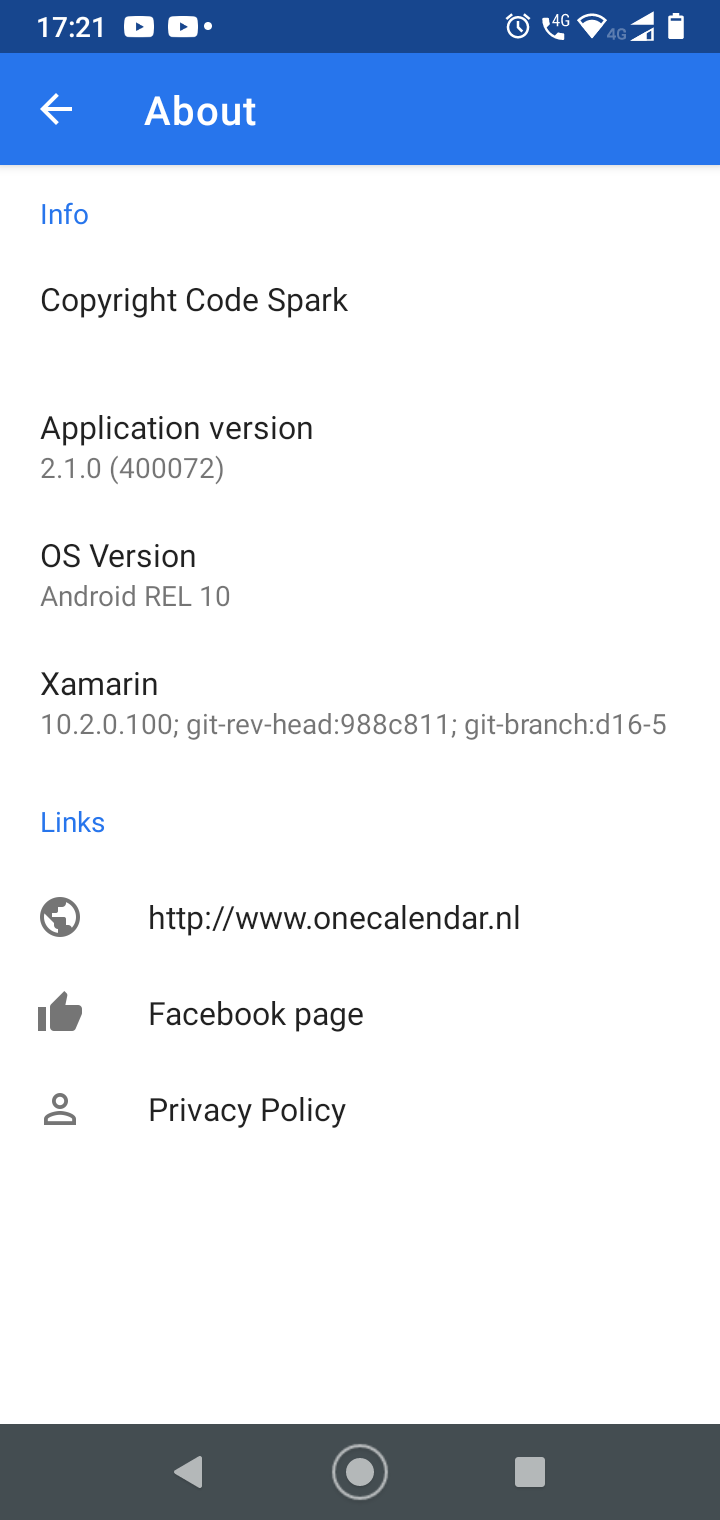
##### Aplication details
[](https://help.atollon.com/uploads/images/gallery/2020-07/mytScreenshot_20200720-13.png)
##### [One Callendar FAQ](https://www.onecalendar.nl/support/faq "One Callendar FAQ")